Periodical search
Introduction
Periodical search allows users to automate recurring searches in contentACCESS Portal. A periodical search is executed automatically by the Task runner according to a configured recurrence and other parameters. This allows users to monitor sensitive data and detect potential data leakage without manually repeating the same search.
The search is performed only on entities that are available to the user based on their roles and permissions.
Permissions
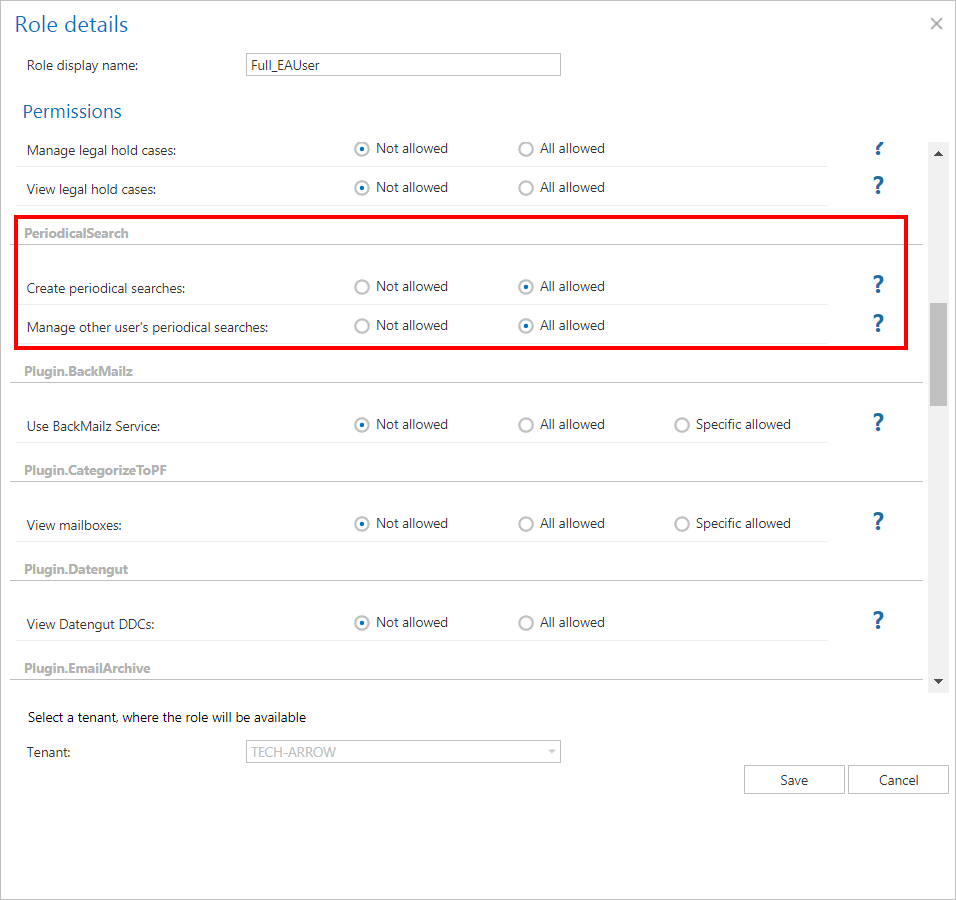
Two permissions related to periodical searches can be assigned in Central Administration:
-
Create periodical search – Allows the user to create and manage their own periodical searches, including viewing and deleting them.
-
Manage other's periodical searches – Allows the user to view other users' periodical searches at the tenant or system level, based on the assigned roles.
With this permission, the user cannot create a periodical search. The user can only view, enable or disable, and delete periodical searches for the tenants where they have the required permissions.
If the user previously had the Create periodical search permission but this permission was removed, they can still view their own periodical searches.
Create a periodical search
First, perform a search in contentACCESS Portal. The search parameters used for this search are also used when the periodical search is created.
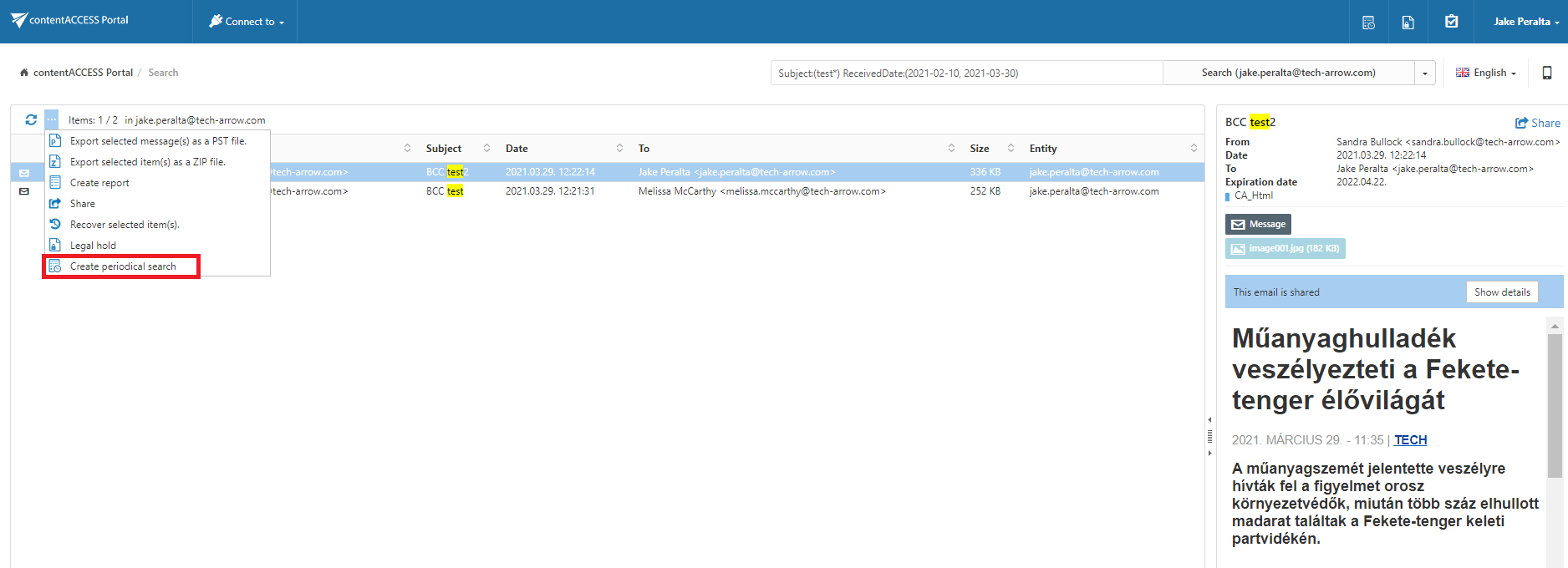
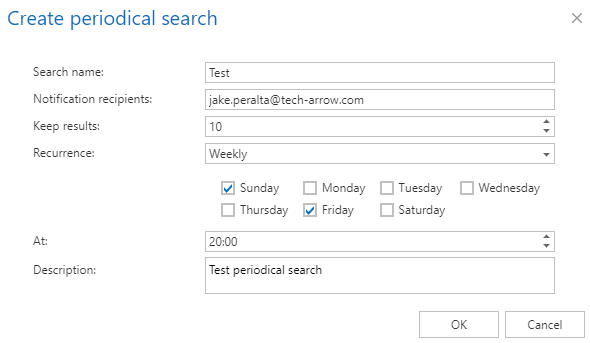
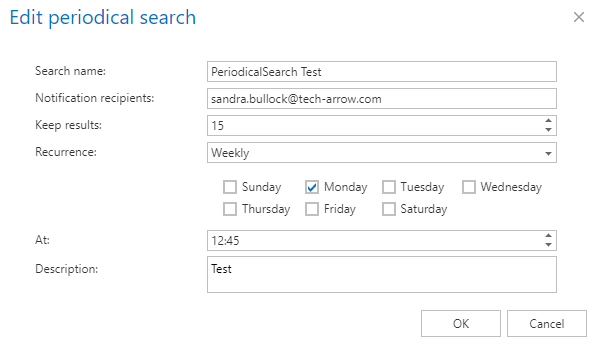
After performing the search, click the Periodical search button. A pop-up window opens where the following parameters can be configured:
- Search name – Name of the periodical search.
- Notification recipients (split by ";") – Email addresses of the users who will receive the notification email. The notification email is sent by the notification job.
- Tenant – Tenant on which the search will be performed. Only tenants available to the user are listed in the drop-down list.
- Keep results – Number of search results that will be stored in the database.
- Recurrence – Defines when the search is performed. The recurrence can be configured weekly on selected day(s) at a selected time or monthly on selected day(s) at a selected time.
- Description – Description of the periodical search.
Manage periodical searches
To view all available periodical searches, click the Periodical search button in the upper-right corner of the contentACCESS Portal user interface.

The following actions are available:

-
Refresh – Refreshes the list of periodical searches.
-
View details – Opens the details of the selected periodical search.
-
Edit – Allows you to edit the periodical search configuration.
-
Enable/disable – Enables or disables the selected periodical search. A disabled periodical search does not perform any actions and is displayed with a grey background.
-
Delete – Deletes the selected periodical search.
View periodical search details
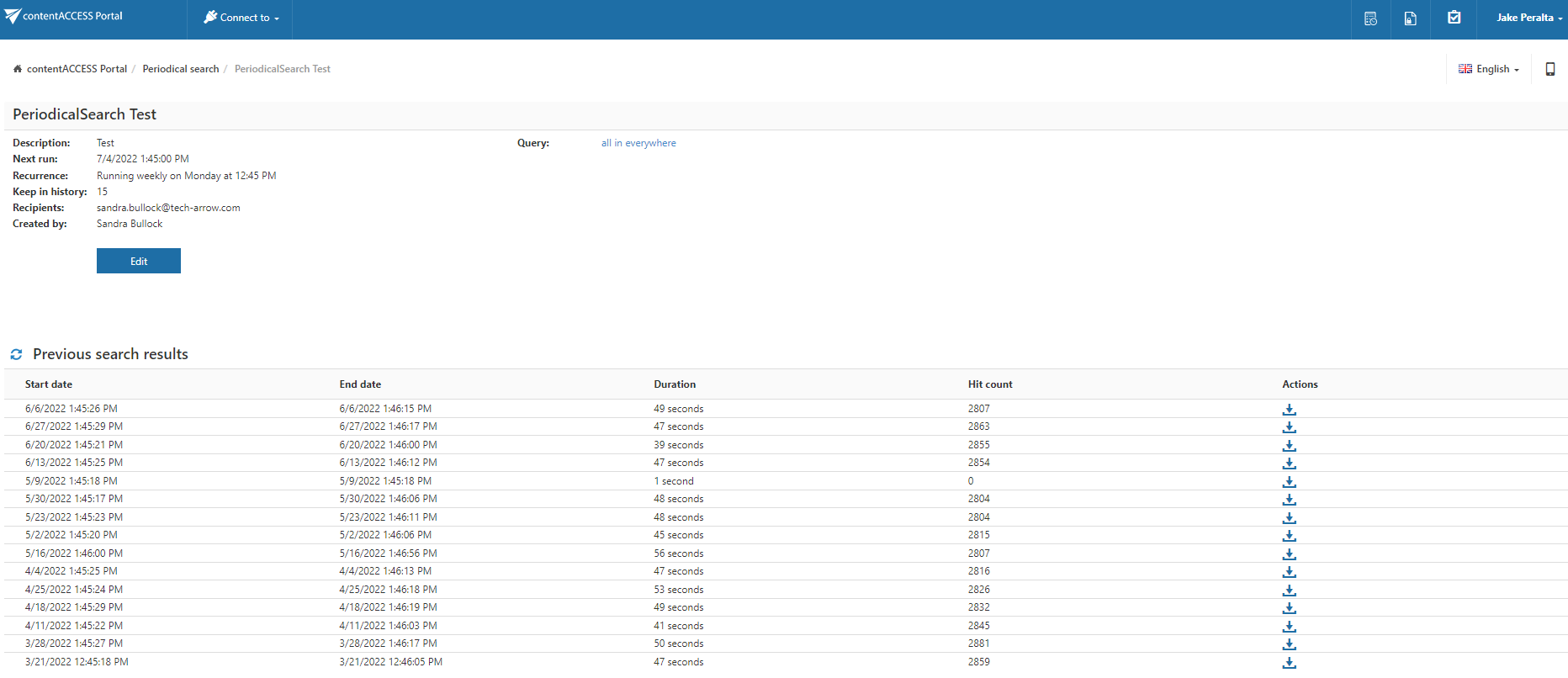
The details page displays information about the selected periodical search.
The Query displays all search parameters of the periodical search, based on the search from which the periodical search was created. Click the query link to perform the defined search again.
The previous search result summary is displayed in the grid below the query. The grid contains:
- Start date
- End date
- Duration
- Total hit count
A report file can also be downloaded from the Actions column.
The report file contains a detailed summary, including the list of emails, files, and database records from which the search results originate.
Edit a periodical search
The Edit function allows you to set or change the same parameters that are available when creating a periodical search after performing a search.
History management
Every periodical search has a defined Keep in history property. This property corresponds to the Keep results value configured when creating the periodical search.
The configured value determines how many previous search results are stored:
- In the database.
- In the corresponding report file on the resource storage.
Task runner processing
The Task runner processes periodical searches according to their configured recurrence.
When a periodical search is found
When the Task runner finds a periodical search, the following processing takes place:
-
The IsActive status is checked.
-
If the search is marked as deleted, the corresponding history items and report files are removed. The definition and configuration of the periodical search are also removed.
-
If the periodical search is disabled, it is skipped by the Task runner.
-
If the periodical search is active, its scheduled time is recalculated according to its recurrence.
For example, if a search is scheduled to run at 10:00 every Wednesday, it is processed at that time and then scheduled for the following Wednesday at 10:00. On other days and at other times, the search is not processed.
-
The Task runner creates a report in the resource storage, creates a new record in the history table, and adds a reporting email to the notification job's queue. History management is also performed during this processing.
-
The report file is available only from contentACCESS Portal. The notification email contains a link to the periodical search details page, where the stored history results can be viewed and compared.
This also ensures that the report itself is not directly available to users who do not have the required permissions.
-
To share the report with another user, save the report file and send it to the user. The sharing app can also be used to share the report.