SharePoint archive tasks
SharePoint Archive tasks
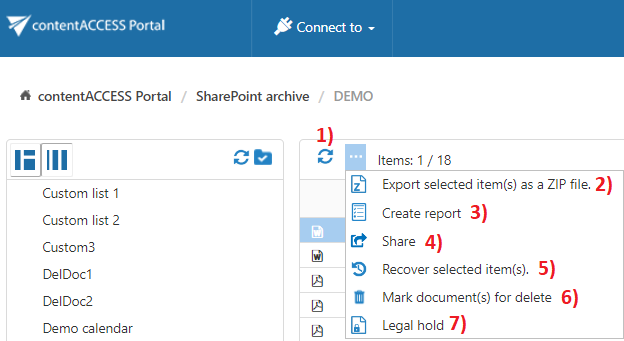
By default, the following tasks can be triggered on selected SharePoint Archive items and folders using the toolbar buttons:
- Refresh
- Export selected item(s) as a ZIP file
- Create report
- Share item(s)
- Recover selected item(s)
- Mark document(s) for delete
- Legal hold
The SharePoint Archive tasks can be enabled or disabled by the administrator in the Task types tab. For more information, see Enabling/disabling tasks.
Users can select:
- The whole folder structure on the root.
- A recursive folder structure.
- Child folders.
- Items.
For more information, see Folder selection methods.
Refresh
Use Refresh to reload the item list when items are not yet displayed or the list needs to be updated.
Export to ZIP
To export SharePoint Archive items or folders as a ZIP file:
- Select the required items from the list view or select the required nodes in the navigation pane.
- Click Export selected item(s) as a ZIP file above the list view.
The selected items are compressed into a ZIP file in the background on the server. The exported items and folders can be downloaded from the Tasks list.
For more information, see Download of export actions.
Create report
The Create report task creates a report containing information about the selected items.
For more information, see Create report.
Share item(s)
The Share item(s) option allows users to create links pointing to the selected items, which can then be sent to other users.
For more information, see Share item(s).
Recover selected item(s)
The Recover selected item(s) function allows users to recover deleted items or folders from the archive to their original location on the SharePoint site.
Items can be recovered using either:
- The original modification date.
- The recovery date.
Mark document(s) for delete
The Mark document(s) for delete task allows users to mark or unmark documents for later deletion from the archive by the Delete job.
Users can choose to mark or unmark:
- Only the selected files.
- All files in the current folder.
Select the required action (Mark or Unmark) from the Operation dropdown list and click Create.
Legal hold
The Legal hold task allows users to place selected documents under a legal hold case.
For more information, see Legal hold.