Tasks list
Introduction
The Tasks list allows users to view currently running and completed Export, Recovery, and Delete tasks. From the task list, users can cancel running tasks, download completed export tasks, and delete completed tasks manually or automatically.
View and manage tasks
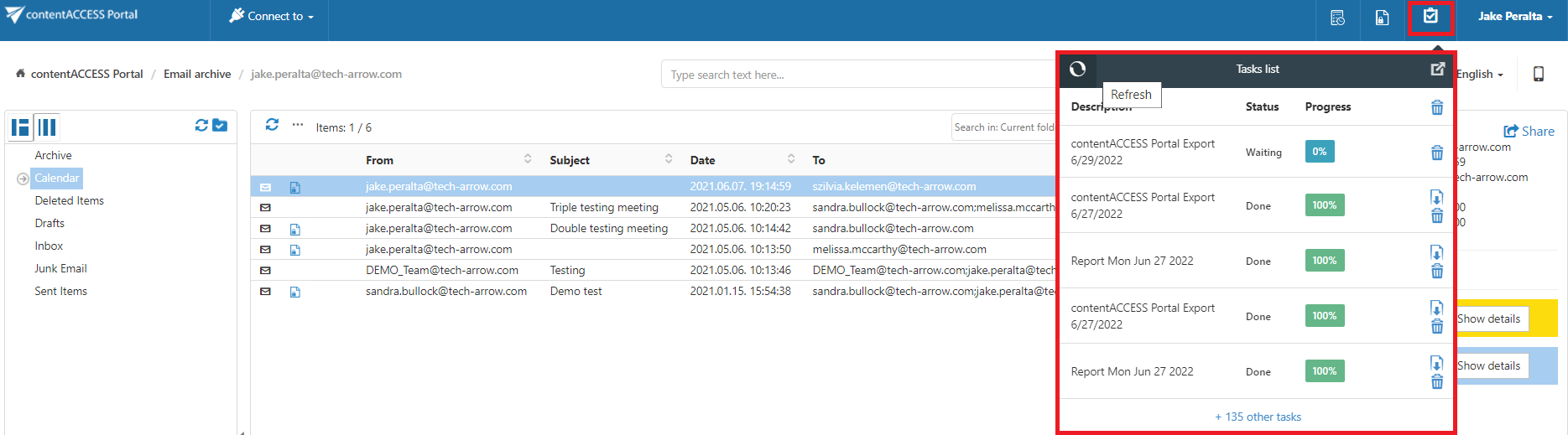
Click the tasks button in the header bar of contentACCESS Portal to expand the Tasks list.
Cancel a running task
Currently running tasks can be cancelled by clicking Cancel in the corresponding row.
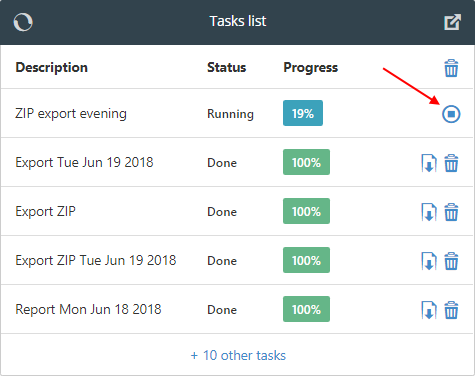
Screenshot: Cancelling an export task
Download and delete completed tasks
Completed export tasks can be downloaded from the Tasks list.
Unnecessary tasks can be deleted manually one by one by clicking the recycle bin icon in the corresponding row. When an export task is deleted, the exported items are also deleted from the server.
To delete all completed tasks, click the bin icon in the first row.
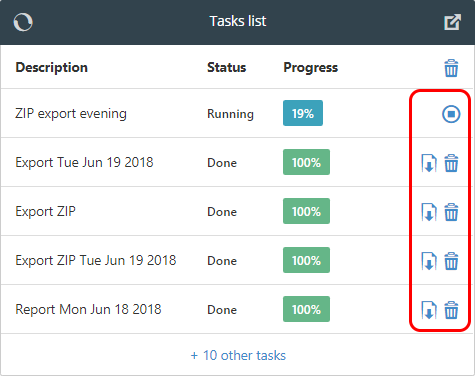
Screenshot: Downloading and deleting tasks
Automatically remove completed tasks
contentACCESS Portal can automatically remove completed tasks after they have been downloaded.
The automatic deletion setting is available under Settings ⇒ Tasks ⇒ Common settings.
To enable automatic deletion, select the Remove task after download checkbox.

Open the complete task list
To open the complete task list on a separate page, click the page icon in the upper-right corner of the Tasks list ( ).
).
This opens the Tasks page.