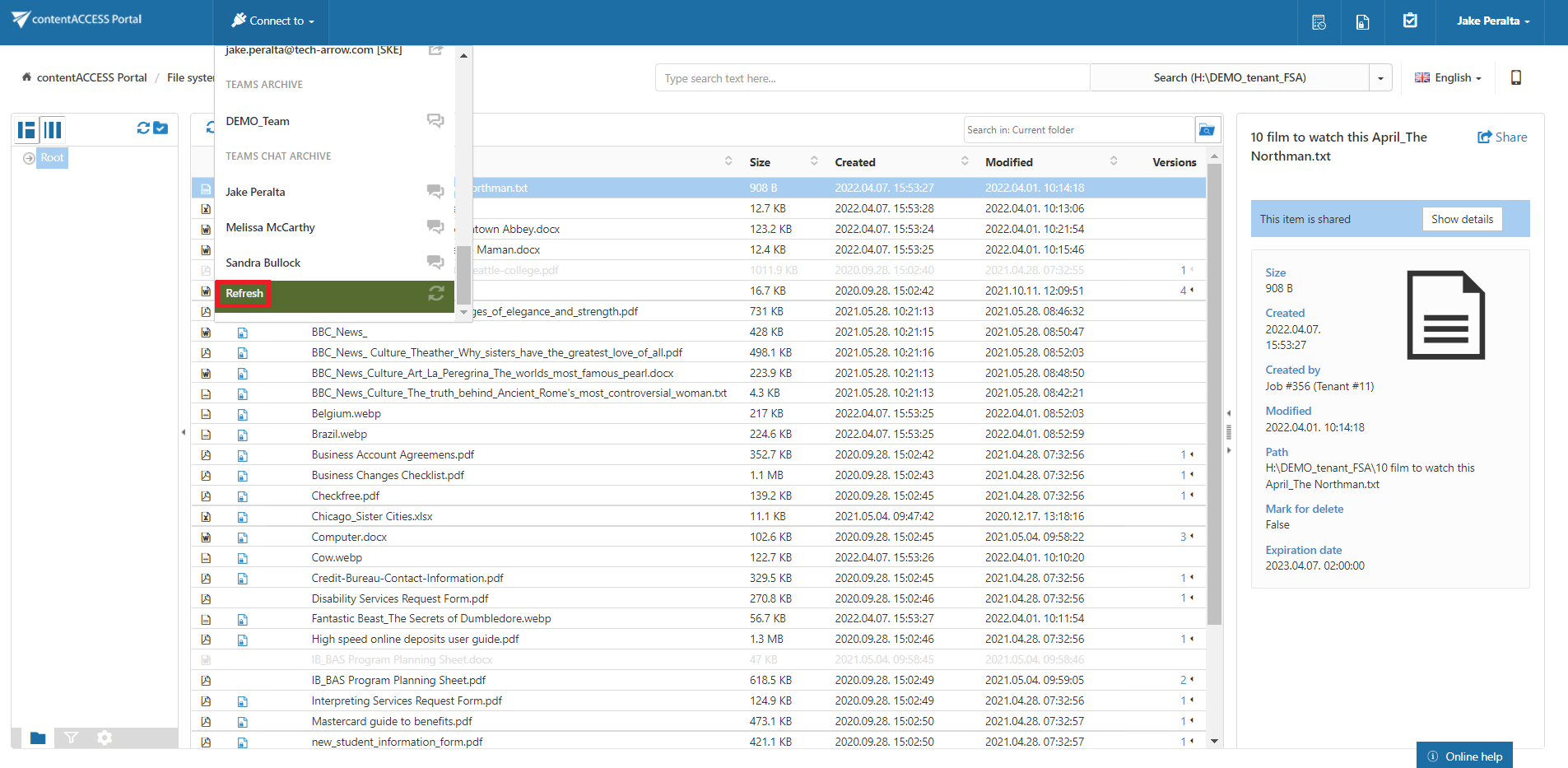
“Connect to” menu
Introduction
The Connect to menu allows users to view and connect to associated entities for which they have access permissions. Users can select an entity directly from the connection list or browse the available entities using the Browse option.
Connect to an entity
In the upper-left part of the header bar, click the Connect to menu to expand the list of associated entities to which you have access.
The available entities are grouped by model type. For example:
- EMAIL ARCHIVE – Displays the associated archived mailboxes.
- FILE SYSTEM ARCHIVE – Displays the associated archived folders from the file system.
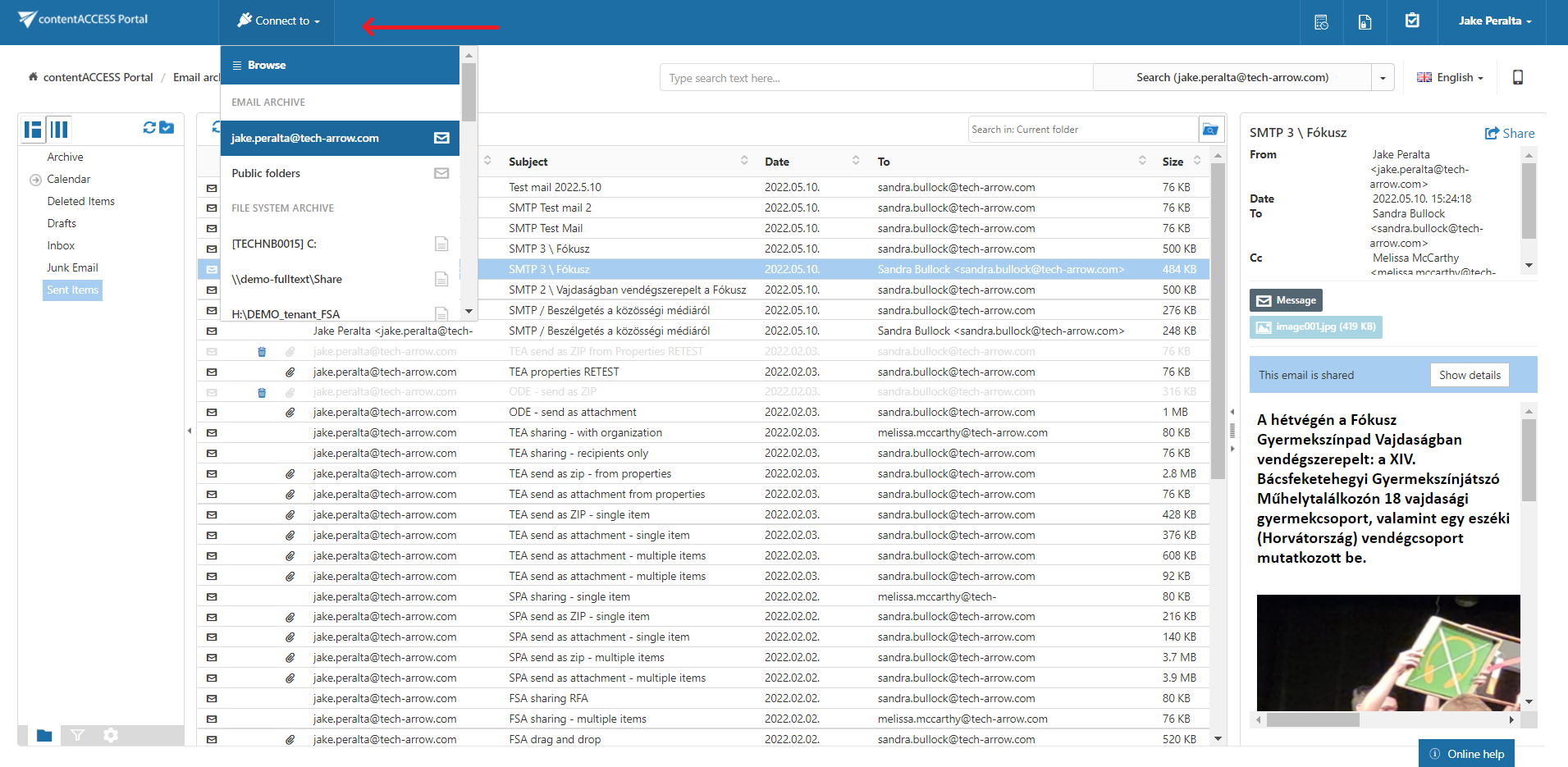
Browse available entities
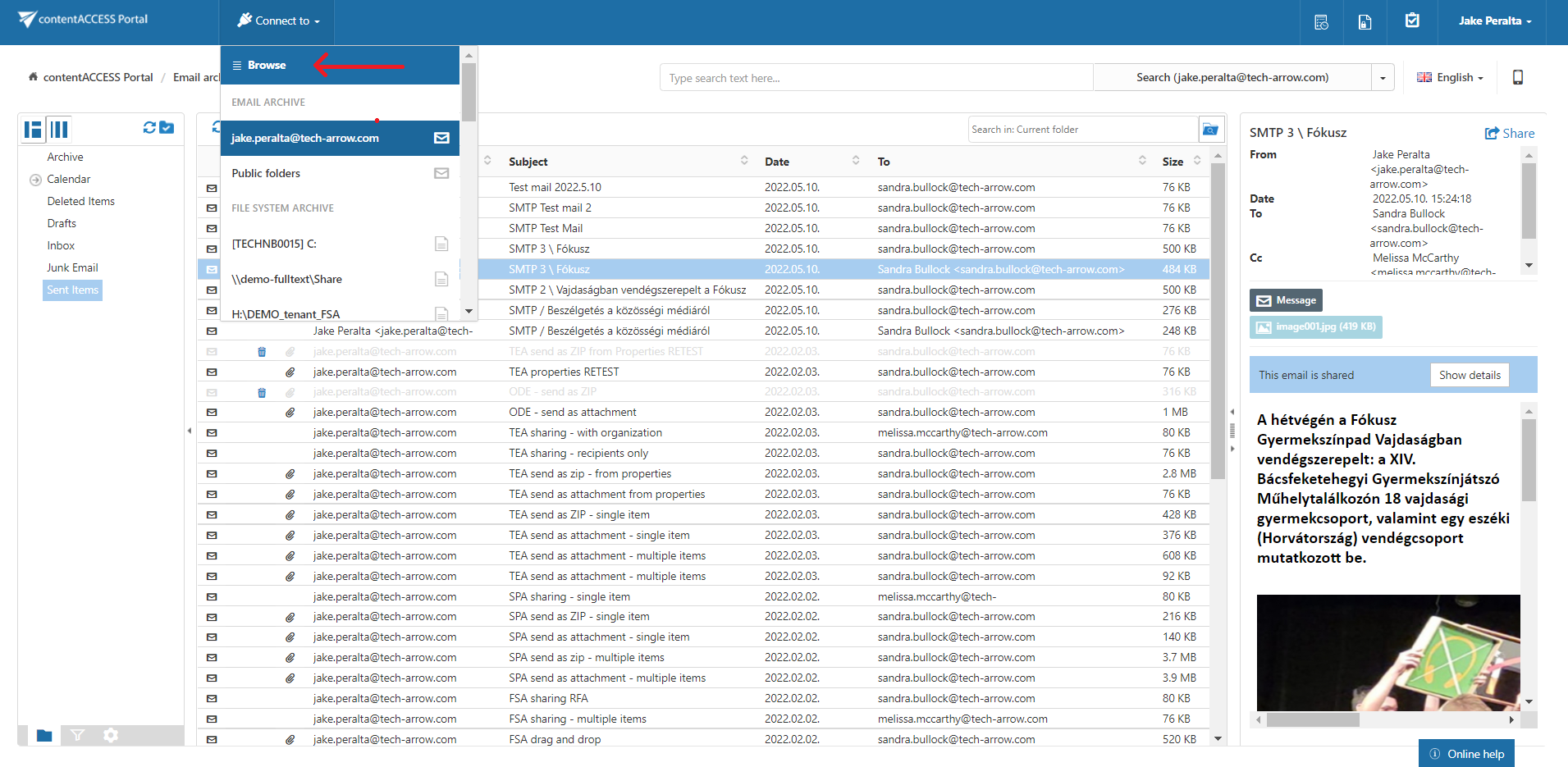
At the top of the connection list, click Browse. A pop-up window opens.
In the Browse window, you can browse the available entities. The grid allows you to:
- Filter entities by tenant.
- Filter entities by model type.
- Search for entities.
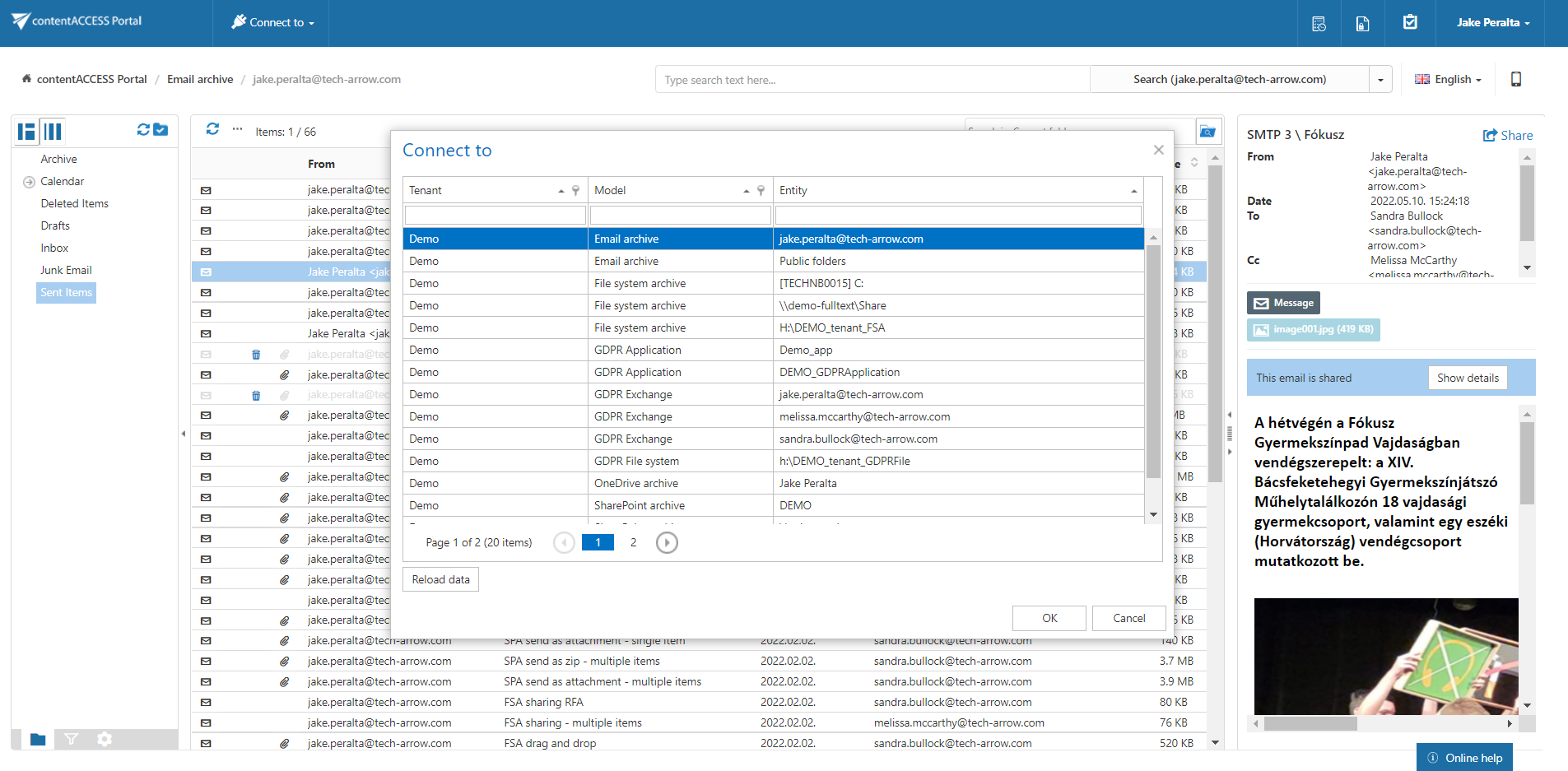
Select an entity and click OK, or double-click an entity to connect to it.
Note: After you connect to an entity, the corresponding breadcrumbs are displayed below the header bar of the contentWEB user interface.

Refresh the connection list
At the bottom of the connection list, click Refresh to update the list. Use this option if newly processed items are not displayed yet.