contentACCESS Portal’s navigation pane
Introduction
The contentACCESS Portal pane displays the folder structure of the selected entity by default. The buttons at the bottom of the pane allow users to switch between the available views and configure how items are handled.
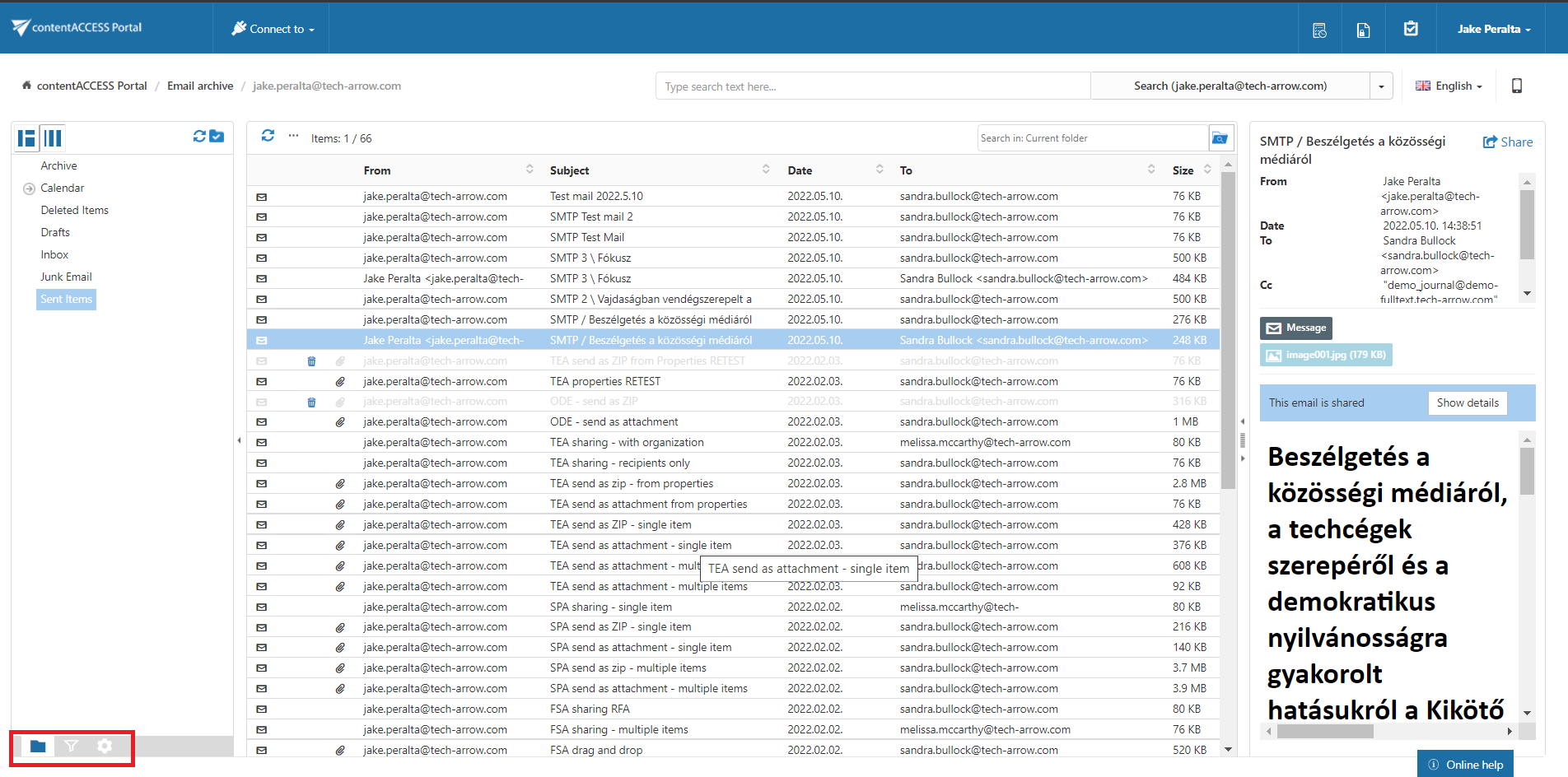
Folders
Click the Folders button to display the selected entity's folder structure in the navigation pane.
To view the content of an entity in contentACCESS Portal:
- Connect to the desired entity from the Connect to drop-down list.
- Select the Folders button in the navigation pane.
- Expand the structure and select the desired folder.
- Click the folder to display its content in the item list.
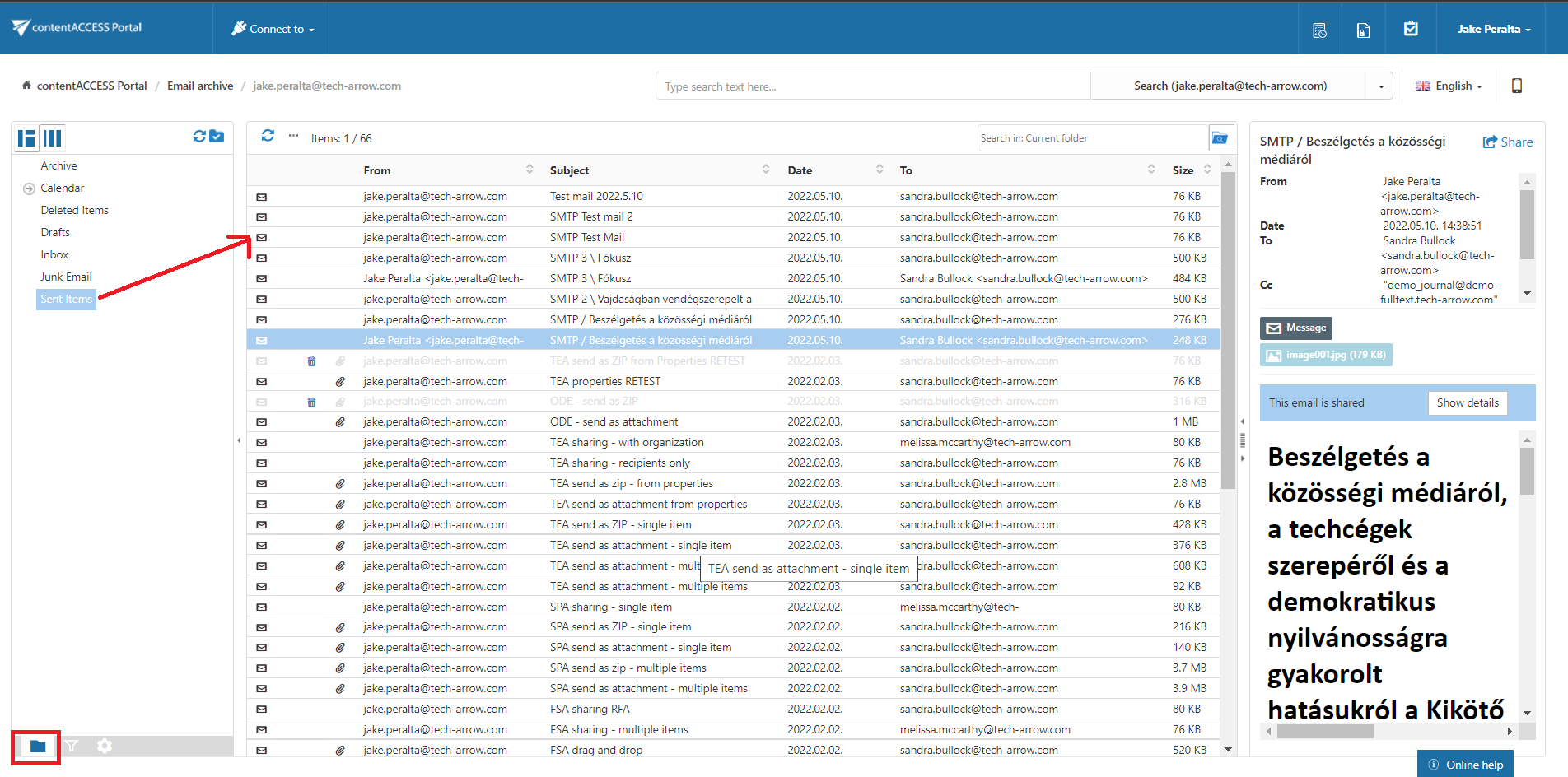
For more information about folder selection types in the navigation pane, see Folder selection methods.
Active/inactive items
Click the Active/inactive items button to apply the active/inactive item view.
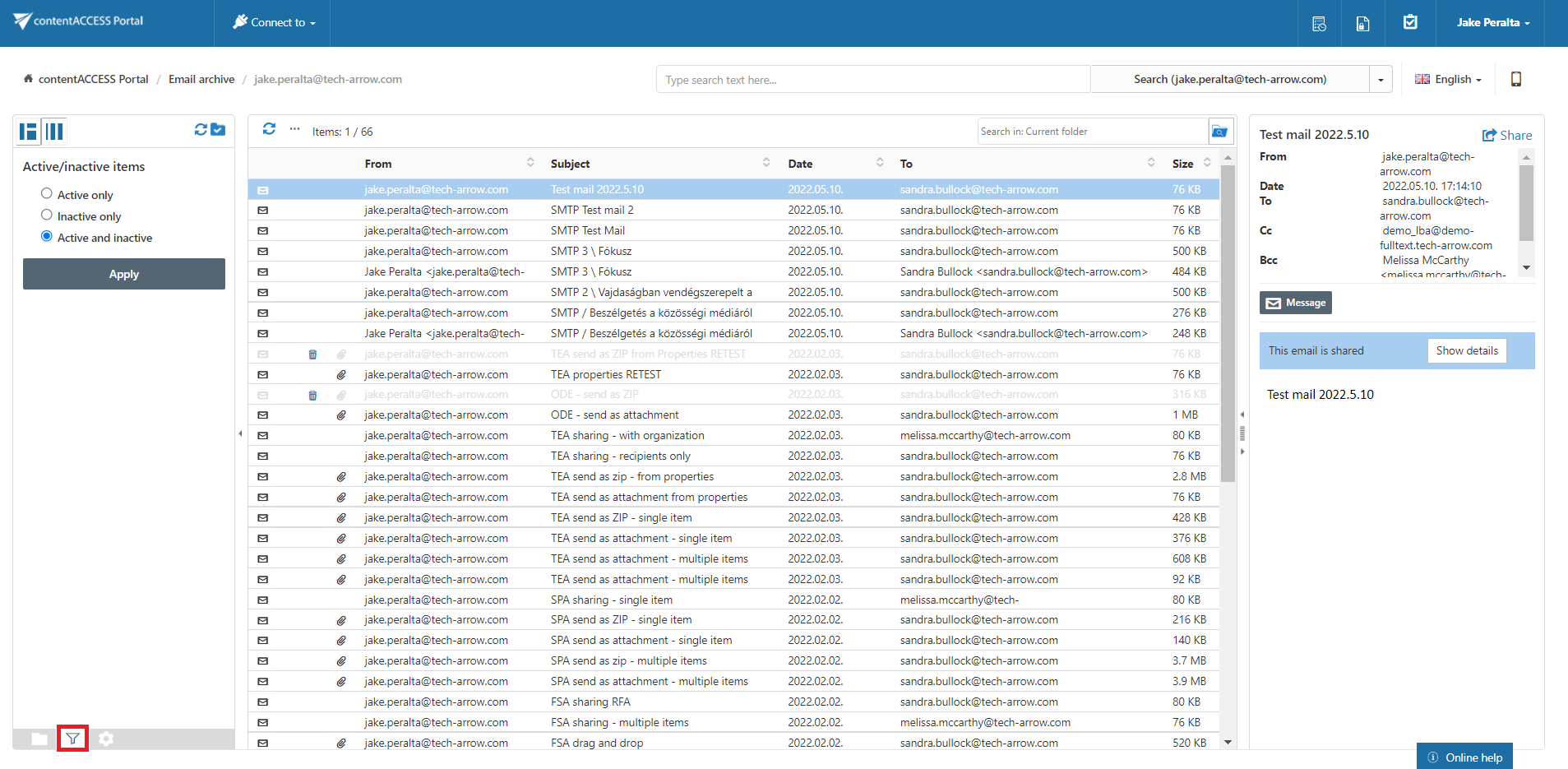
For more information, see Filtering of active/inactive file system archive documents.
Settings
Click the Settings button to configure the double-click action for items.
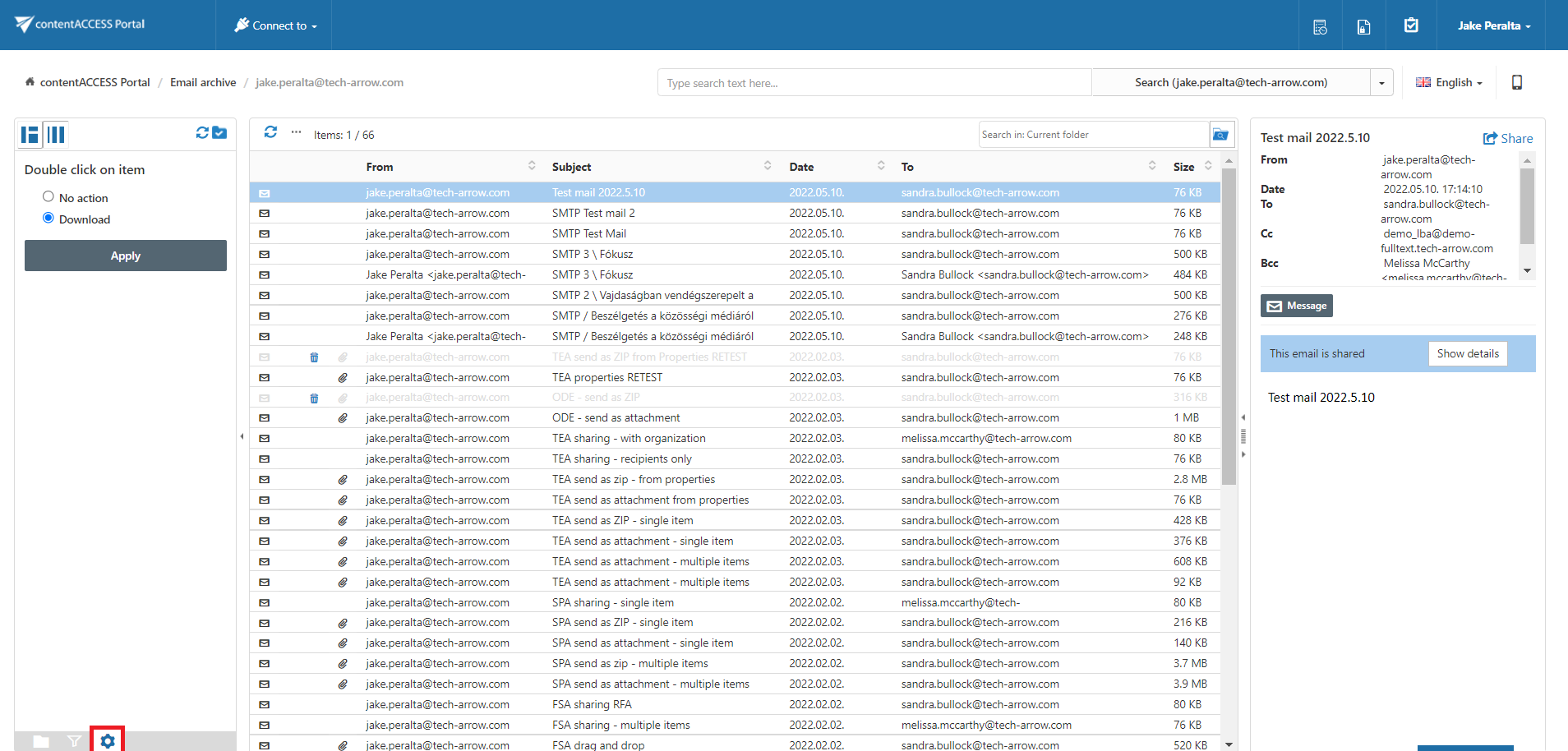
For more information, see Download from the item list/item preview in contentACCESS Portal.