User profile page
Introduction
The User profile page allows end users to view their account information and login activity in contentACCESS Portal. Users can change their display name and password, log out, or return to contentACCESS Portal.
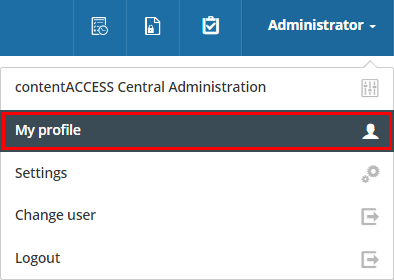
User profile
The User profile page displays the following information:
- Name
- Display name
- Tenant
- User logins
- Login sessions
The page also provides options to change the display name and password.
To return to contentACCESS Portal, click Go to contentACCESS Portal below the list of login sessions.
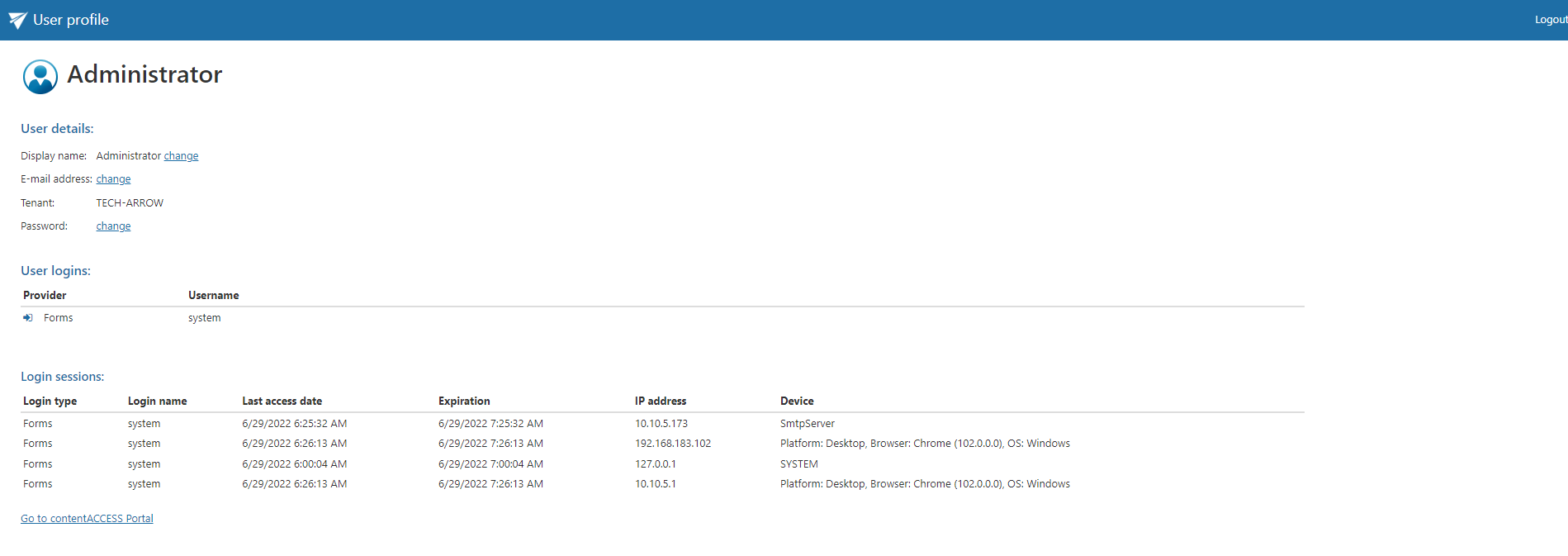
To log out, click Logout in the upper-right corner of the page.
Change the display name
-
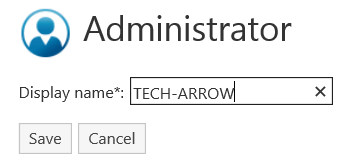
Click Change next to the user's Display name.

-
Enter the desired display name and click Save.
Change the password
-
Click Change next to Password.

-
Enter the current password, the desired new password, and the new password again to confirm it.
The new password and confirmation must match. The Password strength bar changes according to the length of the new password. The minimum password length is 8 characters.


-
Click Change.
If the password was changed successfully, a green notification bar is displayed.
