File versions
Introduction
The File System Archive in contentACCESS Portal allows end users to view different versions of archived files and filter archive items by their active or inactive status. File versions are created when an original file is modified and the new version is archived by a File System Archive job.
View file versions
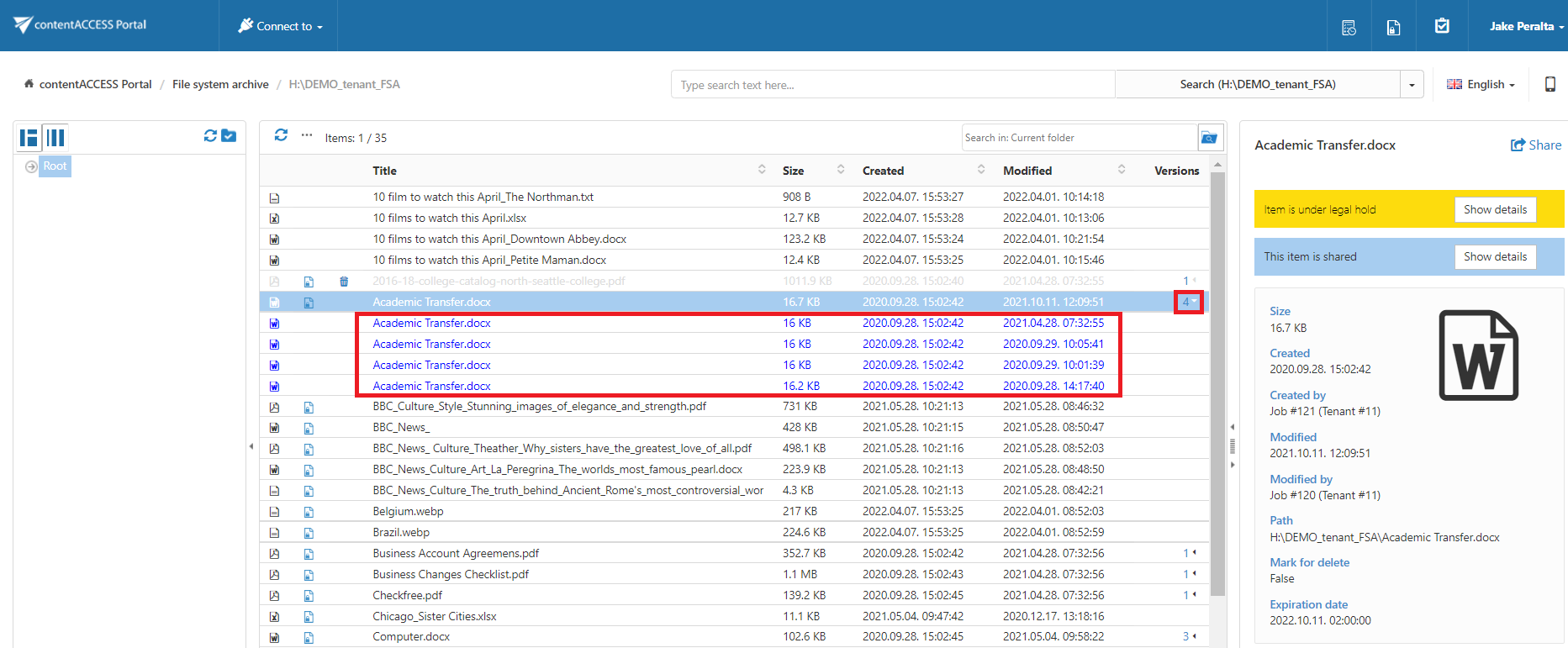
File versions created during the archiving process are available in the Versions column of the item list.
To view the available versions:
- Locate the required file in the item list.
- Click the version count in the Versions column.
- The available document versions are displayed.
Document versions are marked in blue.
Active and inactive archive items
When is an item or folder inactive?
When a File System Archive job is running, it synchronizes the current state of the archive with the state of the file system, including folder permissions.
An item or folder becomes inactive in the archive if the file or folder no longer exists in the file system, including both the original item and its shortcut.
In contentACCESS Portal:
- Inactive files are displayed in grey.
- Active files are displayed in bold black.
When an item is moved back to the file system or restored, its status changes to active.
Purpose of active and inactive item filtering
Active and inactive item views help users:
- Determine whether an archived item has a corresponding original item or shortcut in the original file system. This can be useful when recovering items from the archive. For more information, see Manual recovery.
- Avoid displaying duplicates by using the active/inactive filtering options.
Note: Duplicates can be created if a file or folder is moved to another file system location, or if it is renamed and a File System Archive job processes both the old and the new file or folder.
Filter active and inactive items
The archive folder DEMO_TENANT\FSA shown in the following screenshot contains both active and inactive items.
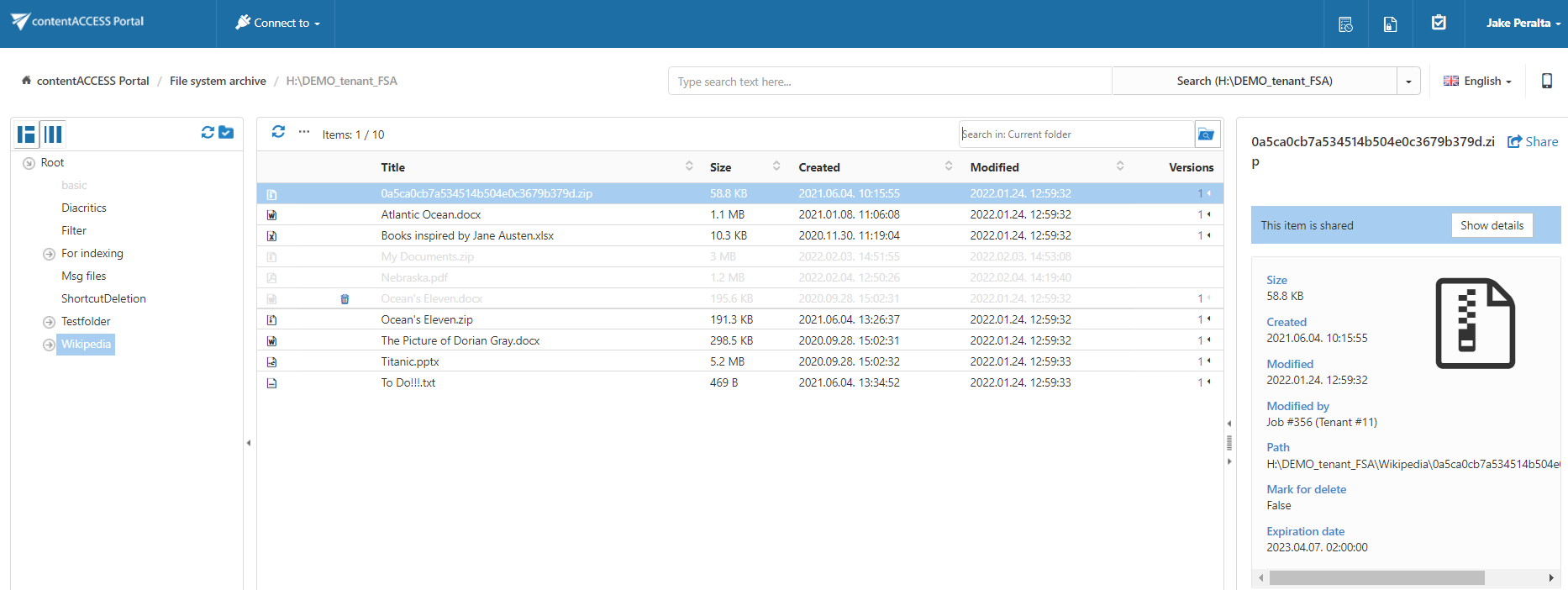
To filter active or inactive items in a folder:
- Click the filter icon (
 ) at the bottom of the navigation pane.
 - To display only active documents, apply the Active only filter.
The following screenshots show the filtering results.
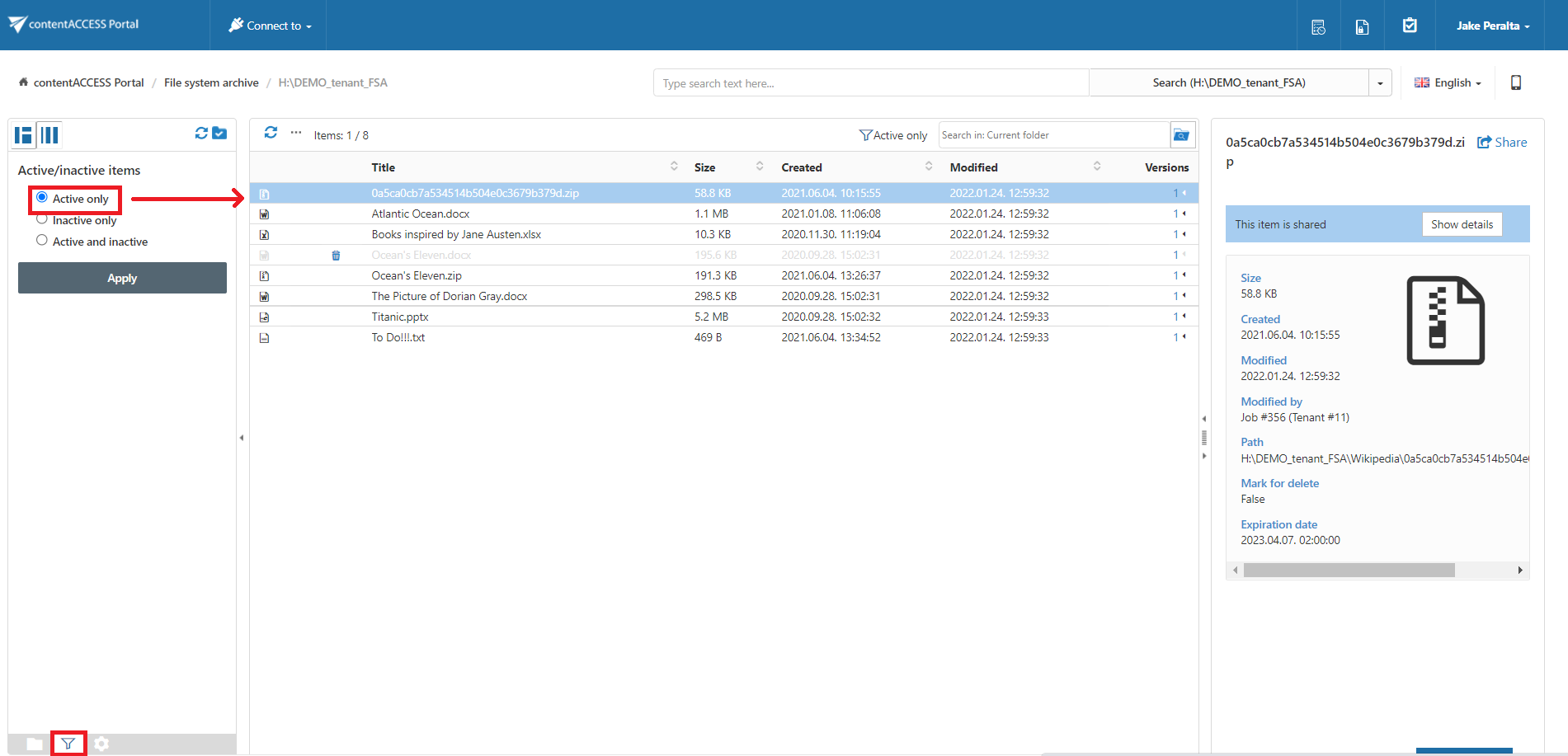
Screenshot A: Active items of the folder
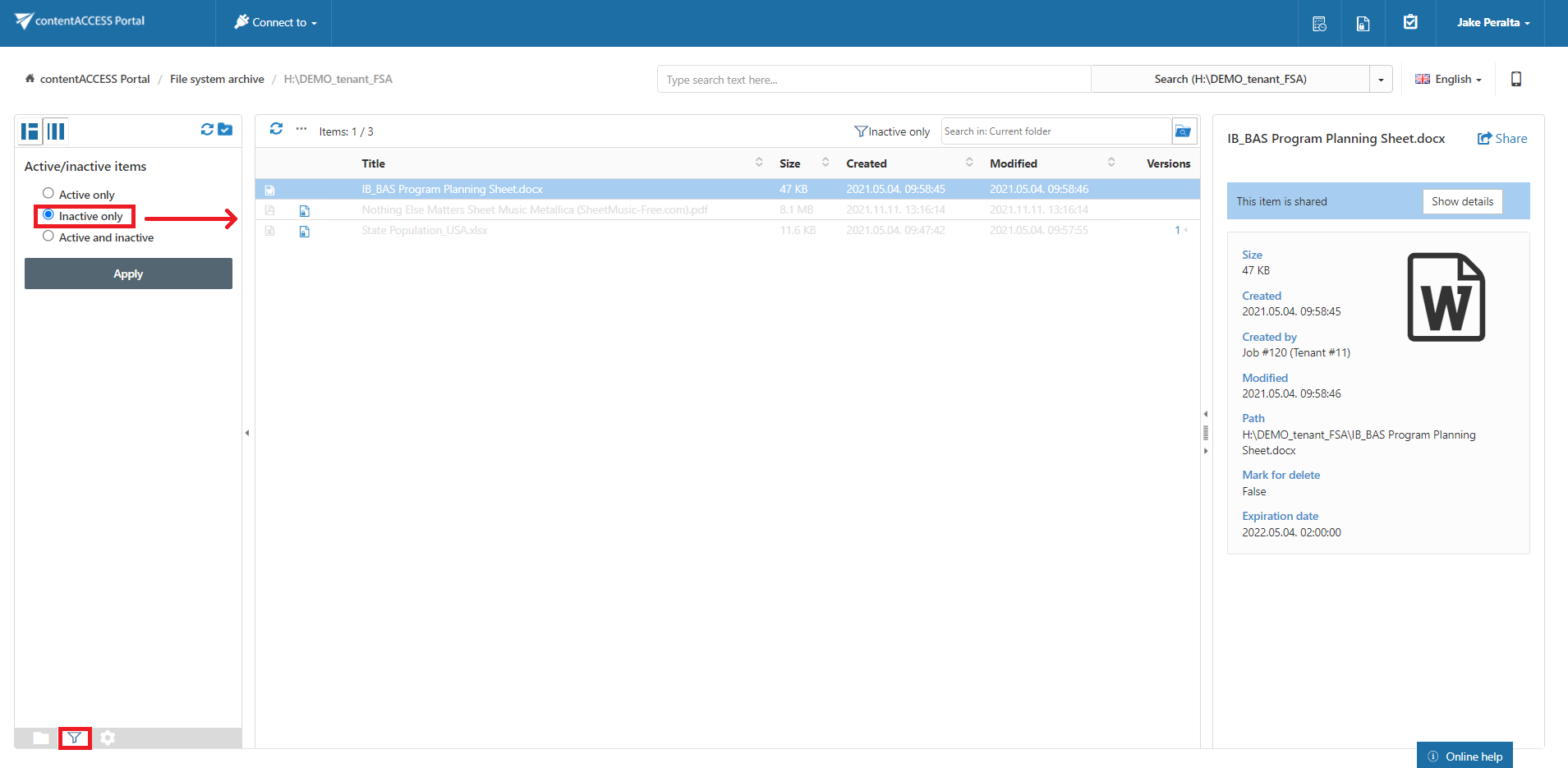
Screenshot B: Inactive items of the folder