Recursive folder selection
Introduction
contentACCESS Portal allows users to select entire folder structures, recursive folder structures starting from a parent folder, individual parent folders, or selected child folders for processing. Folder selection must first be enabled, after which the selection can be controlled by clicking the folder checkboxes once, twice, or three times, or by using the Select all folders and Deselect all folders buttons.
Select folders for processing
First, enable folder selection.

You can then select folders in the following ways:
- Entire folder structure – Select the entire recursive folder structure by:
- Clicking once in the checkbox of the main parent folder.
- Clicking Select all folders.
- Recursive folder structure starting from a parent folder – Click once in the checkbox of the required parent folder.
- Parent folder without its subfolders – Click the parent folder checkbox twice.
- Parent folder and selected child folders – Double-click the parent folder checkbox and then select the required child folders.
The selection behavior is as follows:
- First click – Selects the parent folder together with its subfolders.
- Second click – Selects only the parent folder.
- Third click – Deselects the parent folder.
Select the entire folder structure
The entire recursive folder structure can be selected in either of the following ways.
Select the main parent folder
Click once in the checkbox of the main parent folder.
The subfolders are also selected. The grid indicates that the subfolders are selected, and the folder path is marked in black.
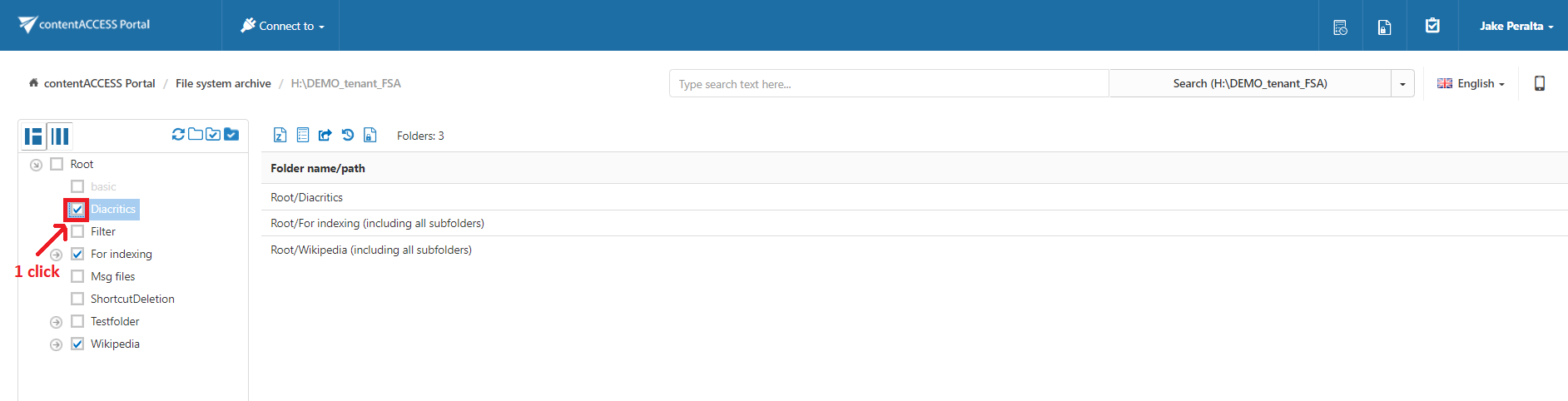
Screenshot: Selecting the whole recursive folder structure using the single-click option
Select all folders
Click Select all folders above the contentACCESS Portal navigation pane.
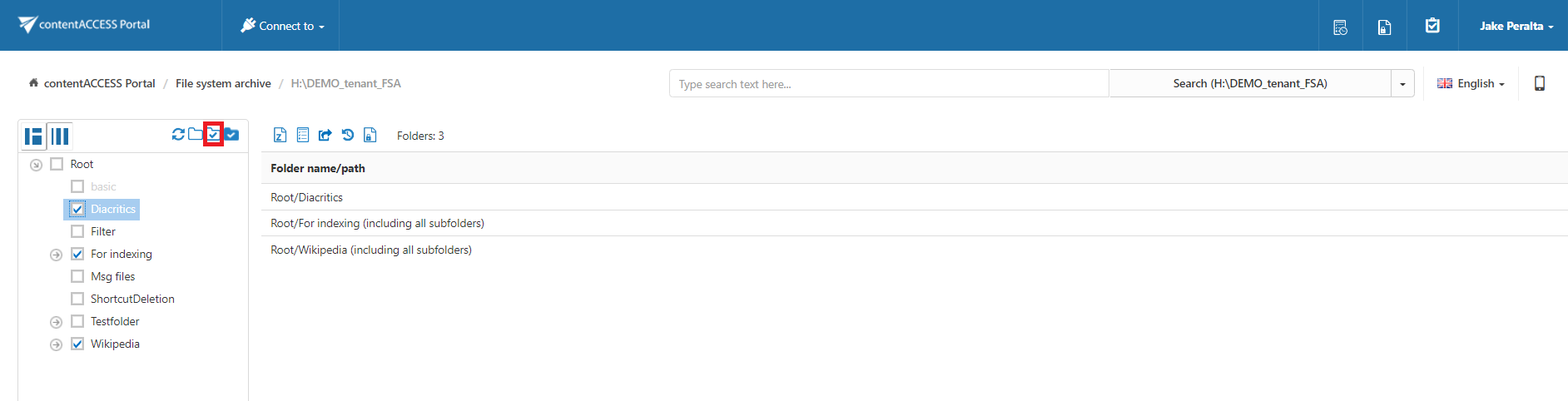
Screenshot: Selecting the whole recursive folder structure using the Select all folders icon
Select a recursive folder structure from a parent folder
To select a folder structure starting from a specific parent folder, click once in the checkbox of the required parent folder.
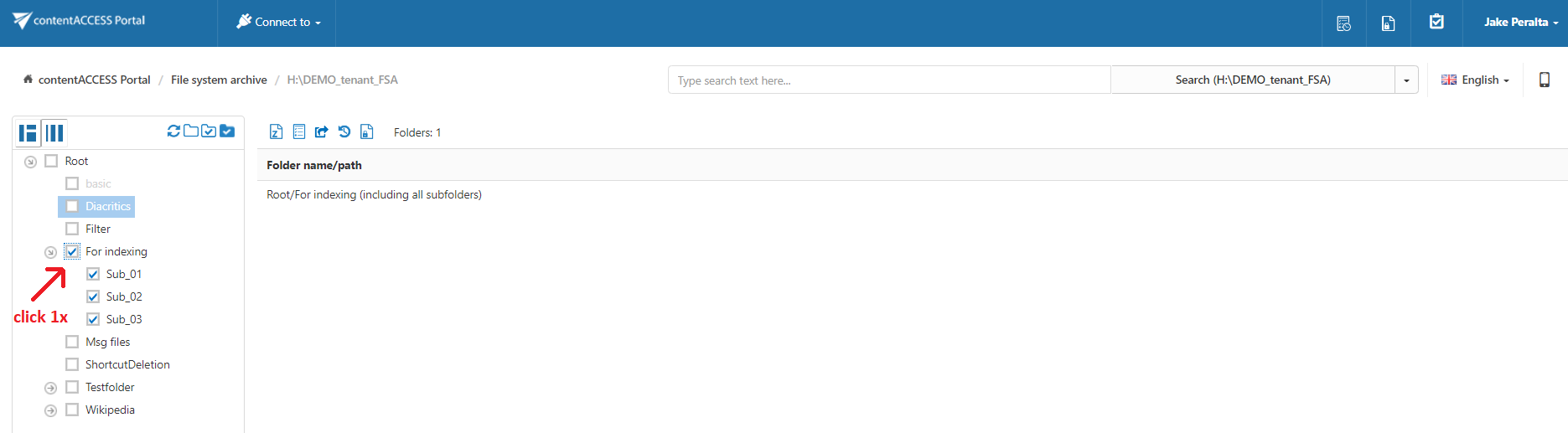
The parent folder and its subfolders are selected.
To deselect all selected folders, click Deselect all folders above the contentACCESS Portal navigation pane.
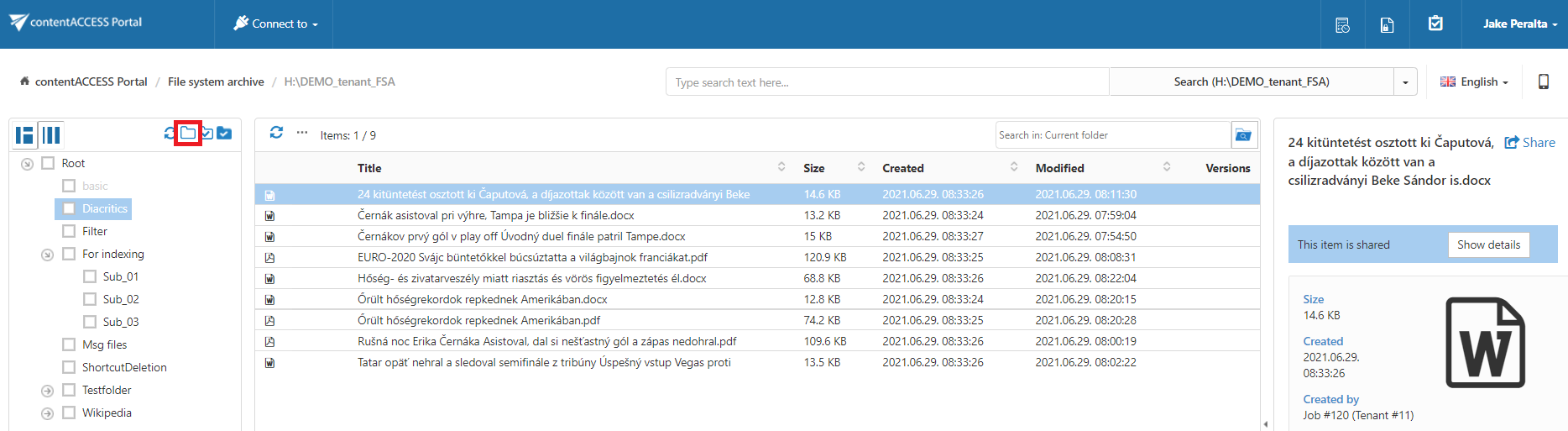
Screenshot: Deselecting the whole recursive folder structure using the Deselect all folders icon
Select a parent folder without its subfolders
To exclude child folders from processing and process only the selected parent folder, click the parent folder checkbox twice.
The folder path is marked in grey in the grid.
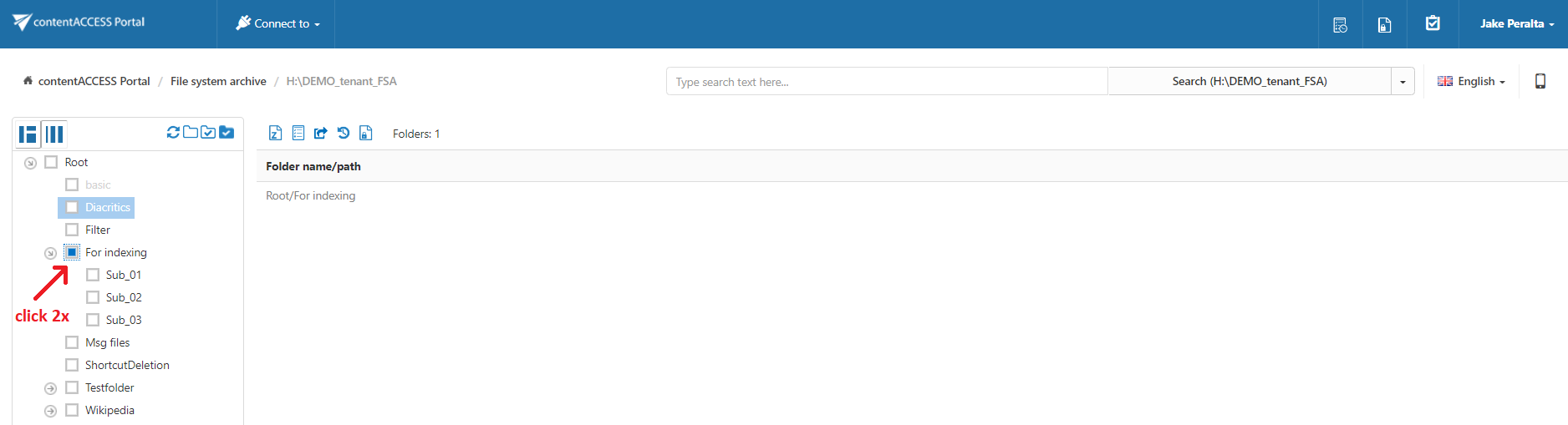
Screenshot: Selecting the parent folder by double-clicking the checkbox
On the third click, the parent folder is automatically deselected.
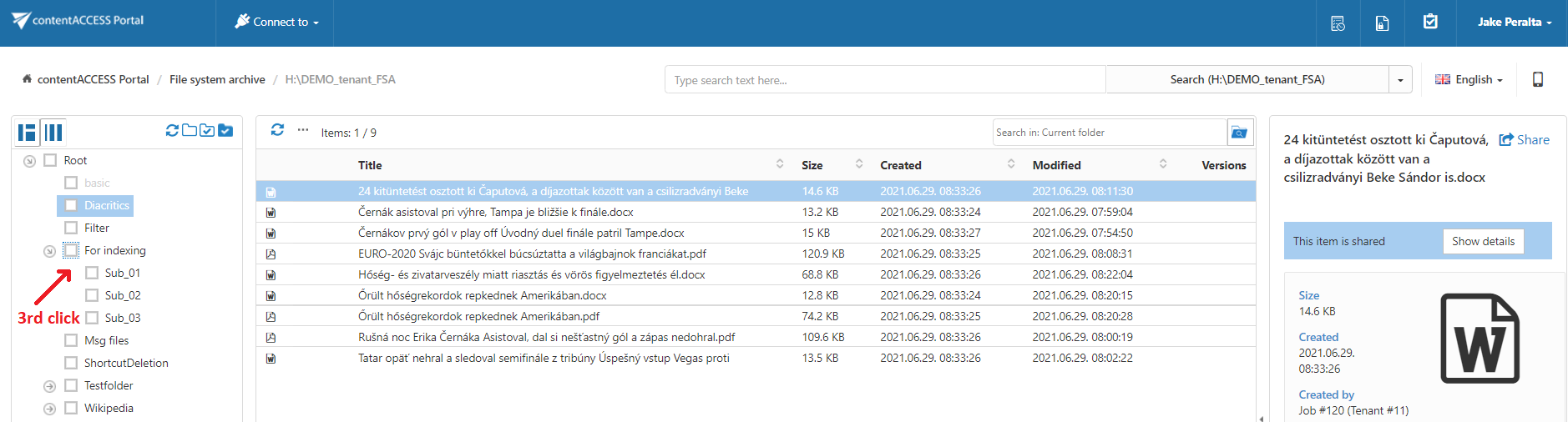
Screenshot: Deselecting the parent folder on the third click
You can also deselect the folder by clicking Deselect all folders above the navigation pane.
Select a parent folder and selected child folders
It is also possible to select a parent folder together with only specific child folders.
To do this:
- Double-click the checkbox of the parent folder to select the parent folder without its subfolders.
- Select the checkboxes of the child folders you want to process.
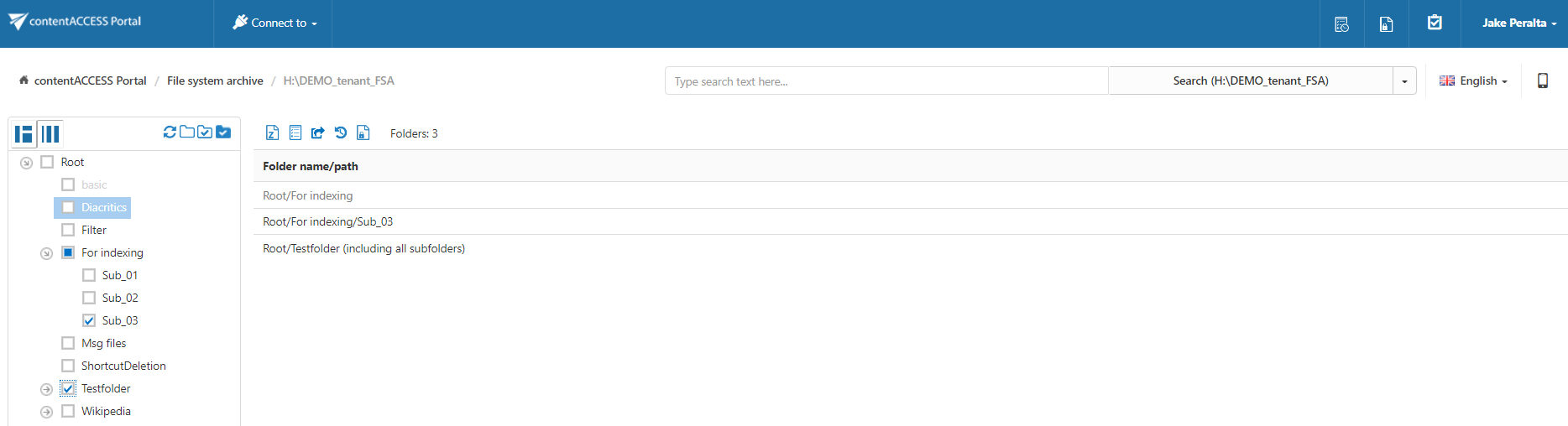
Screenshot: Selecting the parent folder and selected child folders