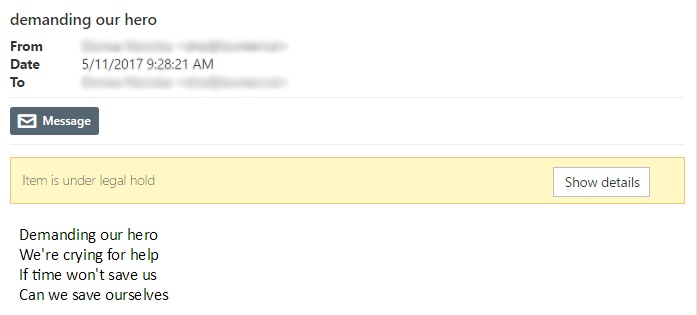
Legal hold
Introduction
The Legal hold feature allows users with the required permissions to place documents and folders on legal hold, manage legal hold cases, view case details and associated documents, and export documents from a case. Documents included in a legal hold case cannot be removed from the case until the case expires or is otherwise deleted.
Before configuring or managing legal hold cases, read the Legal hold section.
Create a legal hold case
Documents can be added to a legal hold case from:
- A selection of one or more items or folders.
- Search results.
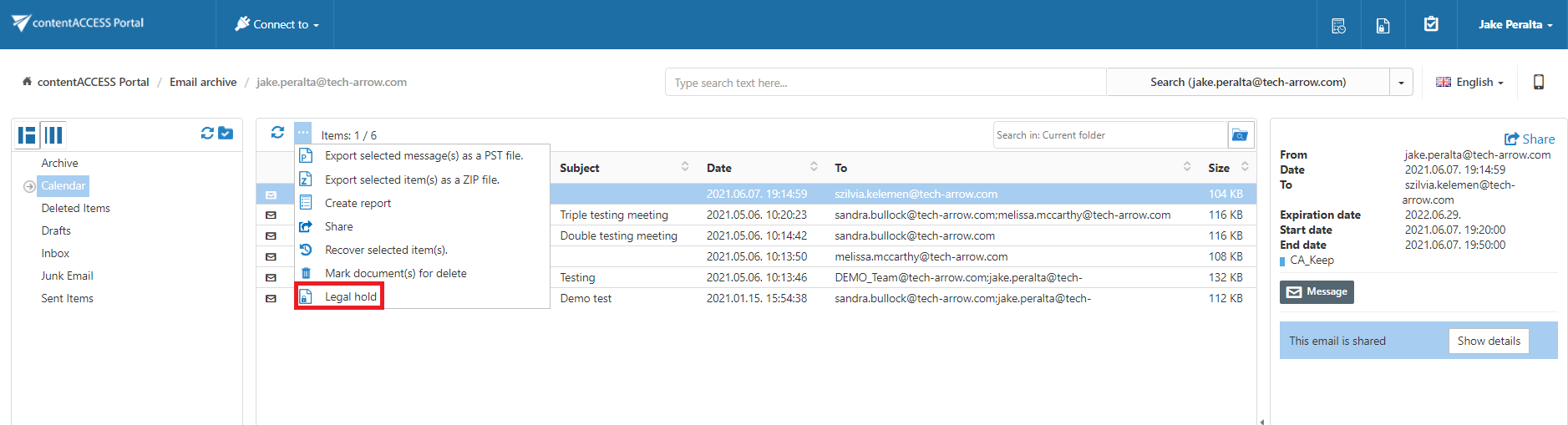
To create a legal hold case:
-
Select the required items or folders.
-
Click Legal hold.
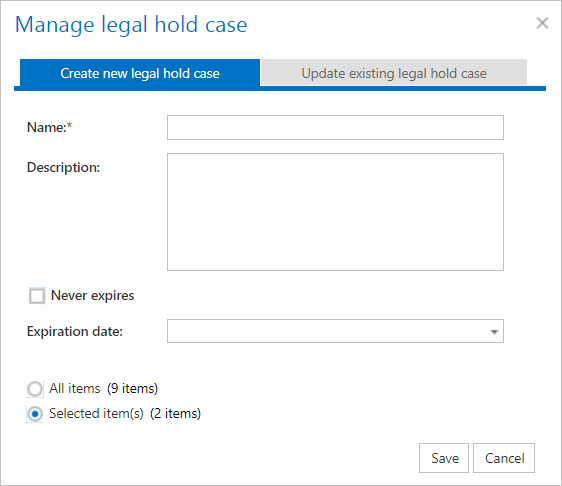
-
Enter a name for the legal hold case.
-
Specify an expiration date.
-
Alternatively, select Never expires to create a legal hold case without an expiration date.
-
Use the radio buttons at the bottom of the window to specify which items should be included in the legal hold case.
- All items includes all items in the folder selected in contentACCESS Portal.
-
Create the legal hold case.
Add items to an existing legal hold case
Items can also be added to an existing legal hold case.
-
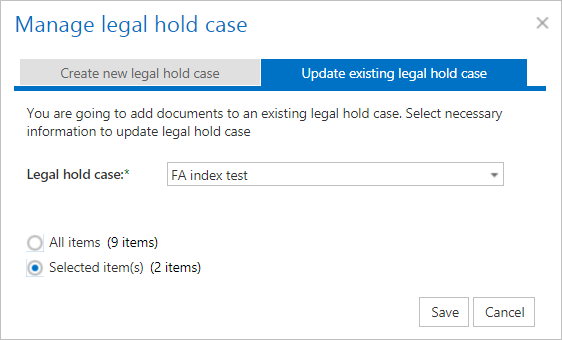
Select Update existing legal hold case.
-
Select the legal hold case to which you want to add the items.
-
Click Update.
Select folders for a legal hold
A legal hold case can also be created by selecting a folder in the navigation tree.
There are two folder selection modes:
- Click the folder checkbox once so that a check mark appears. This indicates that all documents in the folder and its subfolders are processed recursively.
- Click the folder checkbox twice so that a square appears. This indicates that only the documents on the first level of the folder are processed.
Note: Folder multiselect must be enabled before selecting folders for a legal hold.


Manage legal hold cases
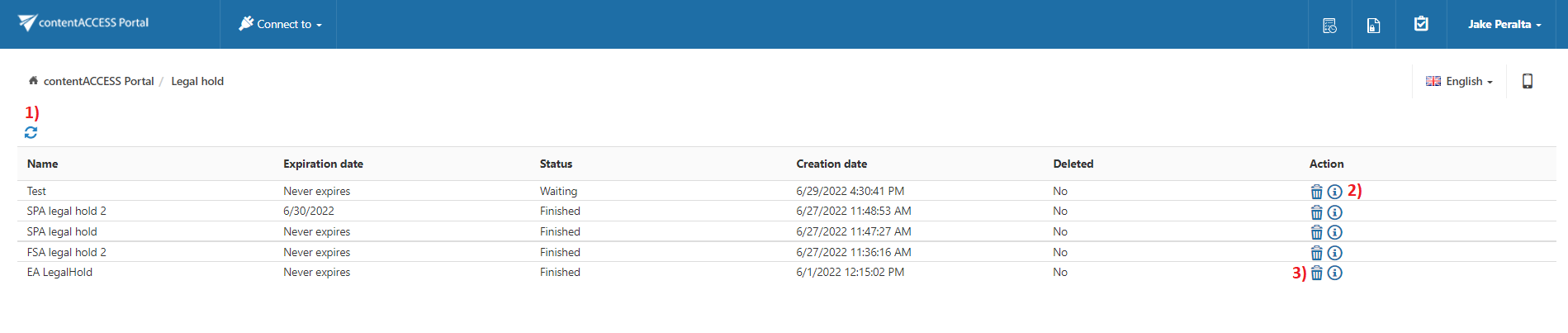
To open the list of legal hold cases, click the Legal hold icon in the upper-right corner of the page.

Access to the Legal hold view and its management functions is controlled by the system's permission management. Only users with the required permissions can view or manage legal hold cases and documents.
The Legal hold cases page allows you to:
- View existing legal hold cases.
- View the details of a legal hold case.
- Mark a legal hold case for deletion.
If an expiration date is specified for a legal hold case, the system automatically removes the legal hold from the documents when the case expires.
Legal hold case actions
The following actions are available on the Legal hold cases page:
- Refresh – Reloads the list of legal hold cases.
- Info – Opens the details of the selected legal hold case. You can also open the details by double-clicking the corresponding row.
- Delete – Marks the selected legal hold case for deletion.
View legal hold case details
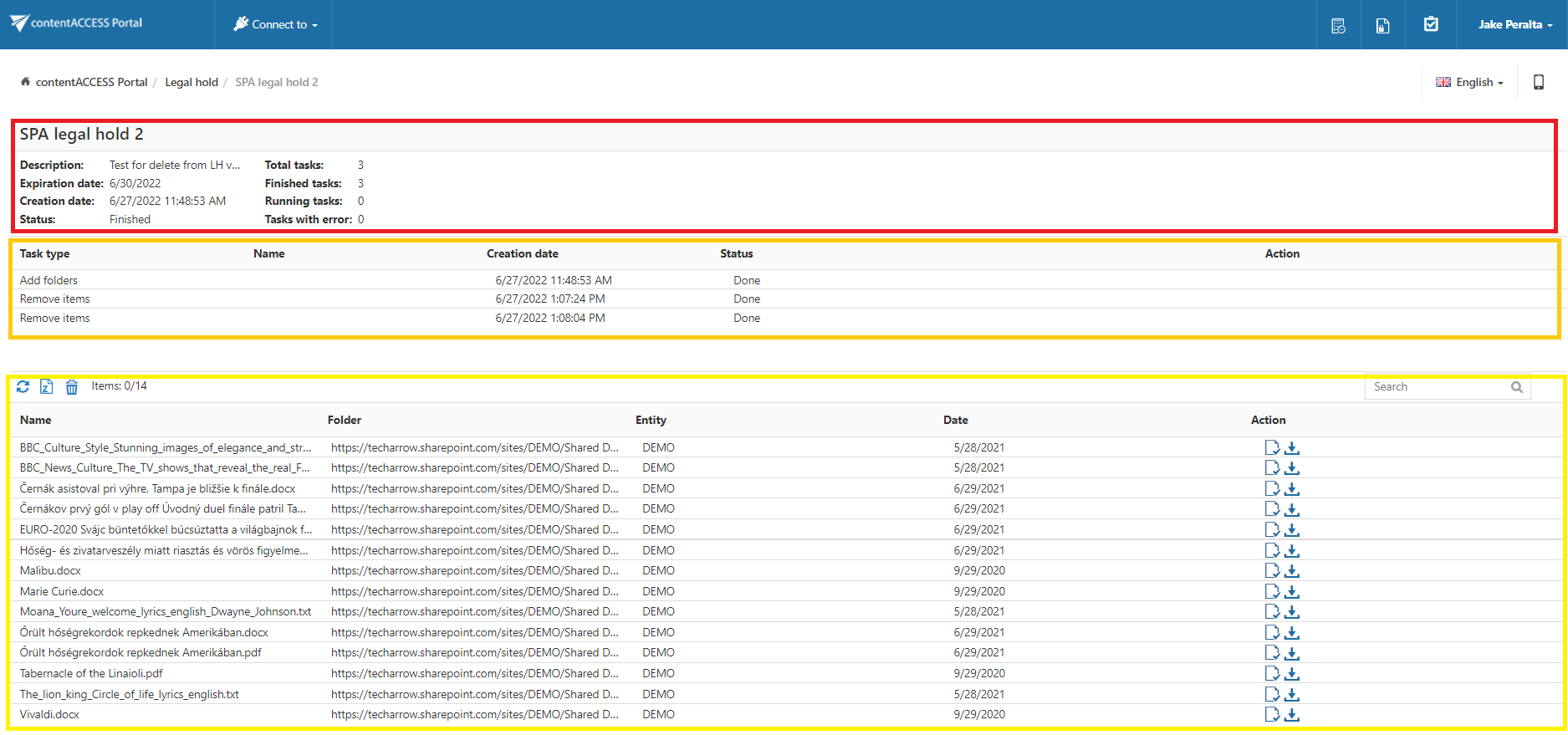
The legal hold case details view provides additional information about the selected case. It consists of three main parts:
- Legal hold case details.
- Tasks assigned to the legal hold case.
- Documents belonging to the legal hold case.
View task details
The legal hold case can contain different types of tasks. Double-click a task to view additional information about it.
If a task is in an error state, the error message is displayed in the task details pop-up.

Export tasks have an additional action available in the task list. When an export task is finished, a download icon is displayed in the Actions column.
Manage documents in a legal hold case
The documents section provides the following actions:
- Refresh – Refreshes the document list.
- Export to ZIP – Creates a ZIP export containing all or selected documents.
- Delete – Removes selected items from the legal hold case.
- Open – Opens the document in contentACCESS Portal.
- Download – Downloads the document.
The documents list also contains a search field in the upper-right corner. The search is performed against the Name column.
To search the documents:
- Enter a search term in the search field.
- Press Enter.
To display the complete list again, perform an empty search.

Export documents from a legal hold case
Documents can be exported from a legal hold case as a ZIP file.
-
Select the documents to export. You can use CTRL + click to select multiple documents.
-
Click Export to ZIP.

-
In the pop-up window, select which documents to export:
- All items in the legal hold case.
- Only the selected items.
-
Click Create.
A new export task is added to the legal hold case. The export becomes available after the legal hold job processes the task.
When the export is finished, a download link is displayed in the task list.

Identify documents under legal hold
Each document included in a legal hold case is marked in contentACCESS Portal. The marking is displayed both in search results and when browsing the archive.