Share item(s)
Introduction
The sharing feature in contentACCESS Portal allows users to share items and folders with internal or external recipients while controlling access, expiration, and download limits. Users can share items by email or link, monitor downloads, modify or suspend existing shares, and view sharing-related information.
The sharing functionality also automates invitations for external recipients and provides Auditing information about sharing activity, including who downloaded an item, when it was downloaded, and from which machine and location.
Share items and folders
To share items:
-
Select the items you want to share.
-
Click Share item(s).
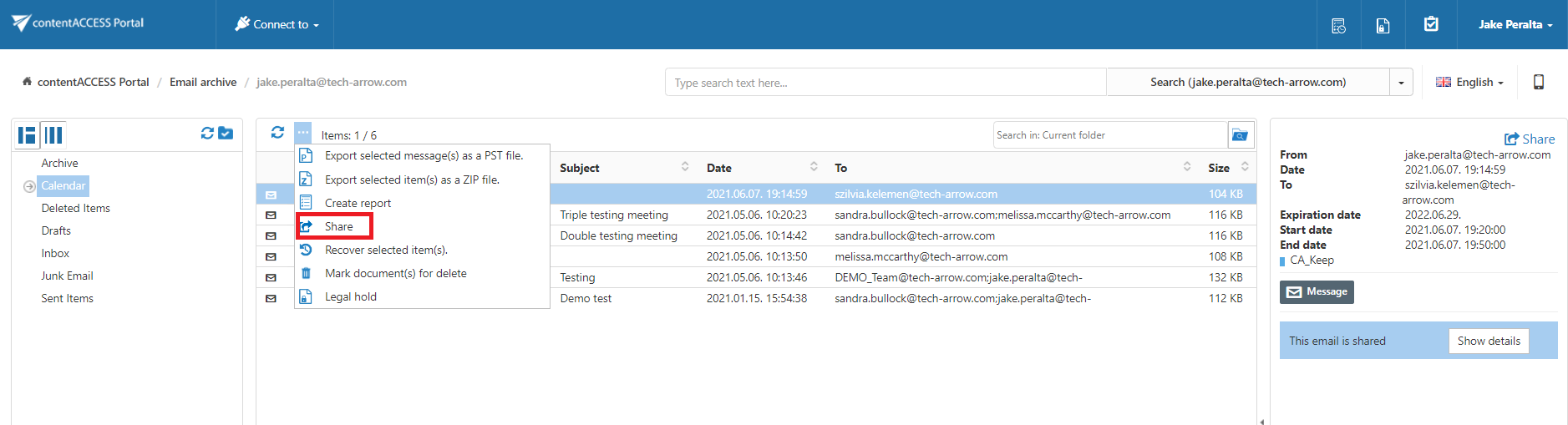
To share a single item, you can also click Share in the upper-right corner.
Folders can also be shared from the context menu of the item list or by using the actions available for the folder structure.
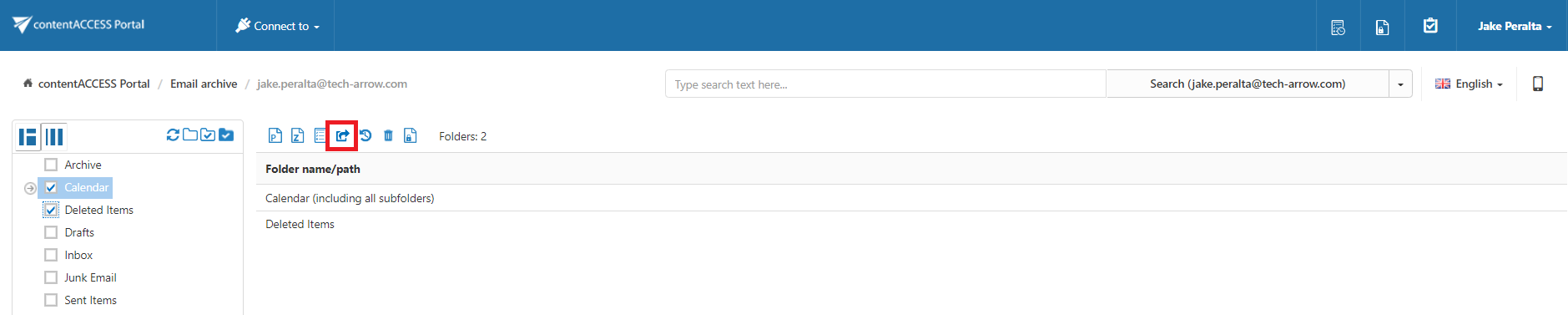
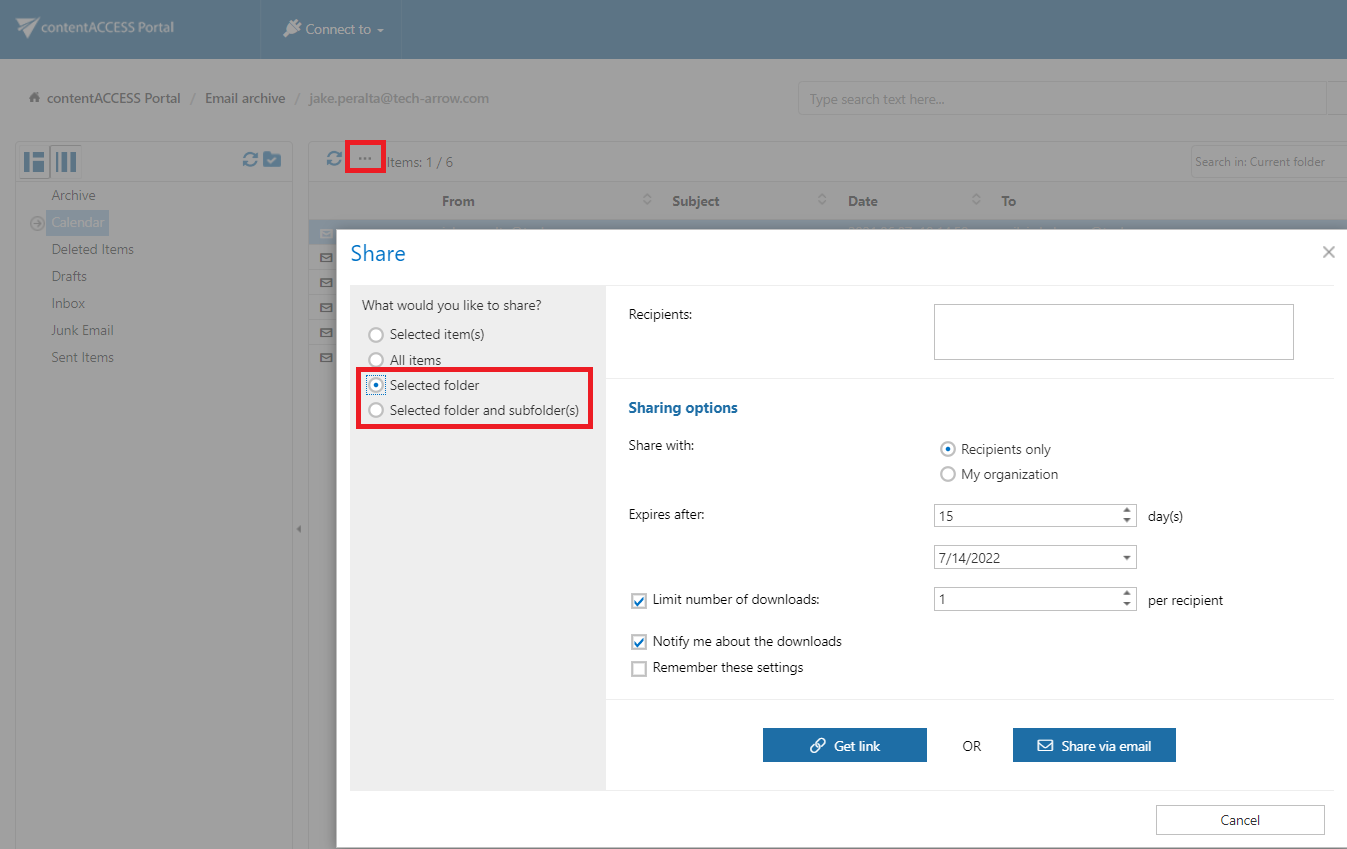
The sharing process is the same for items and folders: add recipients, configure the download limit and expiration date, and then share the items by email or link.
Configure sharing options
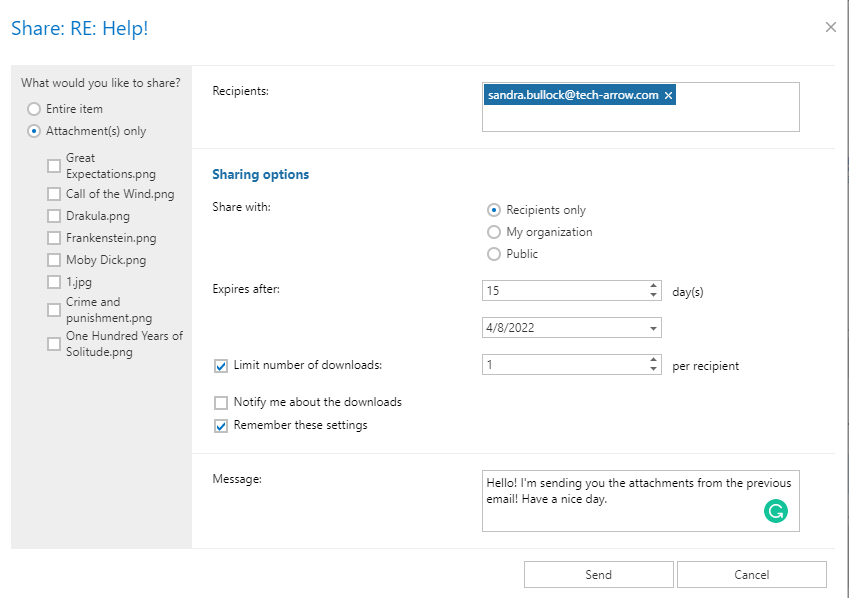
A sharing pop-up window opens where the sharing settings can be configured.
Recipients and accessibility
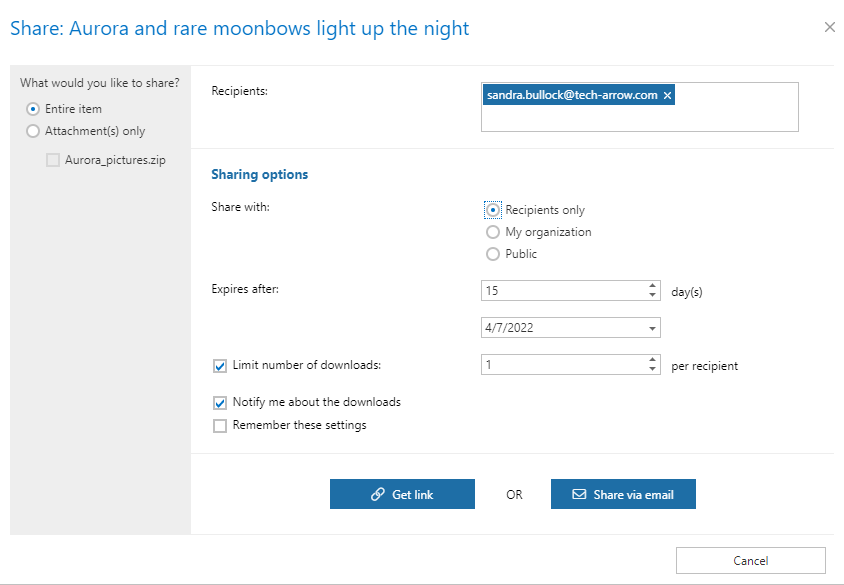
Enter the email addresses of the people you want to share the items with in the Recipients field.
Under Sharing options, select who can access the shared items:
- Recipients only – Only the specified recipients can access the shared items, even if the sharing email is forwarded.
- My organization – Only people from the organization specified in Central Administration > System > Services > Sharing settings can access the shared items.
- Public – Anyone with the link can access the shared items.
Note: The My organization and Public options can currently be selected only when using the Share button in the upper-right corner. These options must also be enabled by the administrator in Central Administration.
Expiration and download limits
Specify how many days the shared items should expire in, or select an expiration date from the calendar.
You can also limit the number of downloads. The download limit depends on the selected Share with option:
- Recipients – The limit applies to each recipient.
- My organization – The limit applies to each user.
- Public – The limit applies to all downloads together.
Download notifications
Enable Notify me about the downloads if you want the owner to receive information when recipients download the shared items.
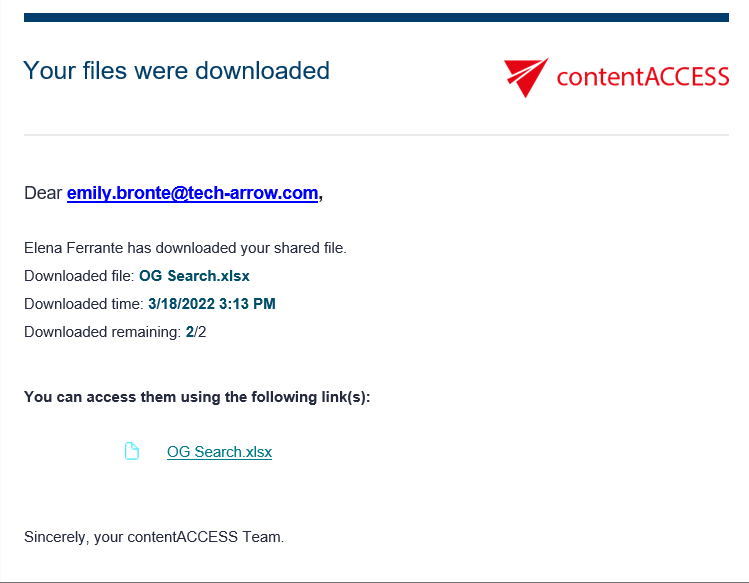
When a recipient downloads a shared item, the owner receives a notification email containing:
- The user who downloaded the item.
- The downloaded file.
- The download time.
- The remaining download limit.
Remember sharing settings
Enable Remember these settings to save the current sharing settings for future sharing operations. This avoids having to enter the Sharing options again.
Share email attachments
When sharing an email that contains attachments, you can choose whether to share:
- Only the attachments, including selected individual attachments.
- The entire email.
Complete the sharing
To complete the sharing, select one of the following options:
-
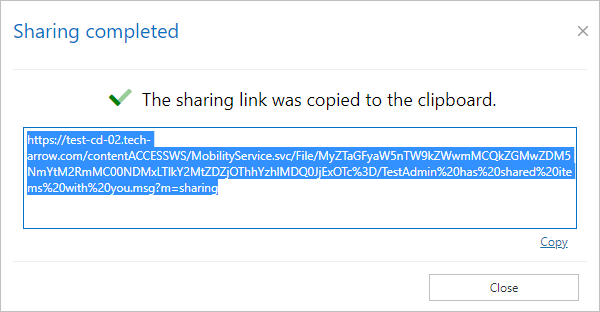
Get link – Copies the link to the shared items to the clipboard and displays a confirmation window.
-
Share via email – Inserts the link to the shared items into the body of an email. You can also enter a message. The email subject is [USER] has shared items with you. Click Send to complete the sharing.
View and modify sharing
An item that has already been shared is marked in its preview. Item sharing is indicated by the item icon, while folder sharing is indicated by the folder icon.
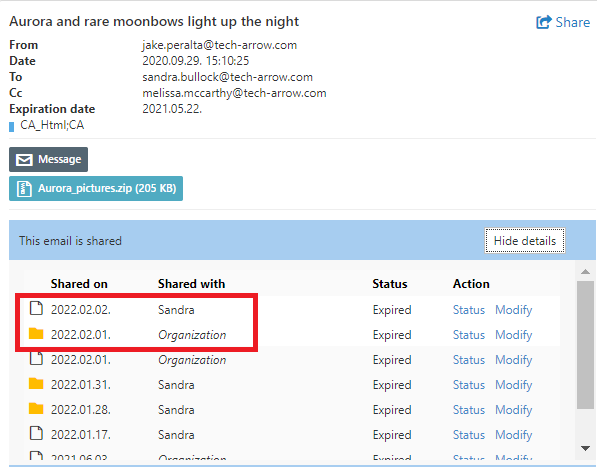
If you have the required rights and permissions, you can modify the sharing settings by clicking Modify.
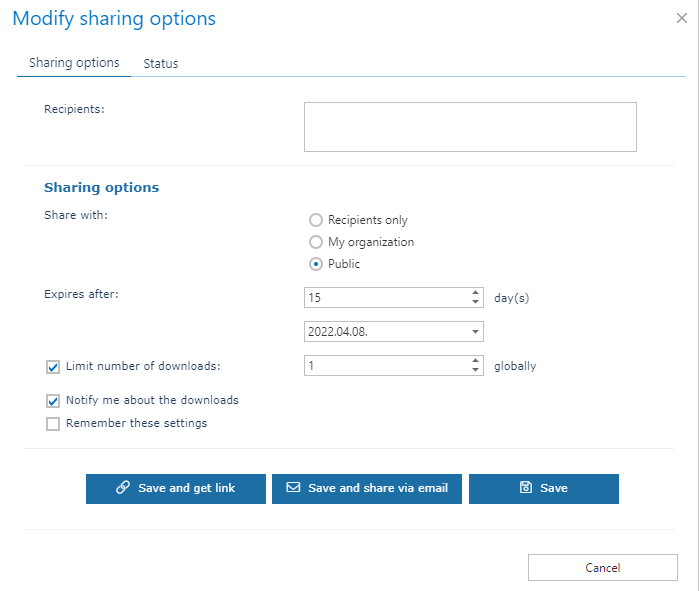
The Modify sharing options window allows you to:
- Add or remove recipients.
- Change accessibility settings.
- Change the expiration date.
- Change the download limit.
The following options are available:
- Save and get link – Saves the changes and works in the same way as Get link.
- Save and share via email – Saves the changes and works in the same way as Share via email.
- Save – Saves the changes to the sharing settings.
View sharing status
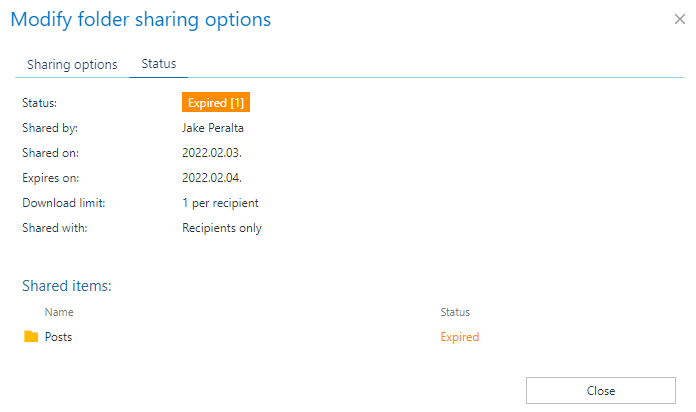
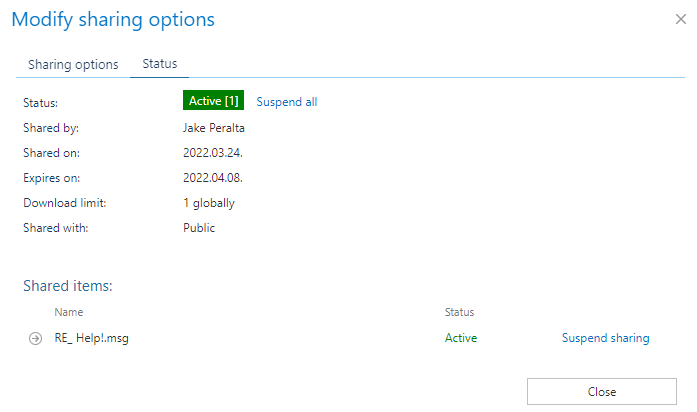
Click Status to open the status and information of the selected sharing.
From this window, you can:
- View the sharing status and information.
- Activate the sharing.
- Suspend the sharing.
- Click Send sharing notification to resend the sharing notification.
When an item or an entire sharing is suspended, the shared items cannot be downloaded until the sharing is activated again.
Work with the Sharing model
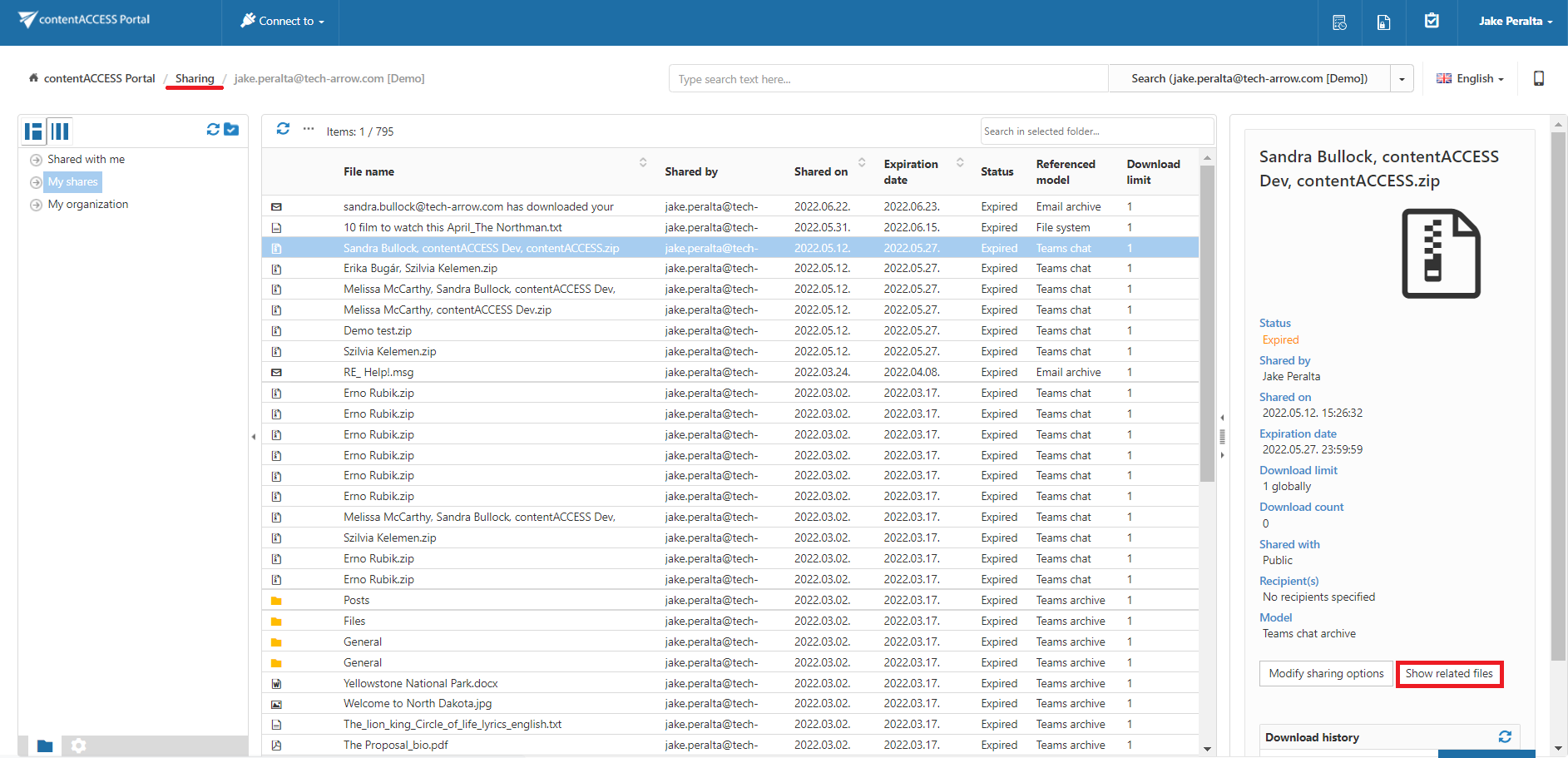
When you connect to the Sharing model, some items may have the Show related files button in their preview. This indicates that the item was shared together with at least one other item.
Click Show related files to view the list of items included in the same sharing.
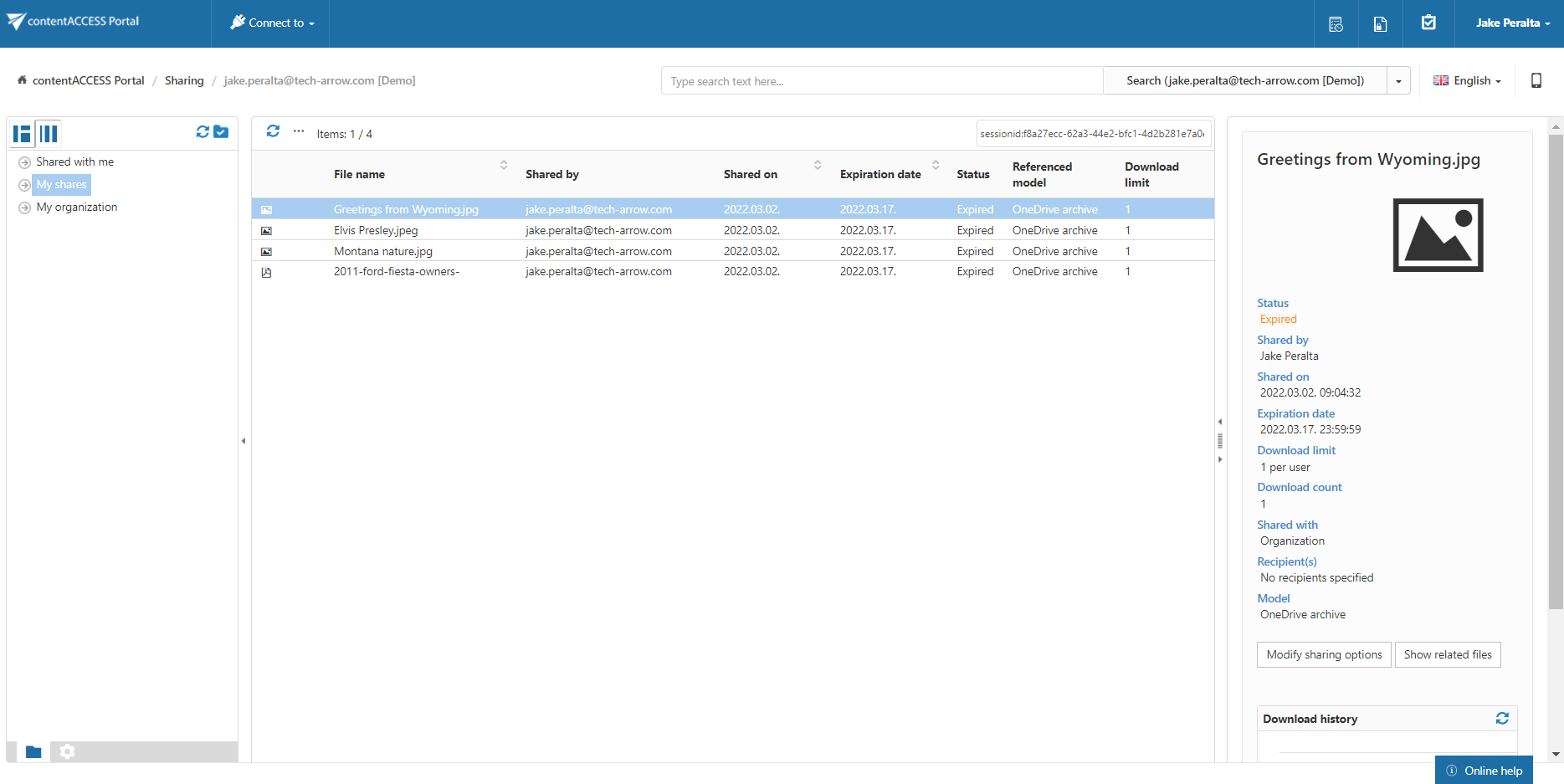
In the Sharing model, recipients cannot download entire folders. They can download individual items contained in the shared folders.
Click the folder name to view the items contained in the shared folder.
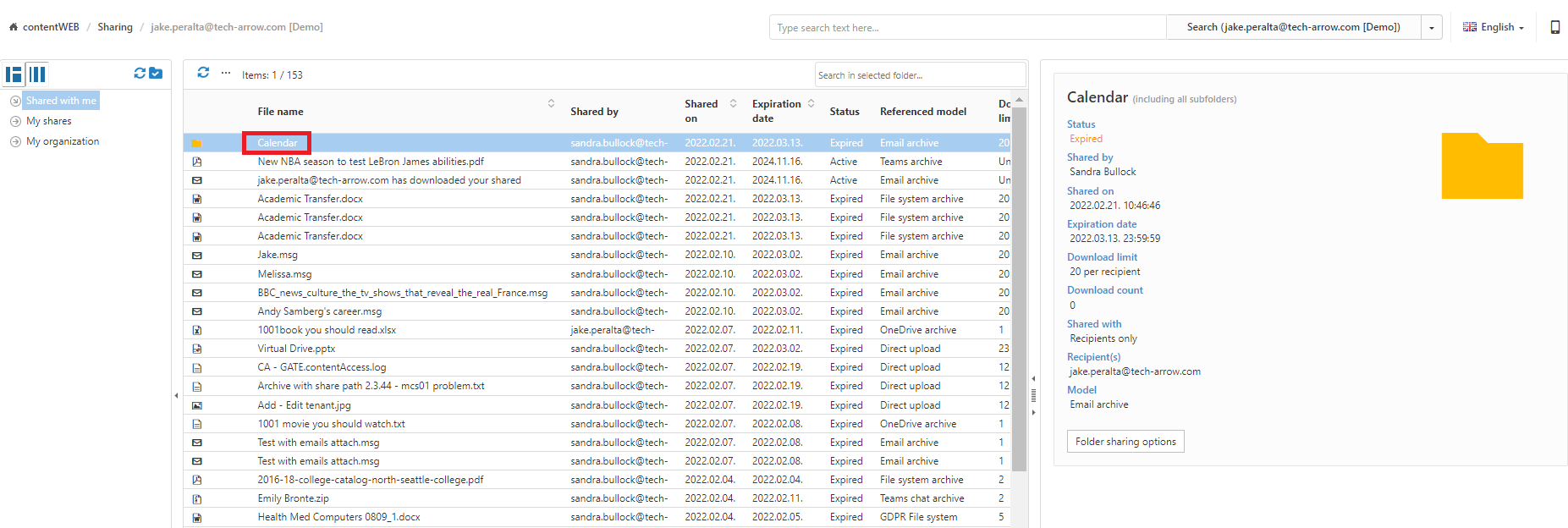
Shared folders are displayed under the following folders while the sharing is active:
- Shared with me
- My Organization
Shared folders are always displayed under:
- My shares
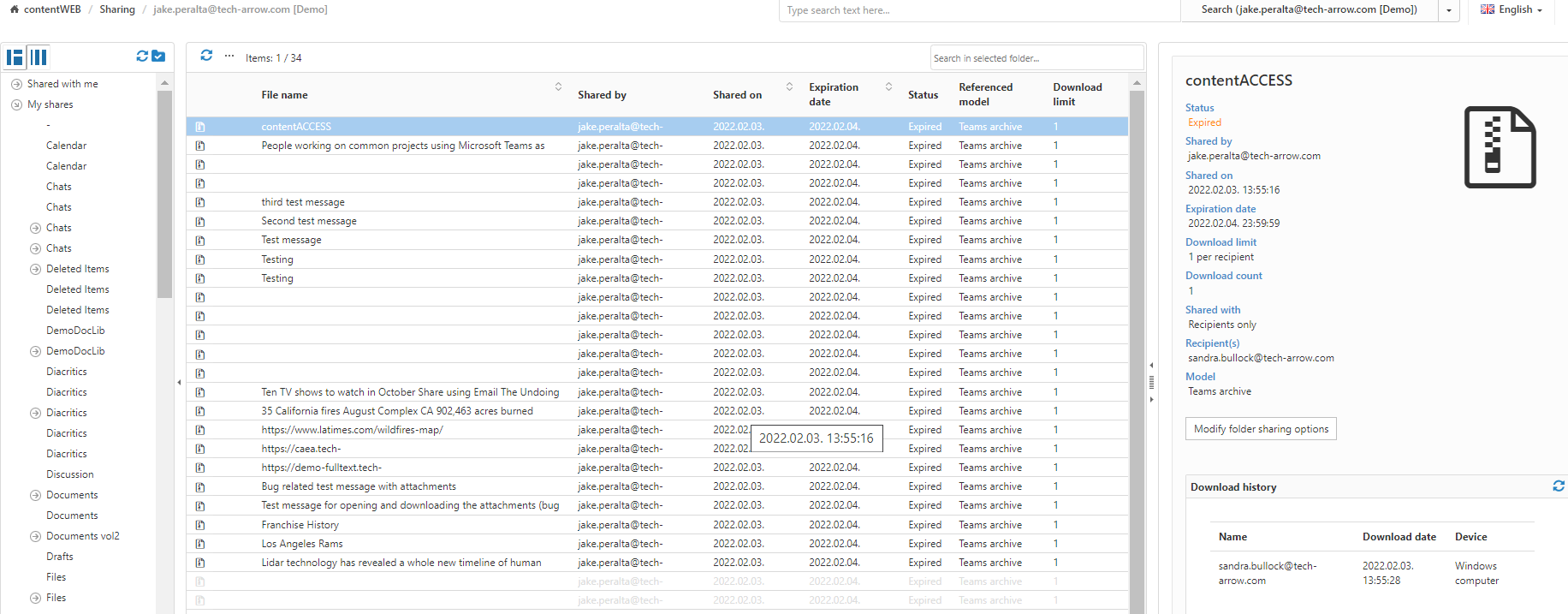
Download history and folder status
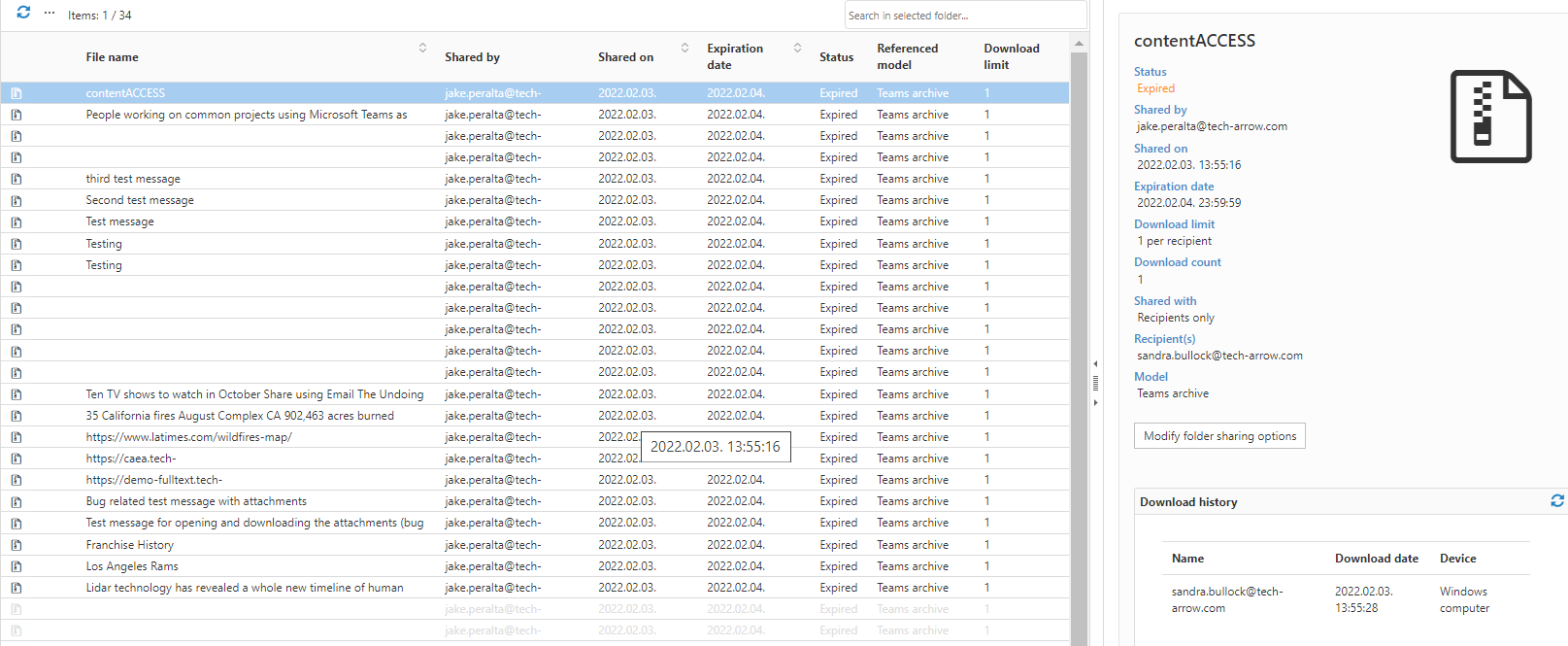
Download history is not available in the preview of a shared folder. It is available only in the preview of individual items within the shared folder.
The Status tab is also available for the folder sharing itself. It displays the status of the folder sharing, but does not provide download history.
To view download history, open the preview of an individual item in the shared folder.