Teams chat archive tasks
Introduction
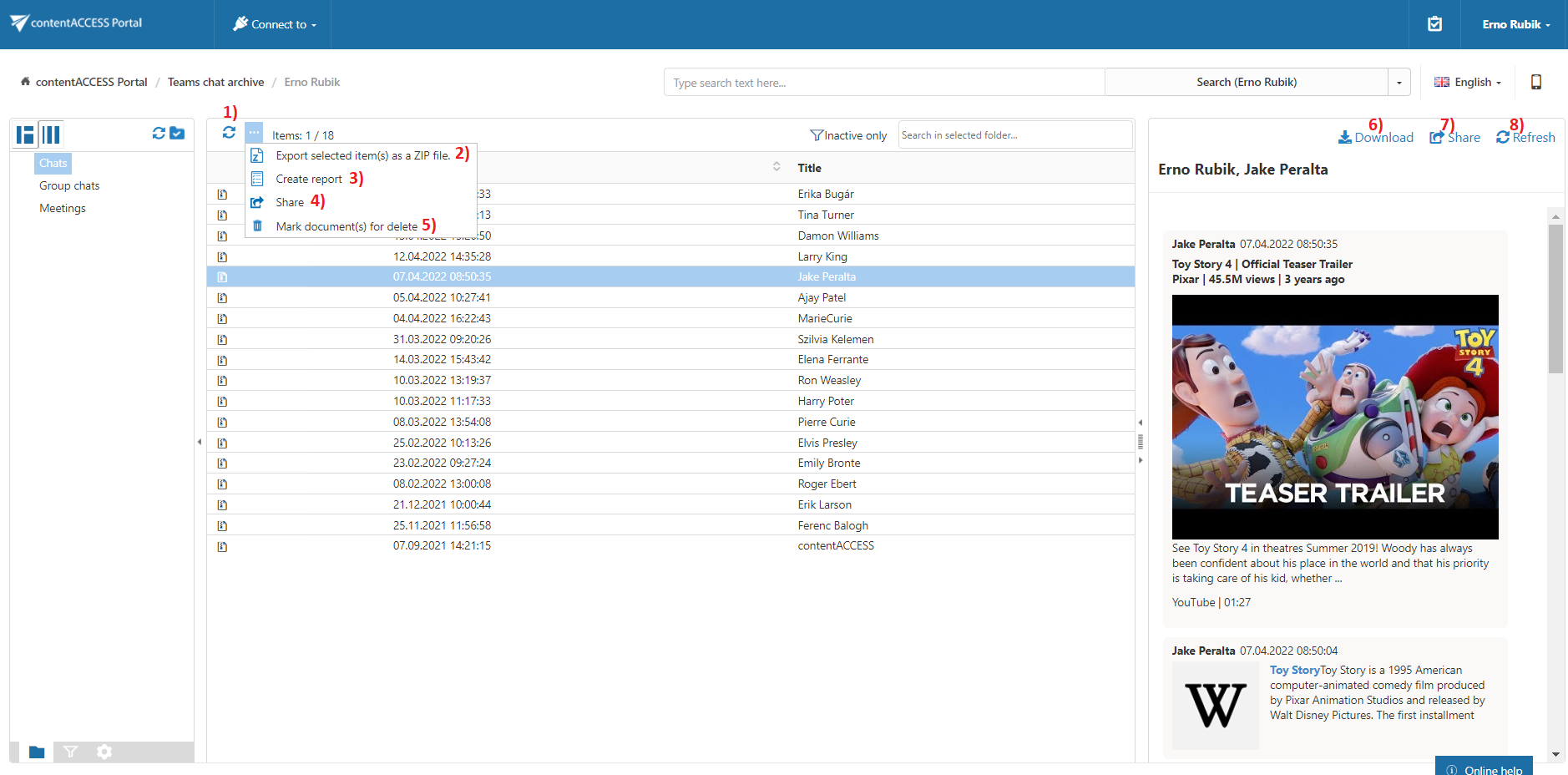
The Teams Chat Archive provides toolbar and item-level actions for processing selected chat archive items in contentACCESS Portal. Users can refresh the item list, export items as a ZIP file, create reports, share items, mark chats for deletion, download items, and refresh an item's preview.
Available Teams Chat Archive tasks
By default, the following actions can be run on selected Teams Chat Archive items:
- Refresh (list)
- Export selected item(s) as a ZIP file
- Create report
- Share item(s)
- Mark document(s) for delete
- Download
- Share
- Refresh (item)
The Export selected item(s) as a ZIP file and Create report tasks can be enabled or disabled by the administrator on the Task types tab. For more information, see Enabling/disabling tasks.
Refresh (list)
Use Refresh (list) to reload the item list when items are not yet displayed or the list needs to be updated.
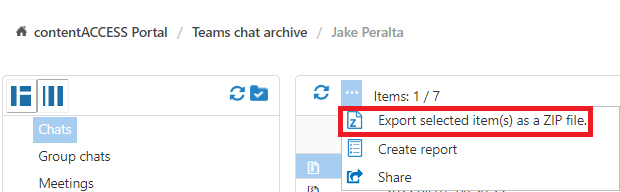
Export selected item(s) as a ZIP file
To export one or more items as a ZIP file:
-
Select the required items from the item list.
-
Click Export selected item(s) as a ZIP file above the item list.
-
Select whether to export:
- All items from the current folder.
- Only the selected items.
-
Click Create or press Enter.

Create report
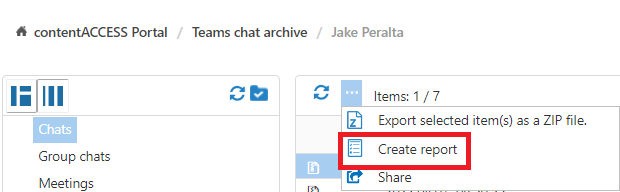
For more information, see Create report.
Share item(s) and Share
The Share item(s) and Share options allow users to create links pointing to selected items, which can then be sent to other users.

For more information, see Share item(s).
Mark document(s) for delete
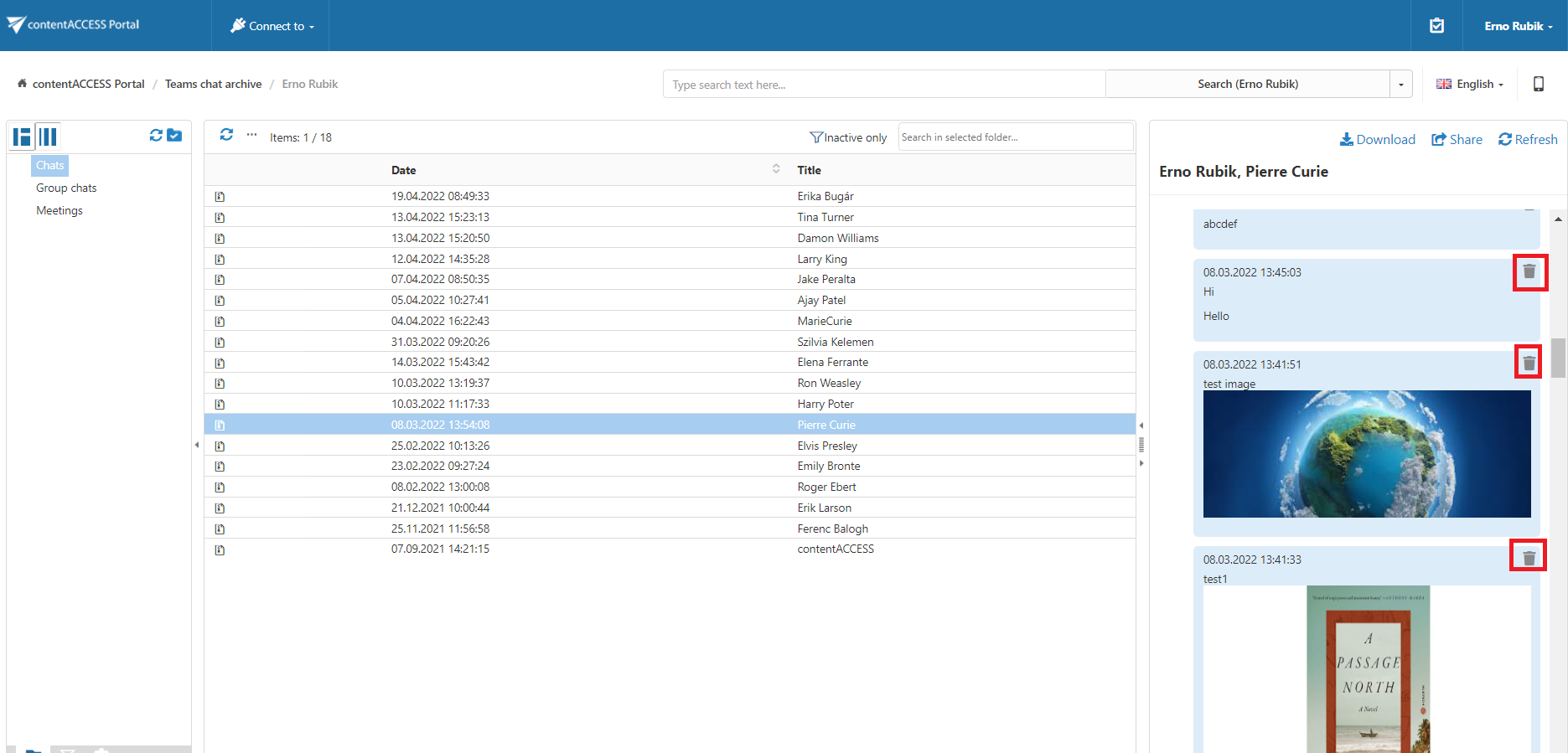
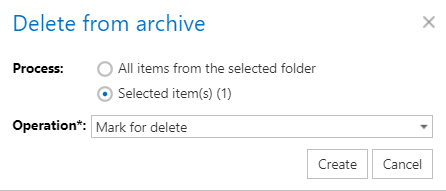
The Mark document(s) for delete task allows users to mark or unmark chats for later deletion from the archive by the Delete job.
Users can mark or unmark:
- Only the selected chats.
- All chats in the current folder.
The Mark document(s) for delete function must first be enabled by the administrator on the Task types tab. For more information, see Enabling/disabling tasks.
After enabling the Mark for delete function, return to contentACCESS Portal. If the option does not appear in the context menu, either re-login is required or you do not have access to the function. In this case, contact your Administrator.
The Mark for delete function works differently in the Teams Chat Archive than in other models.
When a chat is marked for deletion, the delete icon is displayed on the individual messages in the preview rather than on the entire conversation in the item list. If all messages are deleted from the chat, the conversation is removed from the item list.
It is also possible to delete an entire Teams Chat Archive entity with the Delete job.
To mark or unmark chats:
-
Select the required action from the Operation dropdown list.
-
Click Create.
Download
The selected Teams Chat Archive item can be downloaded by clicking Download.

Refresh (item)
Use Refresh (item) when changes have been made to the selected item and the changes are not yet displayed in the preview.
