contentACCESS Version 2.5

✨ Highlights
- Introduces the new Mail app, expanding email archive capabilities for Exchange, Outlook, and OWA with manual archive and restore.
- Adds advanced monitoring and administration features, including detailed event filtering and export directly from Central Administration.
- Enhances configuration and setup with automated updates, improved virtual drive management, and flexible storage and database assignment.
- Improves email archive functionality with EML support, extended Outlook integration, and additional folder archiving options.
Common features
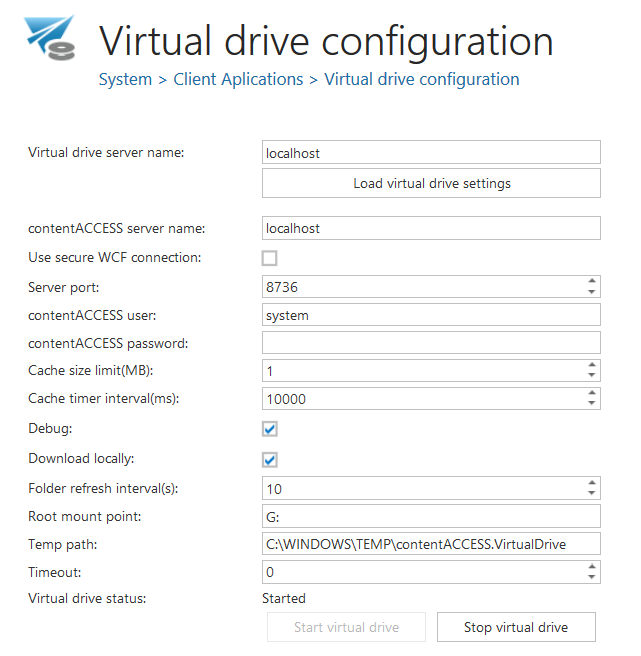
✓ Virtual drive configuration plugin: Virtual Drive is now configurable directly from the Central Administration user interface. Navigate to the System ribbon tab → Client Applications → Virtual drive configuration.
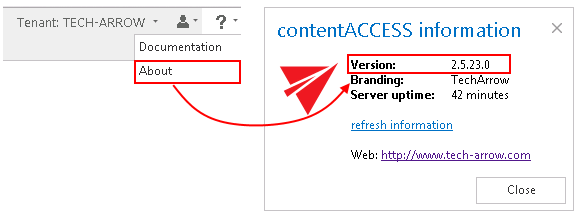
✓ About window: From version 2.5, it is easy to check the version number of the installed contentACCESS instance. You can also see the server uptime.
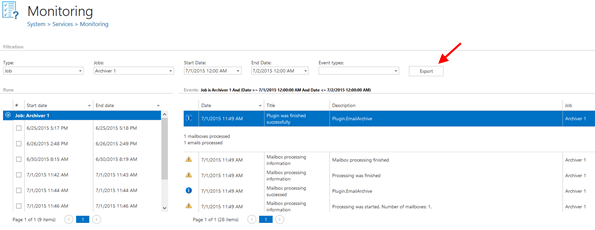
✓ Monitoring: The email notification feature was introduced in version 2.4. contentACCESS version 2.5 now brings a powerful new monitoring feature, making it easy to filter jobs, events, and event types, and to see details directly in Central Administration. With the Export function, users can easily save reviewed events to XML, CSV, or HTML.
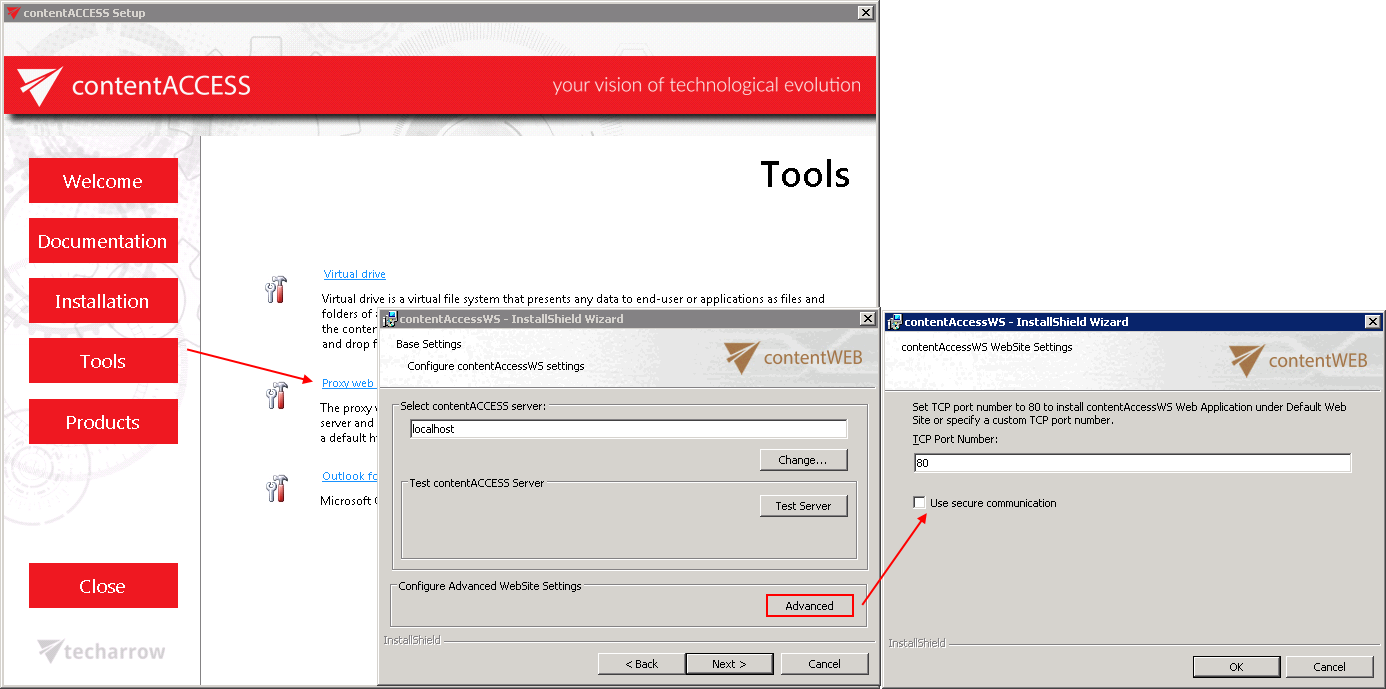
✓ HTTP (port 80) and HTTPS access: Is your environment protected by a firewall? Would you like to use contentACCESS only on standard HTTP and HTTPS ports? Would you like to secure communication channels? This can all be configured directly from the contentACCESS setup under Tools → Proxy web services. Be sure to have proper HTTP/HTTPS settings in IIS on the system where contentACCESS is installed.
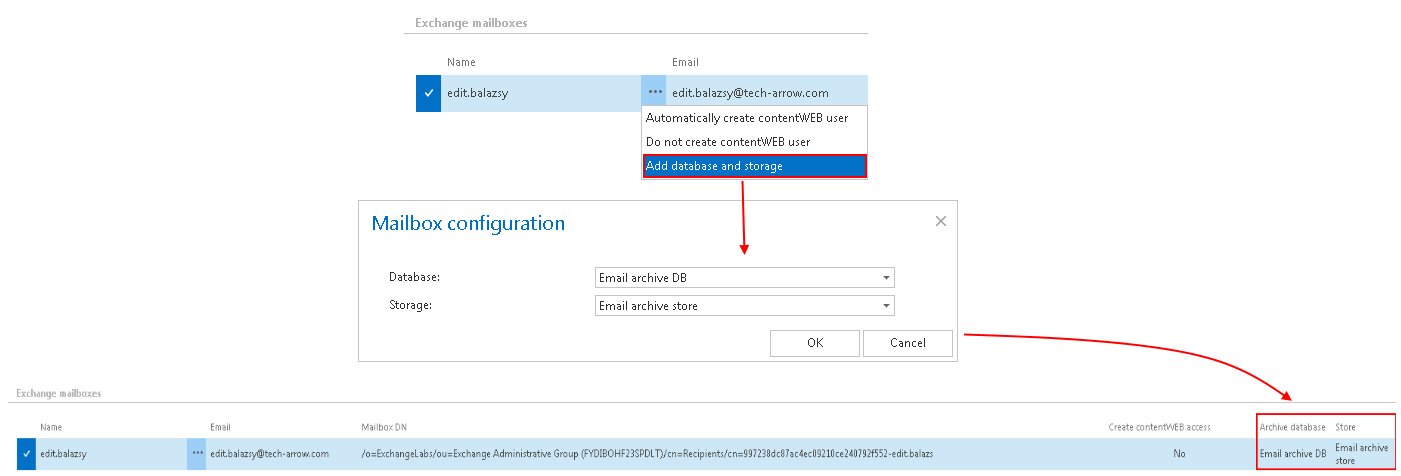
✓ The mailbox database and storage are now independent of the archiver job and are directly associated with a database and storage. This means it is now possible to safely move mailboxes between groups without the risk of the same mailbox being archived into two different databases or storages. You can associate a database and storage for a single email or for Exchange groups by navigating to the Email Archive ribbon tab → Archive → View address book → … (ellipses for groups or mailboxes).
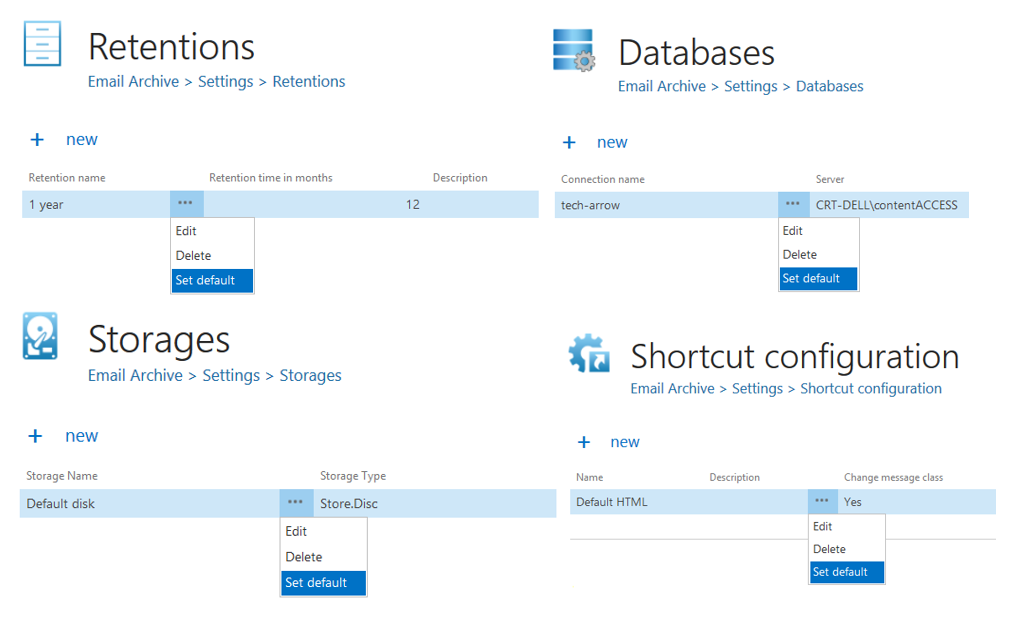
✓ It is possible to set default values for storage, database, retention time, and shortcuts. These default values are also used in the case of manual archiving (from the new Mail app).
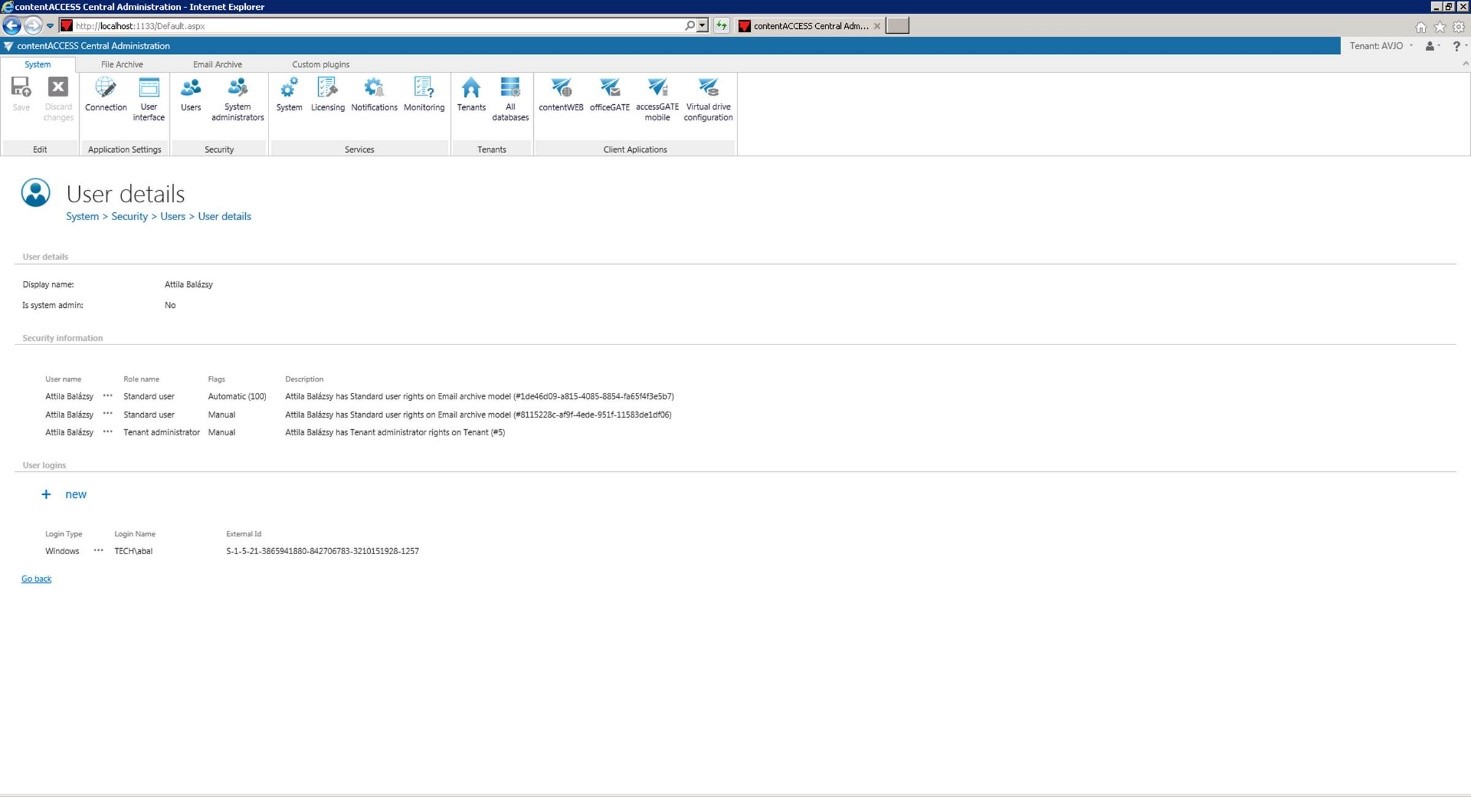
✓ View all security information related to the signed-in account. In System → Security → Users, double-click a user to see this information for other accounts as well. The flag indicates whether rights were assigned by a provisioning job or manually.

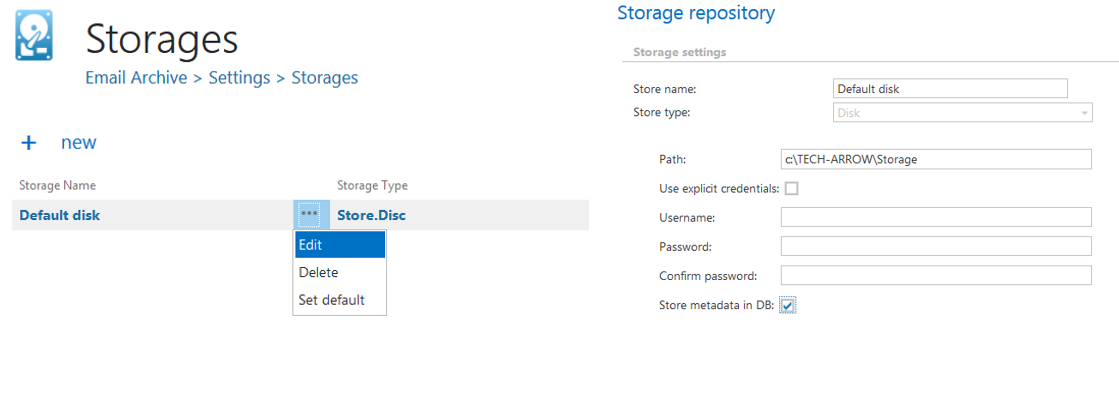
✓ For new or existing stores, you can decide whether metadata should be stored in the database.
✓ The new contentACCESS setup automatically handles all necessary configuration file updates during contentACCESS Server, contentACCESS Central Admin, and contentACCESS WS (Proxy) installation. There is no need to manually deploy database scripts—all databases are automatically updated during the first contentACCESS start.
Email archive
✓ Mail app for Exchange 2013, Outlook 2013, and OWA 2013 (view original email, view attachments, manual archive, manual restore)
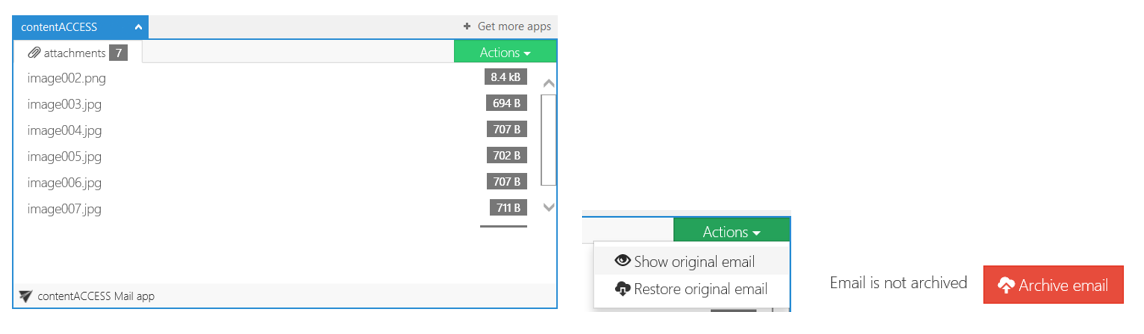
✓ Email Archive Interface: The Email Archive Interface enables connection to contentACCESS and allows calling services such as Manual Archive and Manual Restore. The Email Archive Interface is also used by the Mail app.
✓ EML support – The archive now generates links for both MSG and EML files.

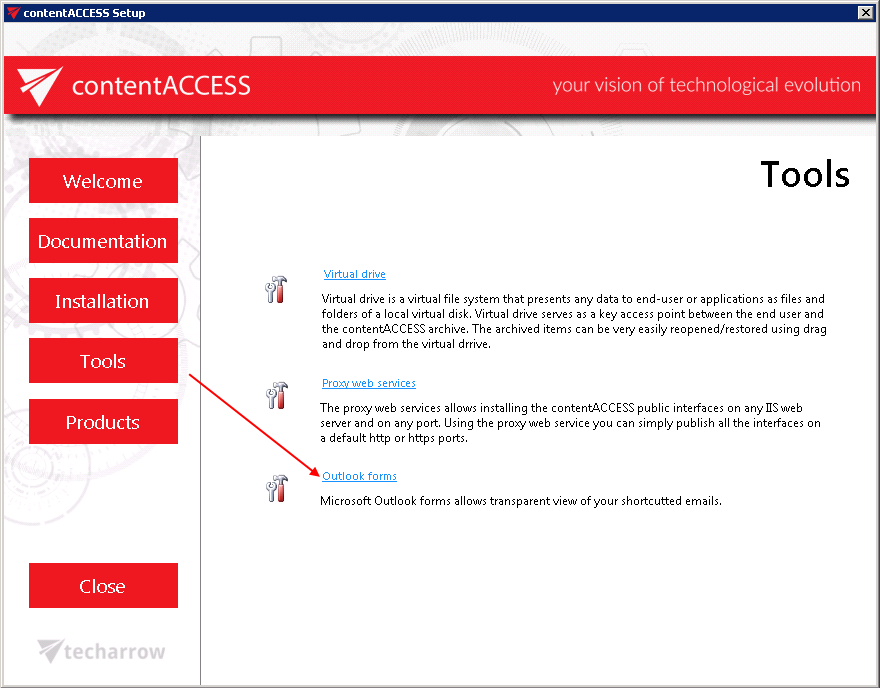
✓ Outlook forms – The contentACCESS package was extended with Outlook forms deployment functionality, available under Setup → Tools. Forward and Reply for archived emails now work the same way as for standard emails.
✓ Exclude Message Class List – It is now possible to exclude message classes under Email Archive → Settings → System settings.

✓ contentACCESS can archive the Deleted Items and Drafts folders as well.
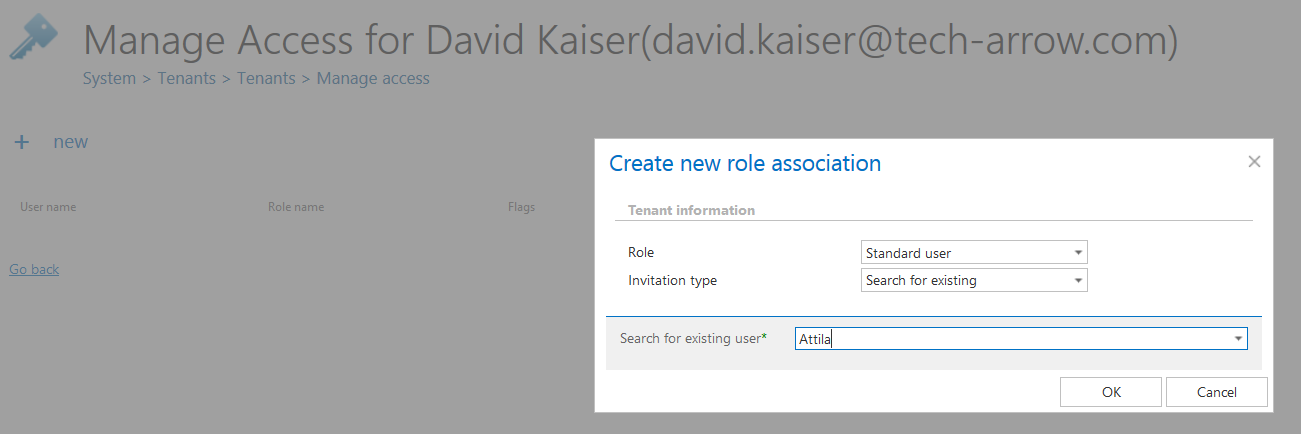
✓ You can now add explicit rights to a contentACCESS user for a selected mailbox: Email Archive → Archive → View Address Book.

File system archive
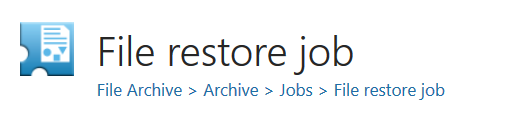
✓ File system restore job is available:
✓ LNK shortcuts pointing to archived files now work on macOS as well. The WinShortcutter app is required.
Client applications:
contentWEB:
✓ EML support – Automatically save emails on macOS in EML format.
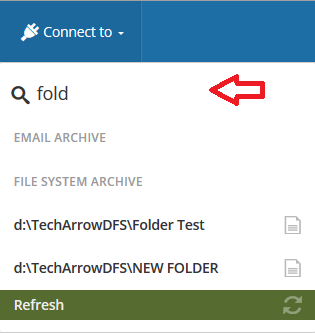
✓ Automatic search in connectors – Start typing, and matching connectors are displayed in black font:
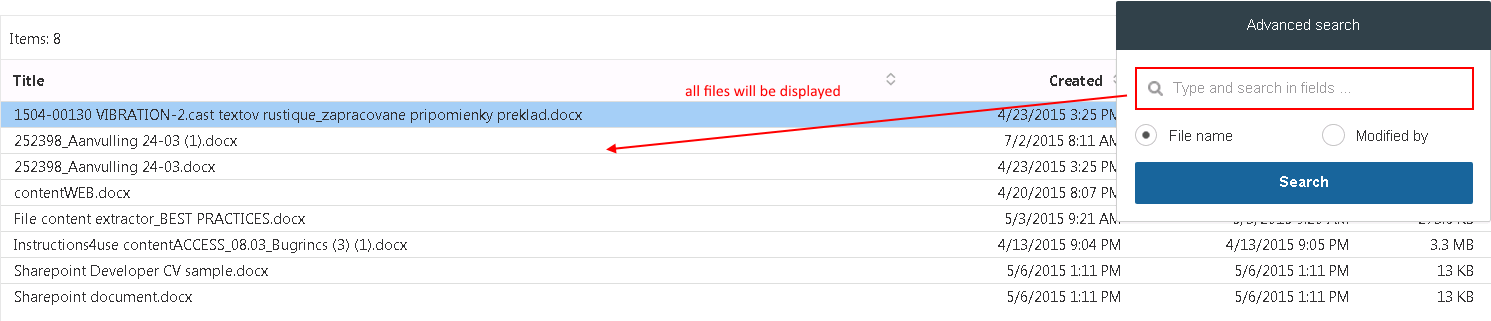
✓ Advanced search enhancement: New zero-term search feature.
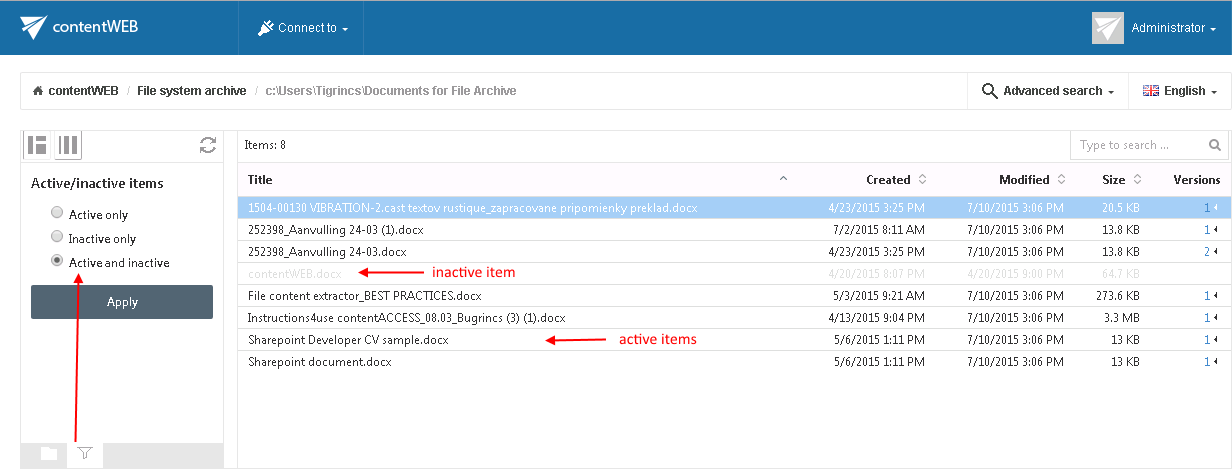
✓ Filtering for file archive: Filter to view active or inactive files. Inactive files are those that have been deleted from the original location.
✓ User-based settings: contentWEB now automatically saves the last view, including filters and column changes.