Storage Optimizer Version 1.0

✨ Highlights
- Introduces modern authentication with automatic Entra ID app registration for improved security and simplified setup.
- Adds flexible SharePoint site categorization (SharePoint, Teams, and OneDrive) with granular site selection.
- Provides a new dashboard with clear insights into storage usage, data distribution, and optimization potential.
Application
✓ Modern authentication
Modern authentication ensures higher security, better transparency, and easier management. It helps administrators eliminate the need to assign the necessary permissions for a SharePoint superuser across all site collections.
✓ Automatic Entra ID App Registration
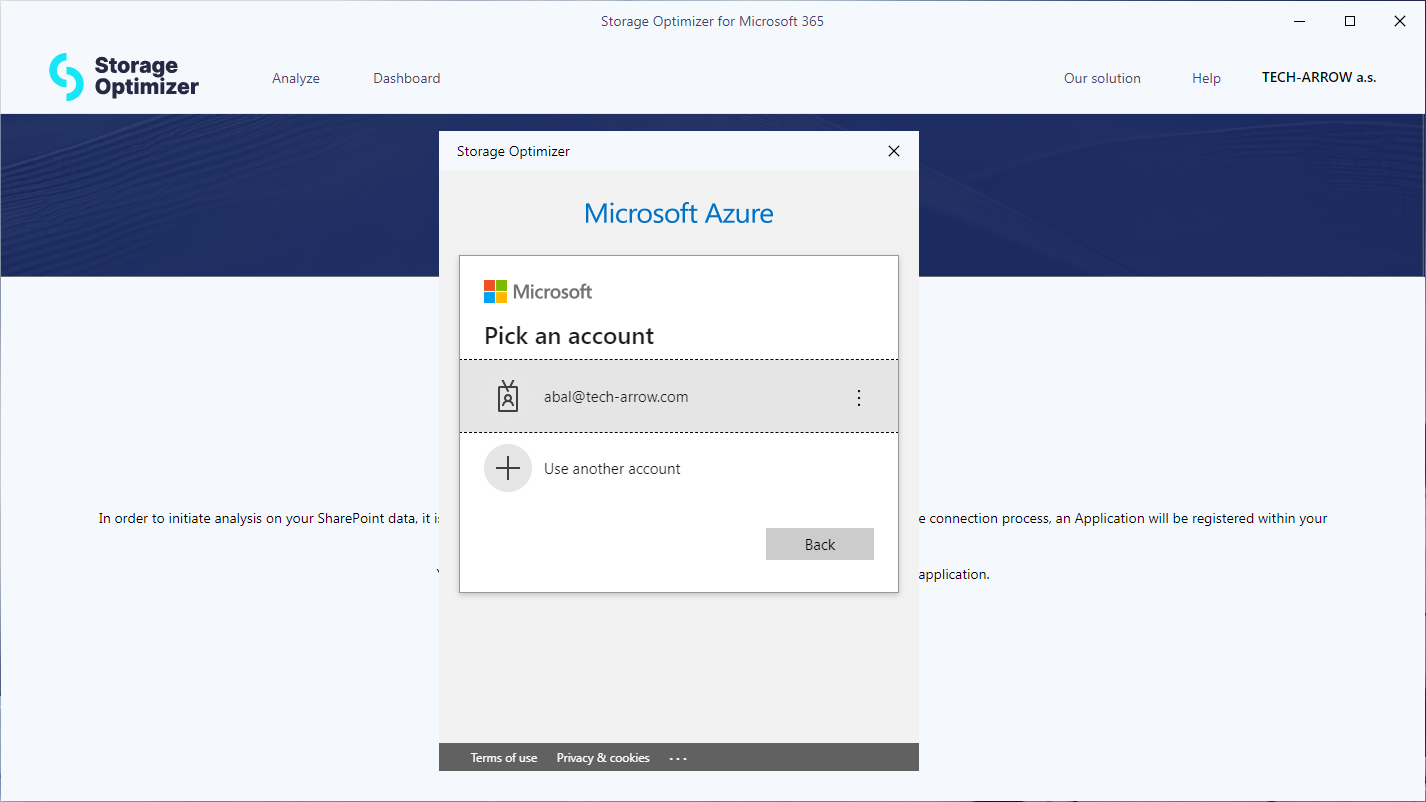
To use modern authentication, an application must be registered within the tenant’s Entra ID (formerly Azure Active Directory). This registered application receives only the minimum permissions required to access your SharePoint sites. Storage Optimizer then uses this application to communicate with SharePoint.
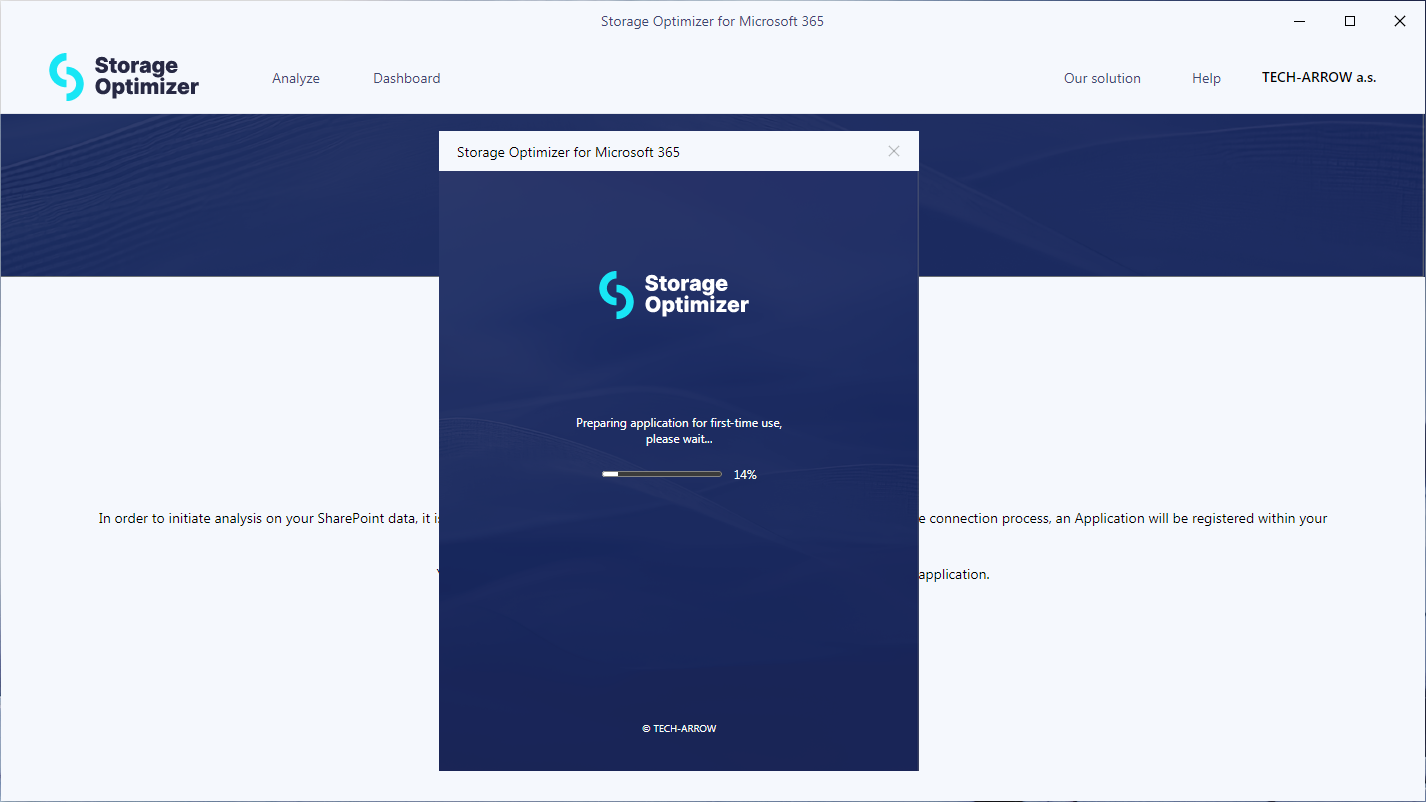
The Entra ID app registration process can be long and tedious and may lead to mistakes and errors. To simplify this process, Storage Optimizer automatically registers the Entra ID app during the connection process. The Entra ID application remains fully under your control, allowing you to review, change, or disable it at any time.
✓ SharePoint sites categorization
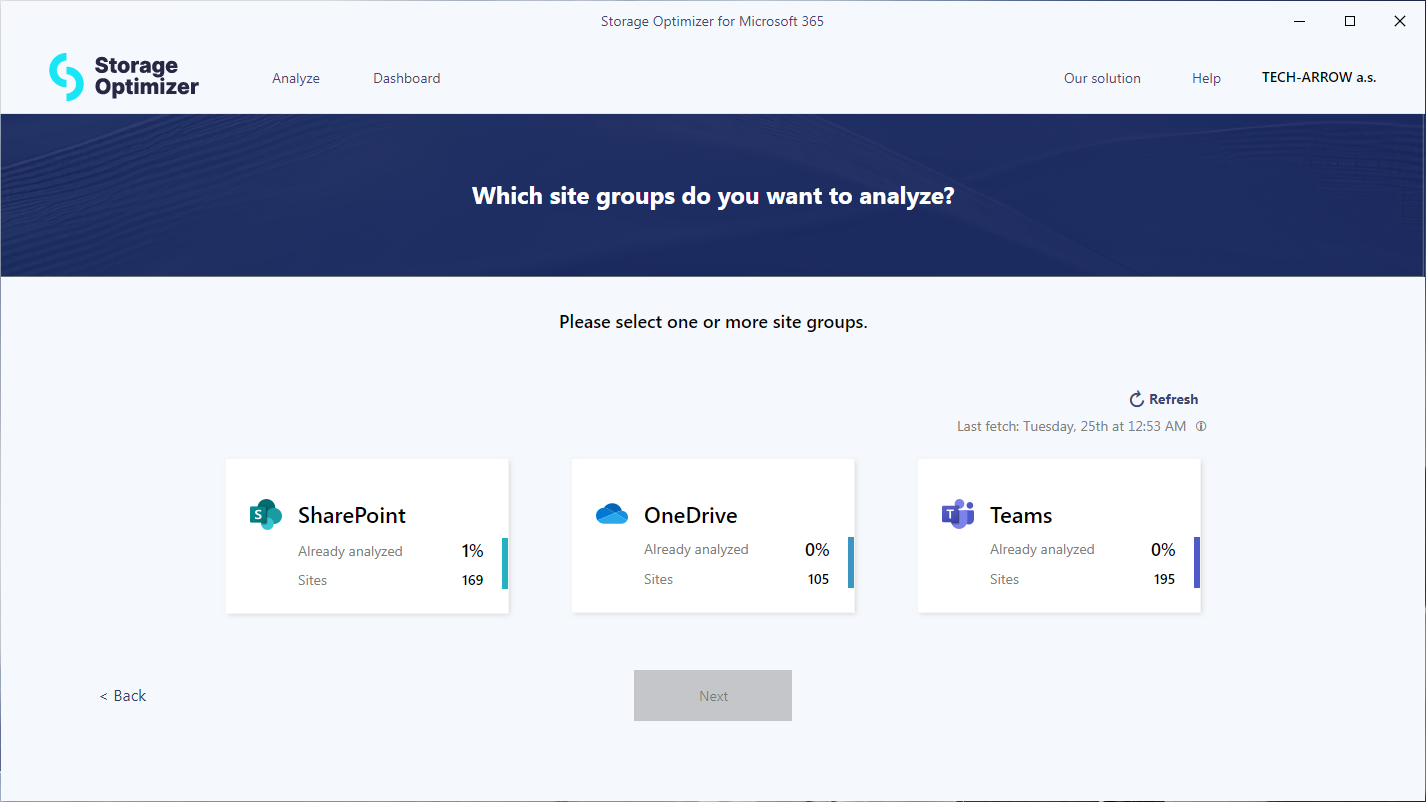
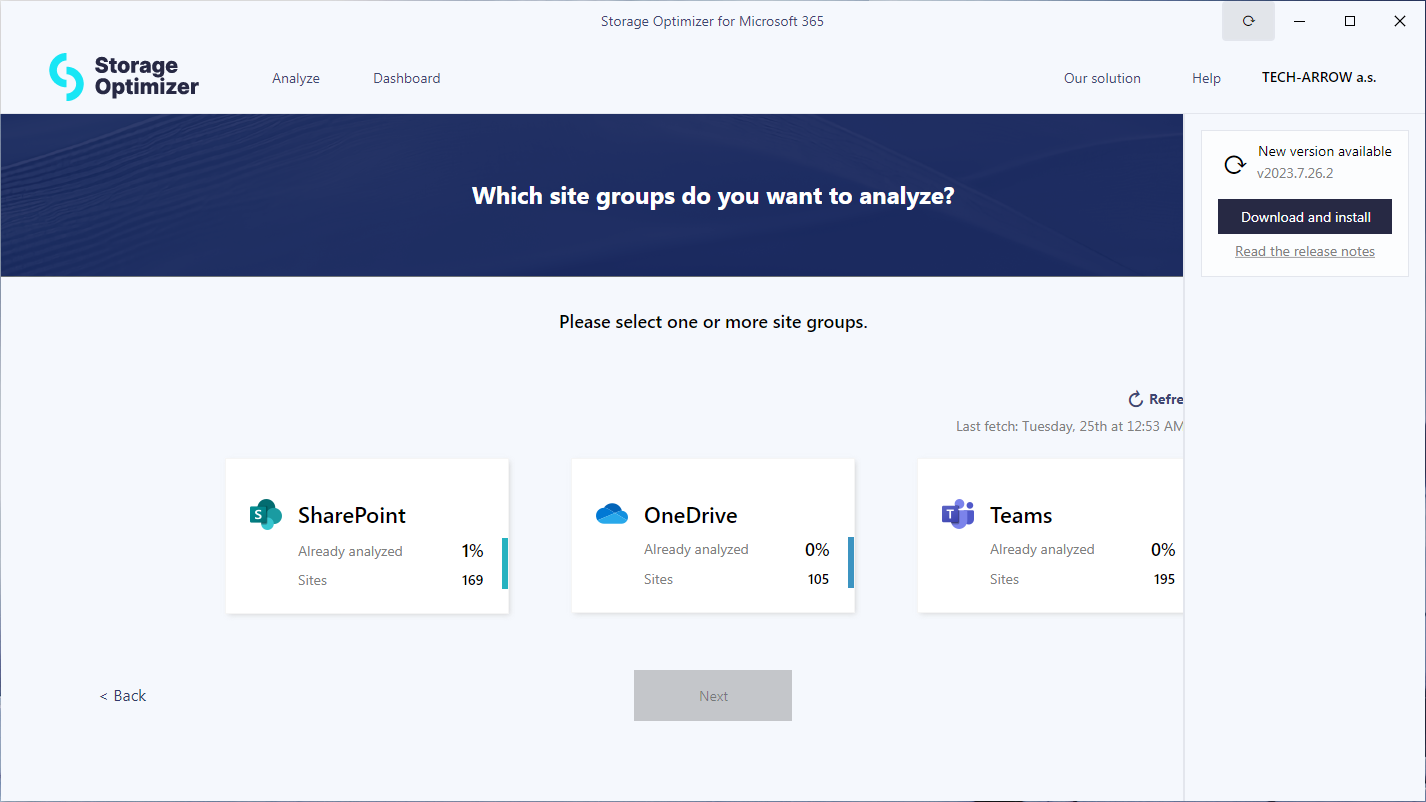
As SharePoint is used by many different services in Microsoft 365, Storage Optimizer categorizes all your sites into three groups (SharePoint, Teams, and OneDrive) to help you focus on the most important data. You can select one or more site groups and later narrow down the specific sites in the site list.
✓ Granular site selection
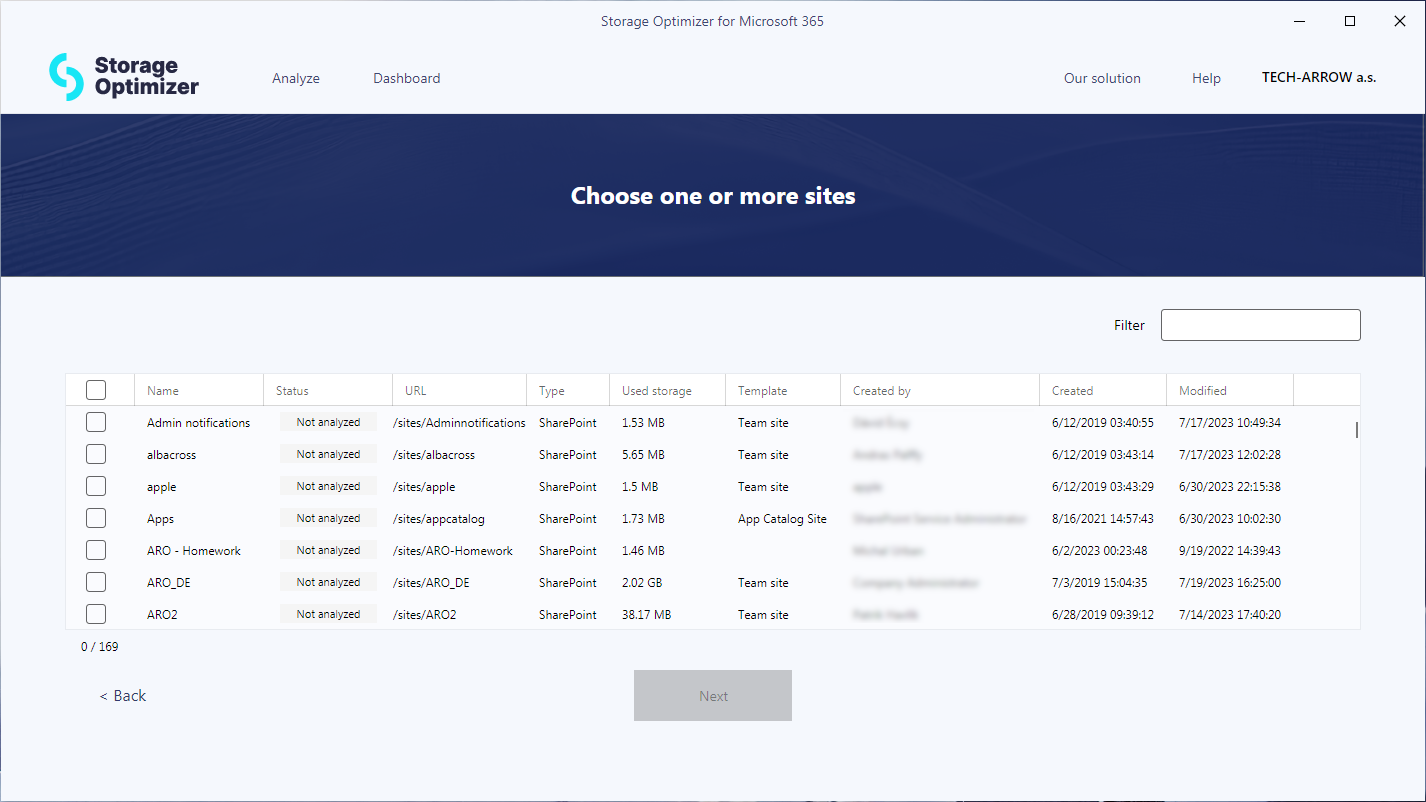
Storage Optimizer displays all your SharePoint sites from the selected groups, along with useful details such as size, template, URL, creation time, and more. To find the sites you want to analyze, you can search, sort, or filter the site list based on any column.
You can then analyze all sites or only a subset of them and run multiple analyses with different site combinations. This flexibility allows you to gather statistics for the most relevant sites.
✓ Dashboard
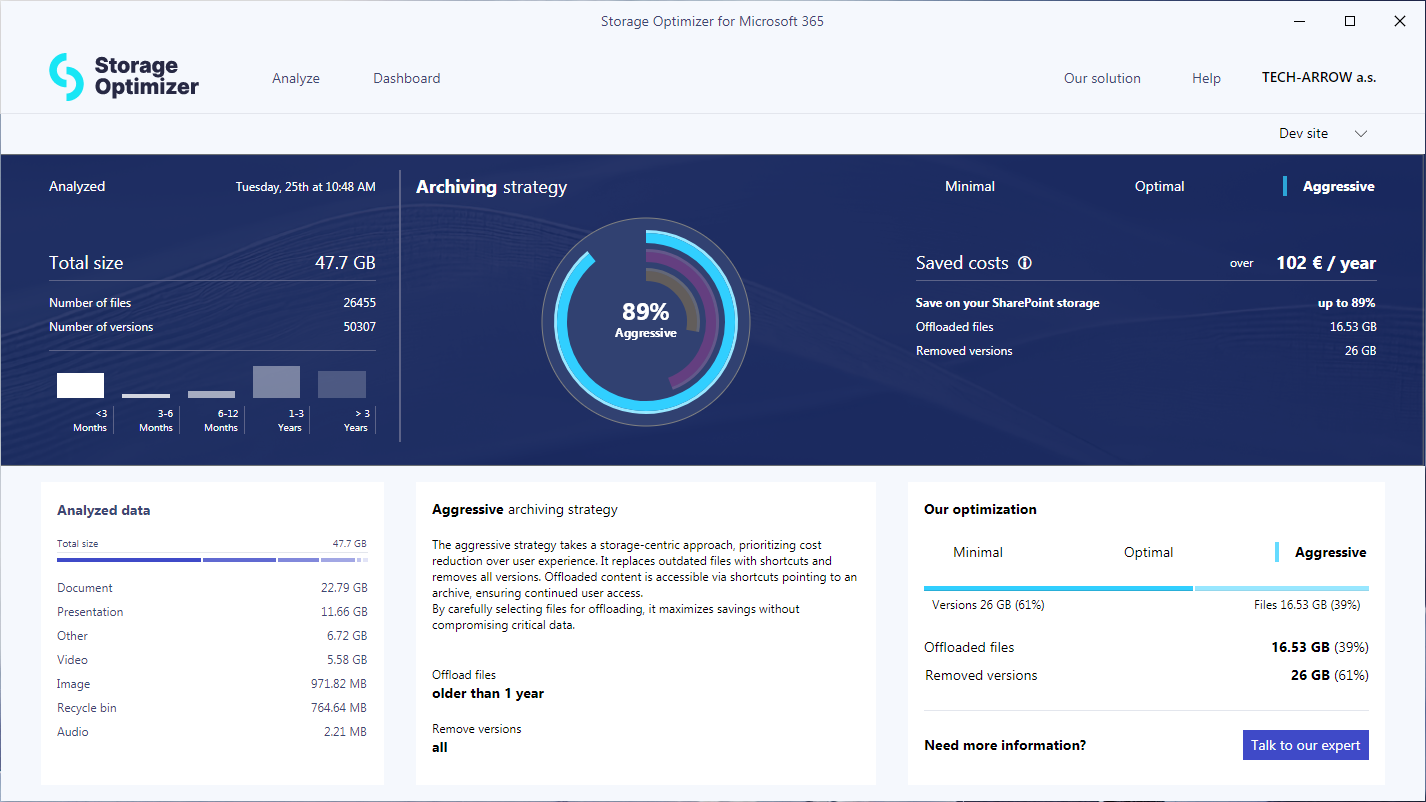
The Storage Optimizer dashboard provides a high-level overview of the analyzed data. It shows the total data volume, as well as the number and size of versions. In addition, it displays data distribution over time, helping you understand how much data was modified in the past and how much space older document versions occupy. Data that has not been modified for a long time is a good candidate for offloading.
The tool also suggests optimization options and estimates potential savings. You can choose between different approaches depending on whether your priority is cost savings or maintaining a seamless user experience.
✓ Automatic updater
To ensure you always have the latest version of the application installed, Storage Optimizer includes a built-in automatic updater. It periodically checks for new versions and notifies you when updates are available. You can review the release notes to learn about changes and update to the latest version with a single click.
Installer
✓ Installer
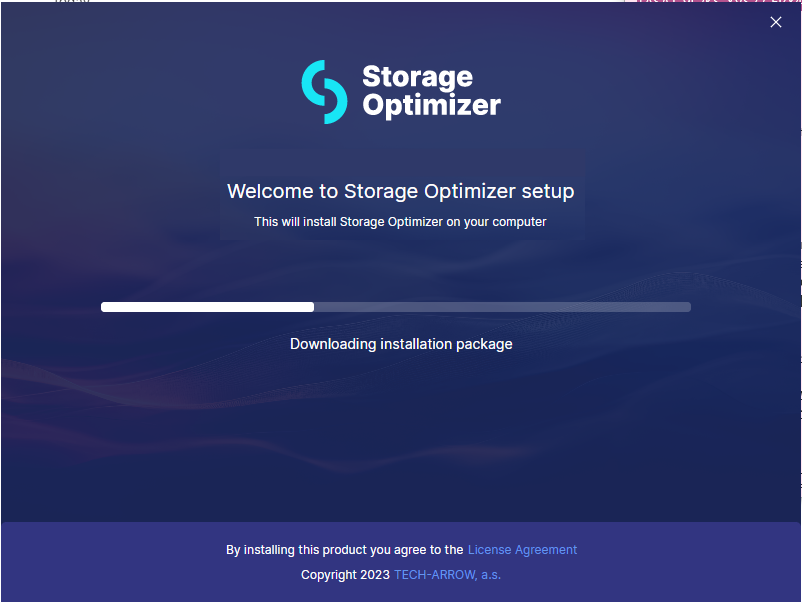
Our user-friendly and intuitive installer enables quick and seamless deployment of the application, ensuring a hassle-free experience.