How to use the Remote File Archiver
Introduction
Remote File Archiver runs in the Windows taskbar notification area. From its taskbar icon, users can view archived items and open the Remote FA settings.
Open Remote File Archiver settings
In the lower-right corner of the taskbar, click Show hidden icons if necessary. The blue arrow icon represents Remote FA.

Click the Remote FA icon to open the pop-up window. The window displays the list of items archived by Remote FA. If no files have been archived yet, the list is empty.
Click the Settings button to open the Remote FA settings.

Alternatively, right-click the Remote FA icon and select Settings… from the context menu.
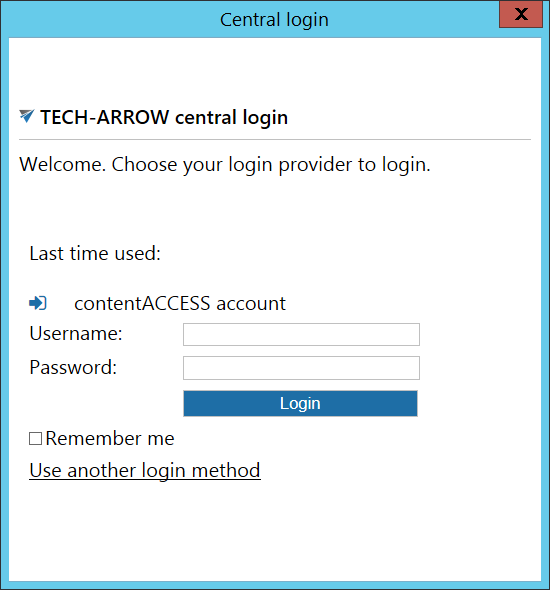
Note: If you were previously logged in but have since logged out of the application, the login pop-up window appears after opening the settings.
You can log in at this point or close the login window. If you close it, you can log in later as if you were using Remote FA for the first time. For more information, see the Connection tab.