Active Directory tab
Introduction
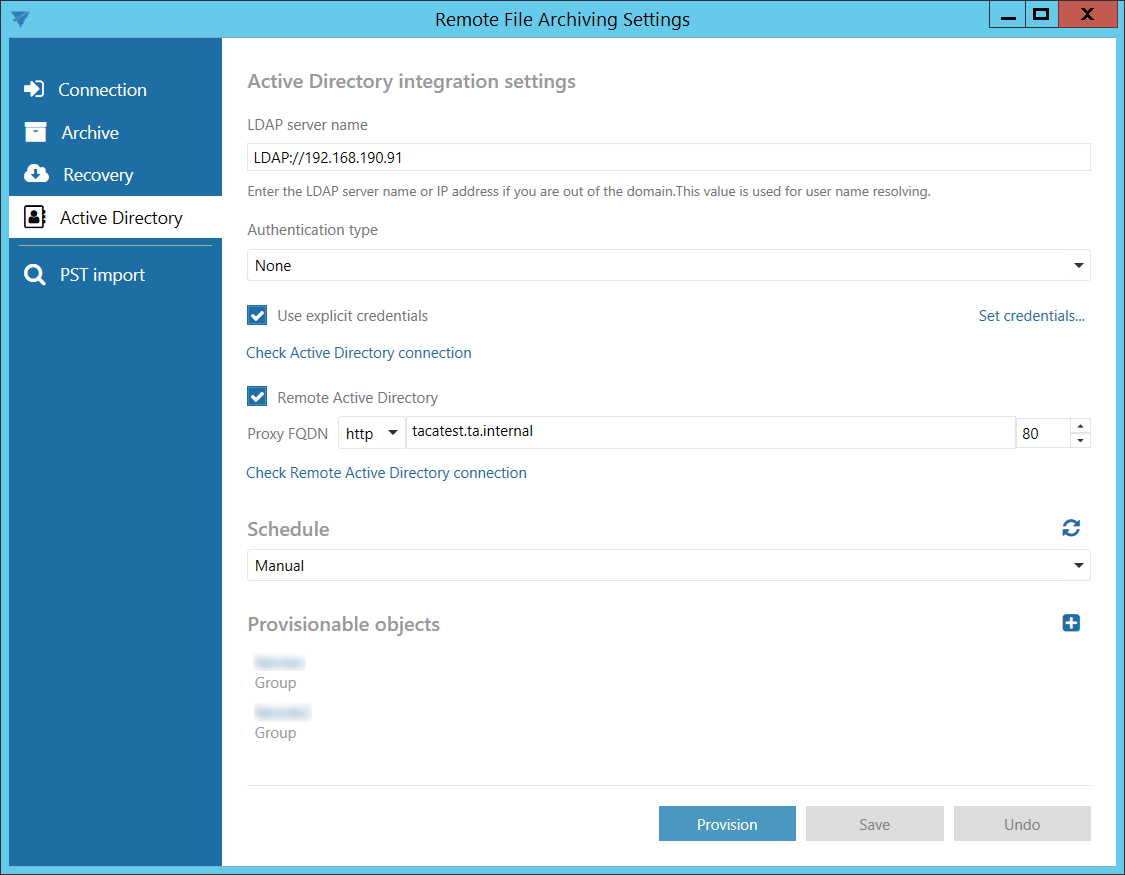
The Active Directory integration settings allow Remote File Archiver to access Active Directory and provision local Active Directory users to contentACCESS. During provisioning, the local users are recreated in contentACCESS with External Active Directory authentication, allowing them to log in to contentACCESS using their local AD credentials.
Configure Active Directory integration
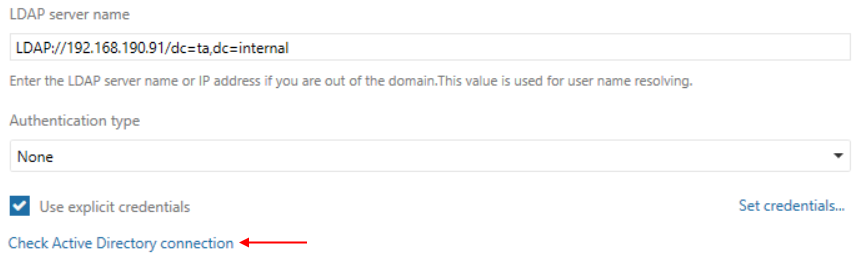
Enter the required LDAP server name.
If explicit credentials are required to connect to Active Directory:
-
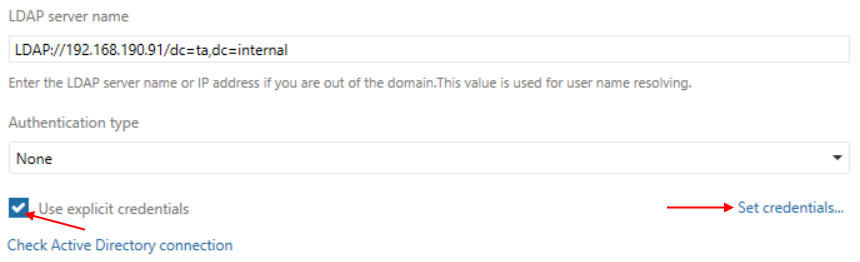
Select Use explicit credentials.
-
Click Set credentials… on the right.
-
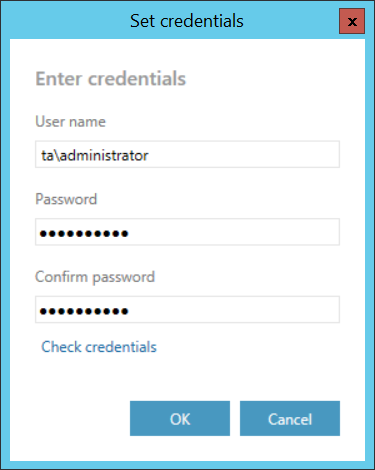
Enter the required credentials.
-
Click Check credentials to verify the credentials.
-
If the credentials are valid, click OK.
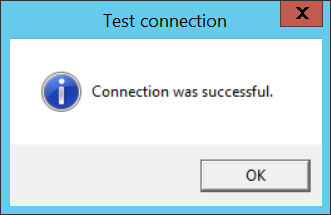
Click Check Active Directory connection to verify that the Active Directory connection is configured correctly.
Configure the remote Active Directory connection
During provisioning, External Active Directory type logins are created for users belonging to the selected groups.
To allow users to log in to contentACCESS using their local AD accounts, the authentication proxy (contentACCESSWS) must be installed in the local domain and must be accessible to contentACCESS from outside.
For more information, see the contentACCESS Web Services (Proxy) section.
Enter the external URL of the authentication proxy. For example:
https://caAuth.company.com:981
Important: The public URL must be forwarded to the machine and port where contentACCESSWS is installed and through which contentACCESS can reach the service. The URL must be published over HTTPS to prevent the user's credentials from being intercepted.
Click Check Remote Active Directory connection to verify that the remote Active Directory connection is configured correctly.

Configure the schedule
Select the times when the provisioning rule runs.
Only schedules previously configured in contentACCESS can be selected. To refresh the list of available schedules, click  .
.

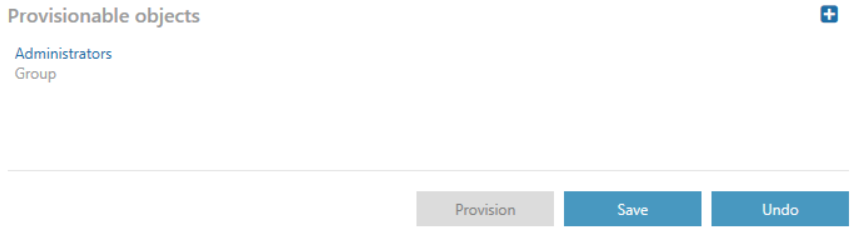
Configure provisionable objects
The provisioning job synchronizes Active Directory with contentACCESS. When the provisioning job starts, it automatically adds new Active Directory users to contentACCESS according to the provisioning settings.
Provisioned users automatically receive:
- Log on rights for Remote FA.
- The External AD login provider.
Note: The External AD login provider must be enabled in contentACCESS before provisioning.
Add provisionable objects
To add an object:
- Click
 .
. - In the dialog, select the object type and specify the object.
You can select:
- A Group – Objects belonging to the group are provisioned.
- An Active Directory container – All users inside the container are synchronized.
Specify the object as follows:
- Group – Enter the group name.
- Container – Enter the distinguished name (DN).
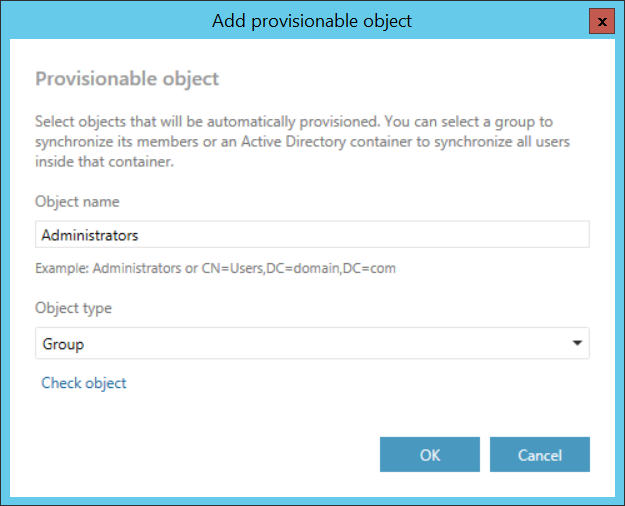
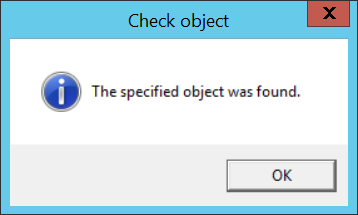
Click Check object to verify that the specified object can be found.
Note: Do not specify built-in groups such as Domain Users or Users as provisionable objects. These groups use a computed mechanism based on the user's primary group to determine membership and most probably do not contain any members by default.
Run provisioning
After specifying the objects to be provisioned:
-
Click Save.
-
Click Provision.
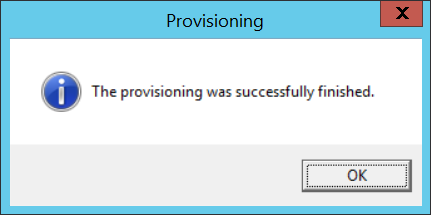
After provisioning is finished, you can verify the created users and logins in contentACCESS Central Administration.