PST import tab
Introduction
The PST import job is used to upload PST files to the contentACCESS server. The job processes PST files located in a selected local or shared folder.
Create a PST import job
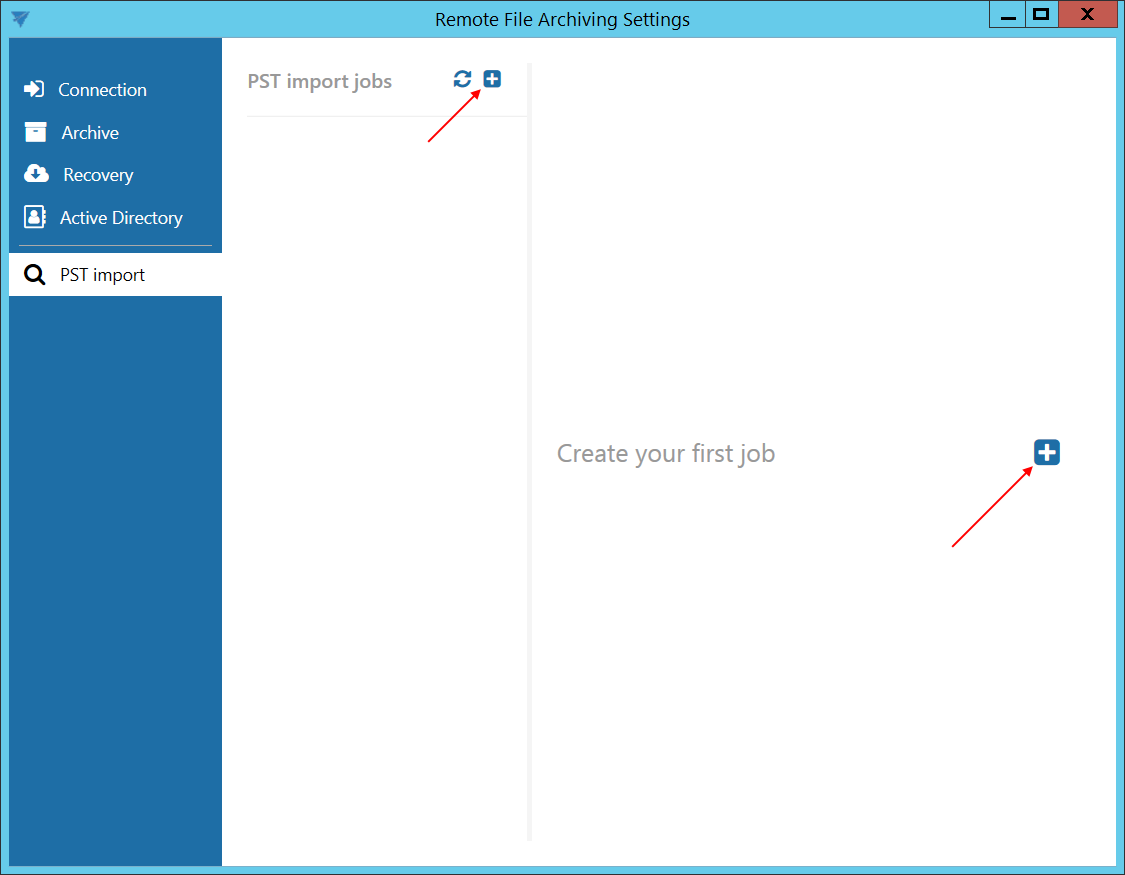
To add a new job, click the  button.
The button next to Create your first job is available only when creating the first job.
Note: A new job can also be added from Central Administration. For more information, see the corresponding section.

Folders
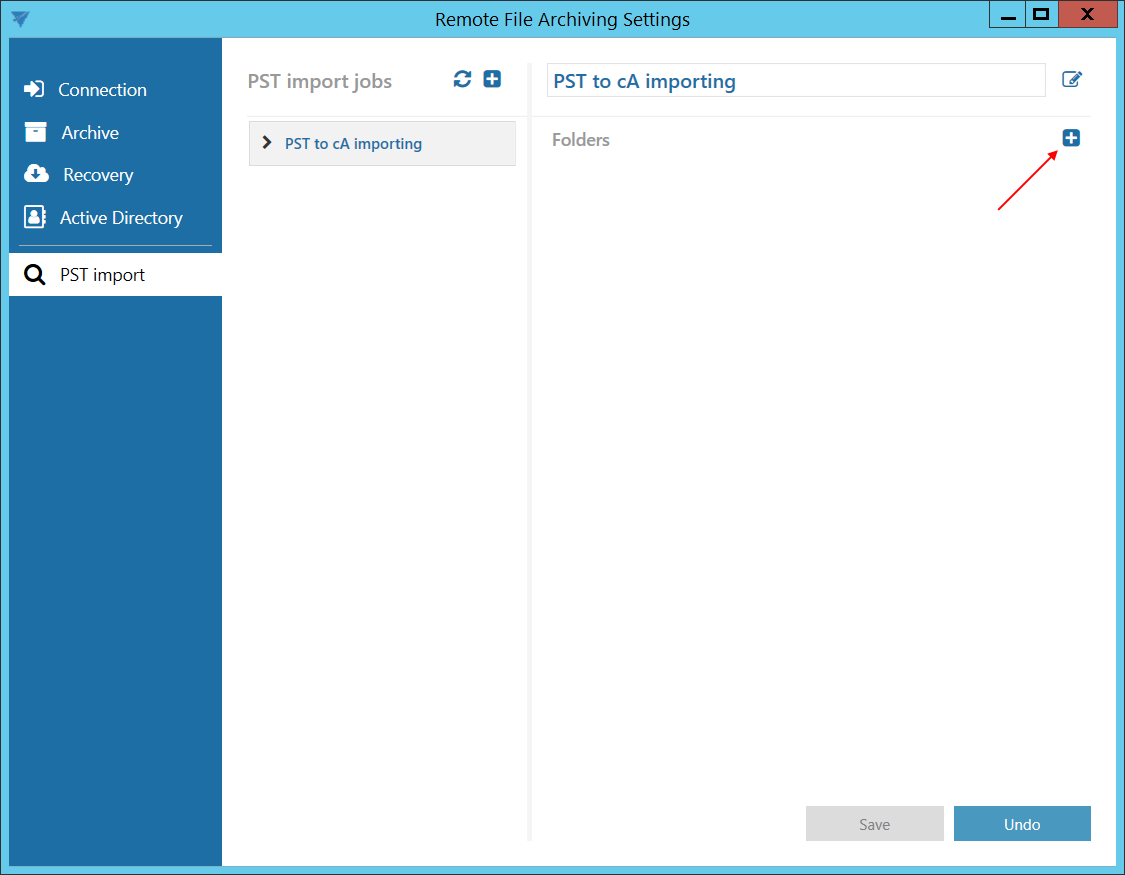
In the Folders section, select the folder containing the PST files to be uploaded.
Click to specify the folder.
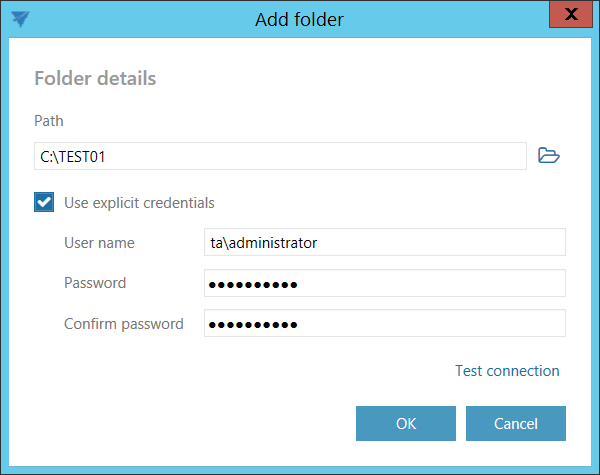
Enter the UNC path of a shared folder or the path of a local folder in the Path field. Alternatively, click Browse and select the folder containing the PST files to process.
The GATE.contentACCESS.RemoteFileArchiving.Agent service is responsible for running the jobs. The service accesses the specified folder using the account under which the service is running.
If the folder is accessible to the account running the service, you do not need to select Use explicit credentials.
If the folder is not accessible to the account running the service:
- Select Use explicit credentials.
- Enter the credentials of the user or account that has access to the folder containing the PST files to process.
Run and monitor the job
After configuring the settings, save them.
To start the job, click the button next to its name.

You can view details of the last run of the selected job.
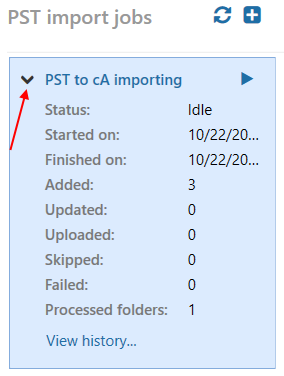
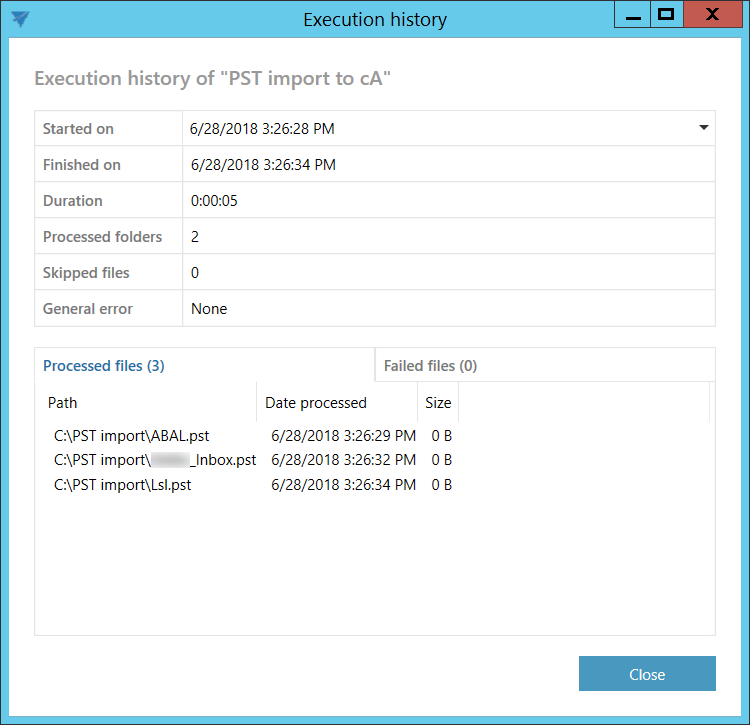
To view more detailed information about the last run, click View history….
The history window shows:
- Files that were newly processed.
- Files that could not be processed and failed.
- General error – Displays the error message if the job unexpectedly stops, for example because of a connection failure.
PST files processed by this job can later be used for contentACCESS PST import.