Recovery tab
Introduction
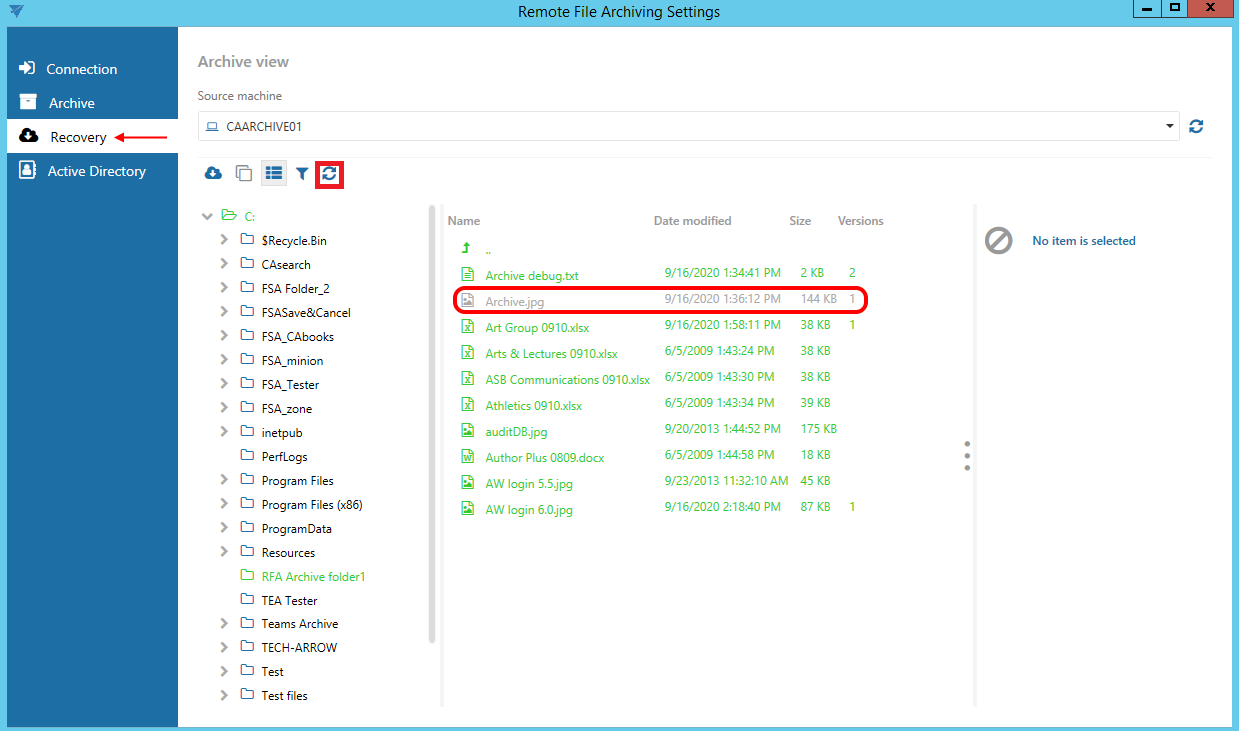
The Recovery tab allows users to explore already archived folders and perform recovery and archive-related actions. The view and available actions are similar to those in contentACCESS Portal.
Explore archived folders
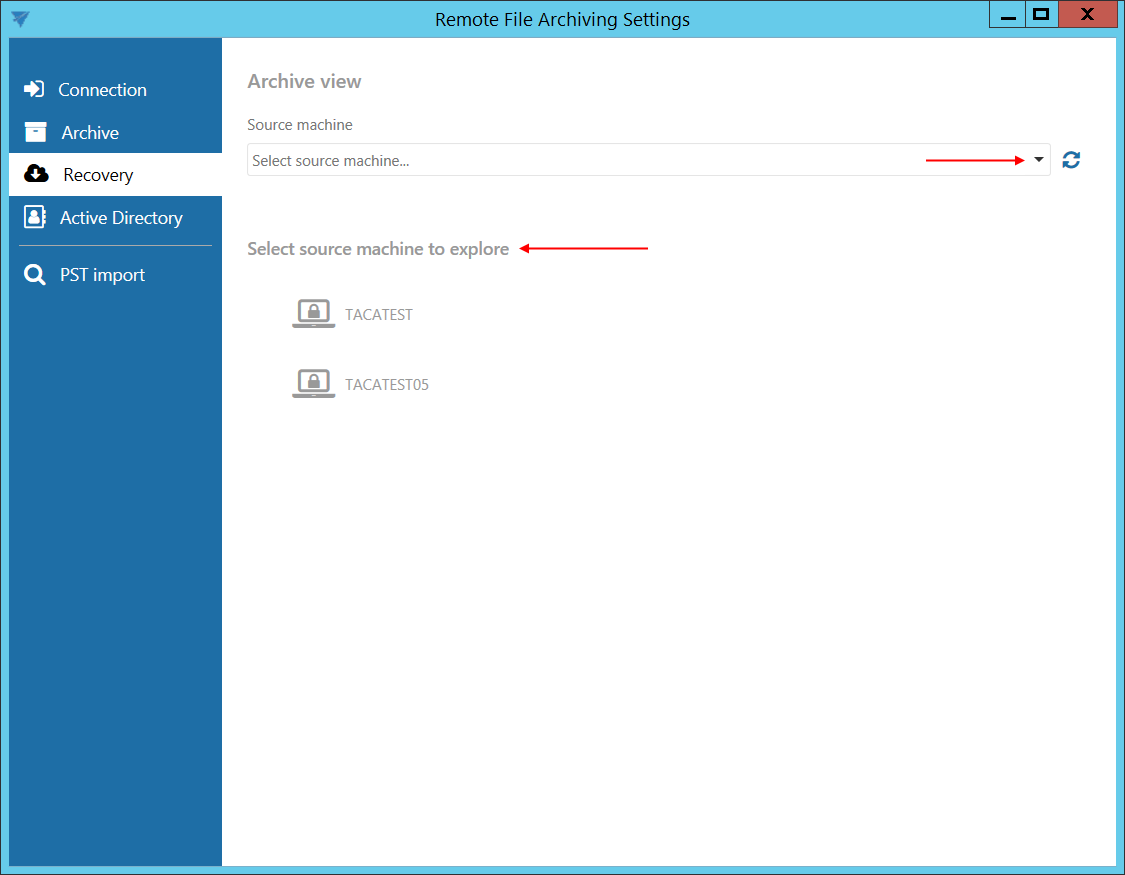
Select a source machine from the drop-down list or from the list under Select source machine to explore.
The source machines are marked as follows:
 – Fully accessible
 – Read-only, archived by another agent
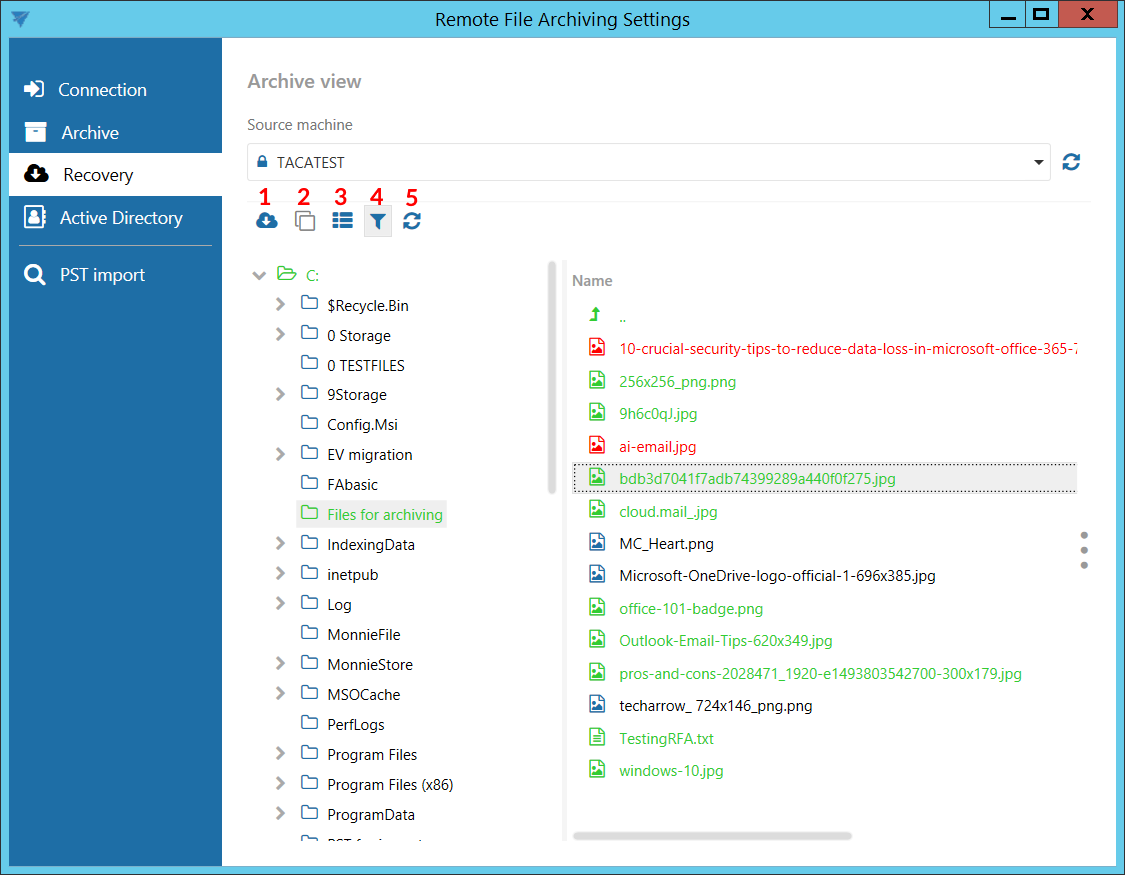
The following tasks are available:
Recover
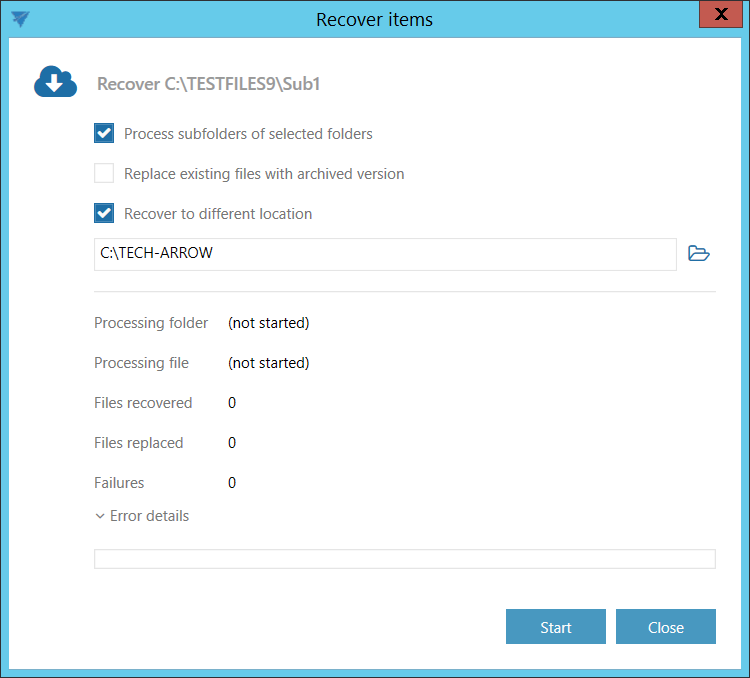
Recover allows you to recover deleted files from the archive or restore file versions from the archive.
You can also recover files to a location different from the original location. To do this:
- Select Recover to different location.
- Enter the UNC path of the shared folder or the path of a local folder in the text box.
- Alternatively, click Browse and select the target folder.
Note: The Recover function works only for files and folders selected on the right side, not for the folder structure on the left side.
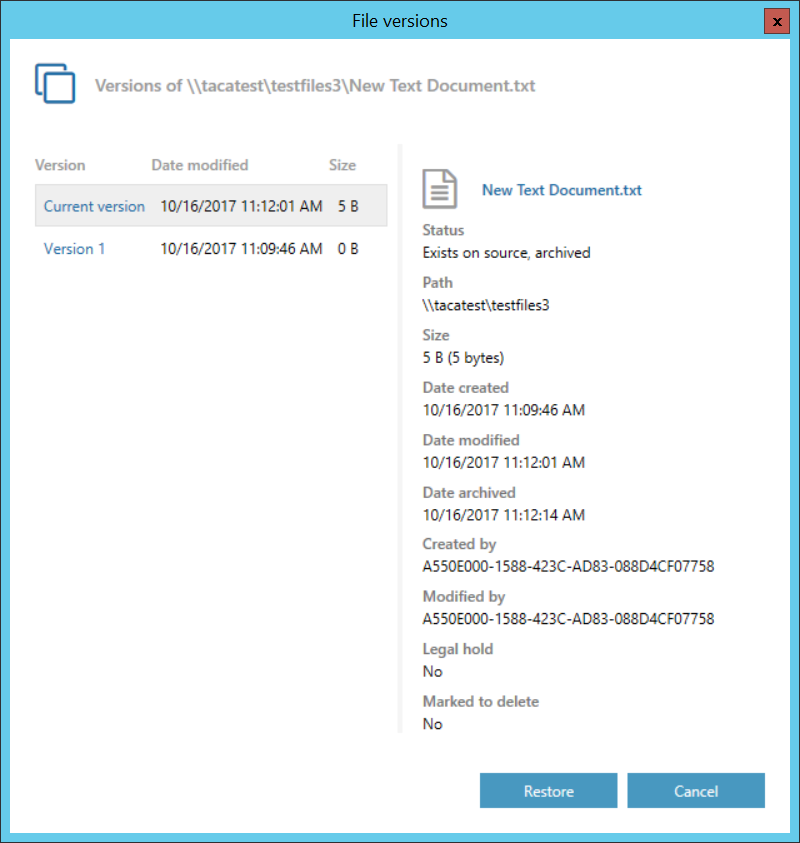
Show versions
Show versions displays the available versions of the selected file.
Show properties
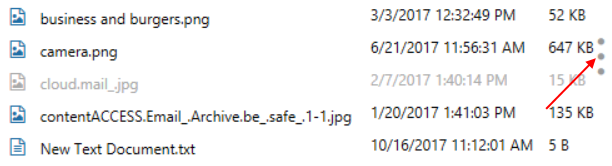
Show properties displays properties of the selected item, such as its date, path, and size.
Note: You can also view the properties by clicking the three-dot button on the right side.
Hide/show inactive items
Hide/show inactive items allows you to apply the active/inactive item view.
Refresh
Refresh manually updates the item list.
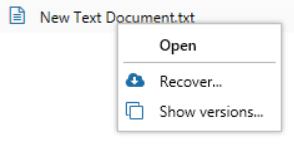
Open items and use the context menu
To open a selected item, double-click it.
To display the available tasks, right-click an item to open its context menu.
Item availability status
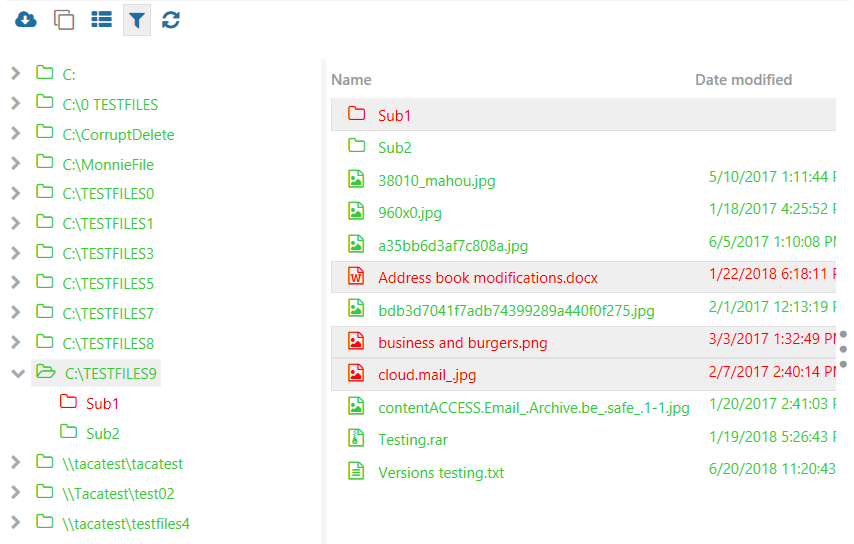
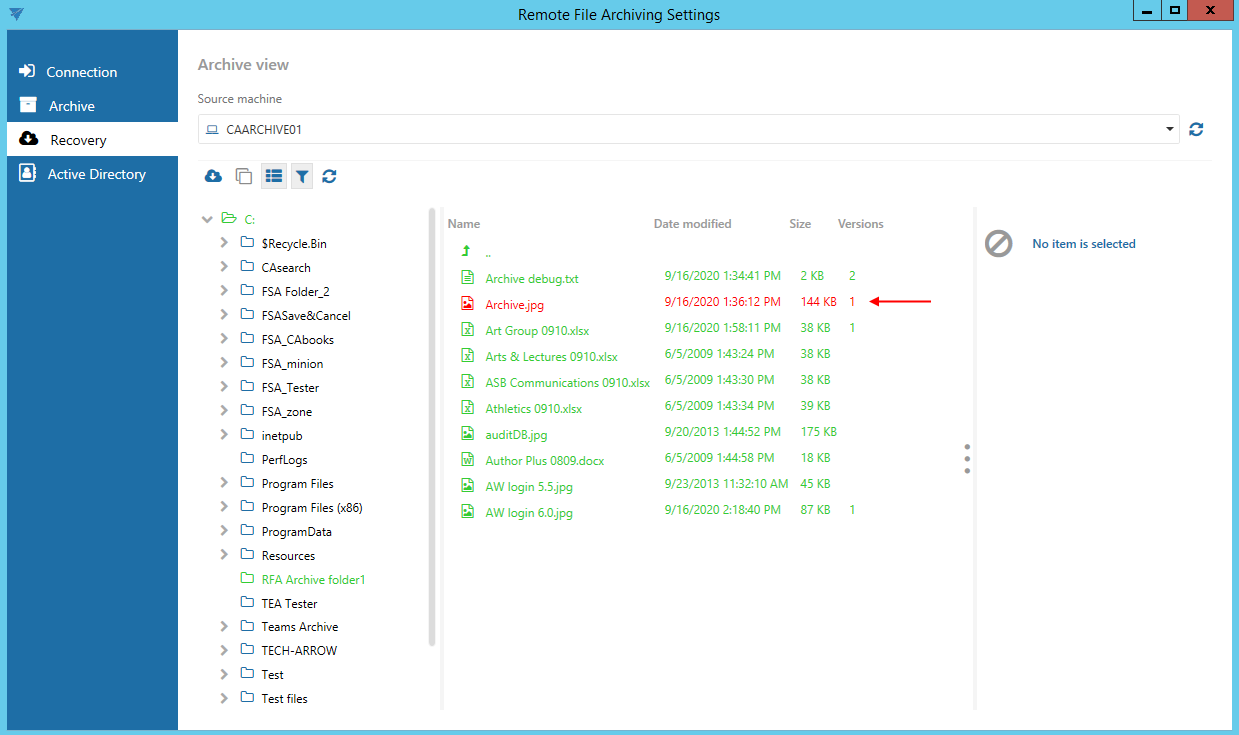
Items are displayed in different colors depending on their availability:
- Black – The item is available in the source location.
- Red – The item is available only in the archive.
- Green – The item was archived and is also available in the source location.
- Gray – The item is inactive; it is available in the source location but was deleted from the archive.
Make an item inactive
To make a file inactive:
-
Delete the file from the source location. RFA marks the item as red.
-
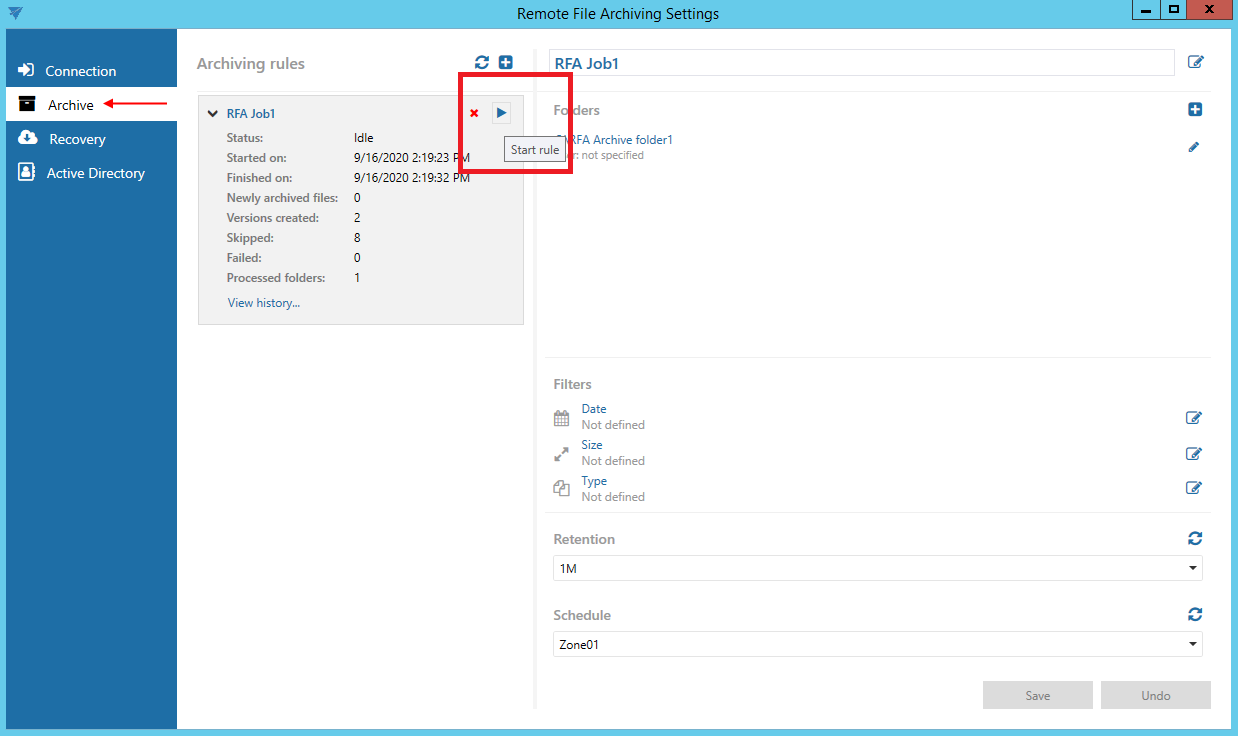
Go to the Archive tab and restart the archiving rule that was previously used to archive the file.
-
Return to the Recovery tab and refresh the page.
After synchronization, the item becomes gray (inactive).