Archiving common shares
Introduction
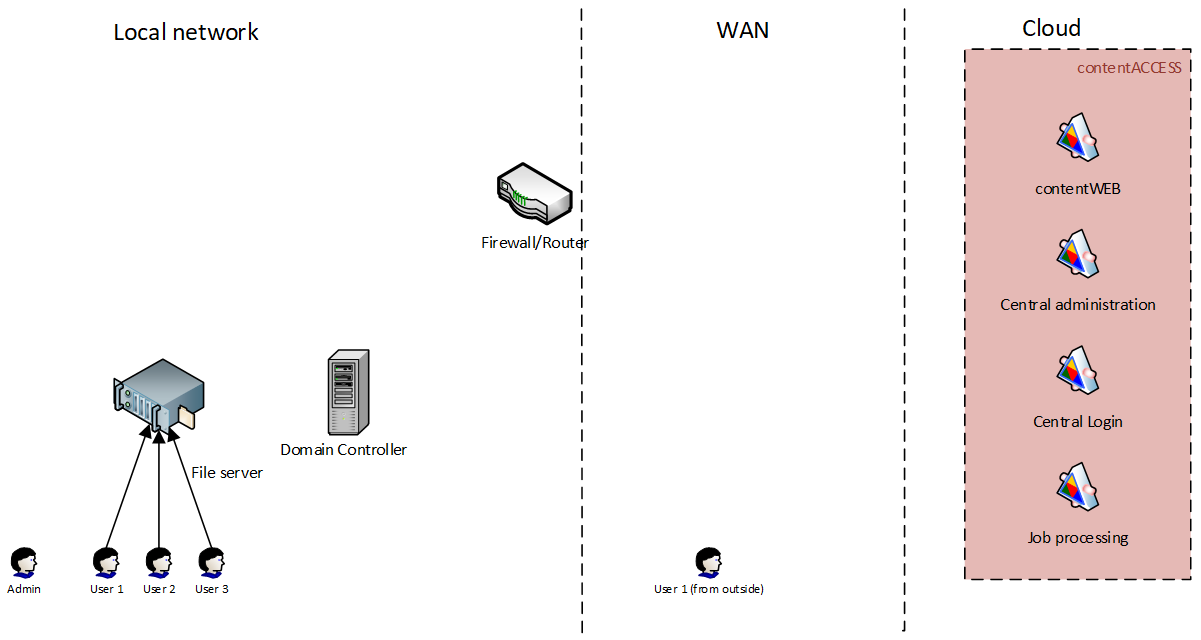
In this use case, the customer has a domain to which users and workstations are joined. The domain contains one or more file shares where users store their documents. The shares are commonly accessible to all users, while access levels are controlled by Windows file security.
Permissions are typically configured at the folder level, mainly at higher levels of the folder structure. Files and subfolders inherit permissions from their parent folders. Users are assigned to different groups, and file security is configured based on group membership.
Solution
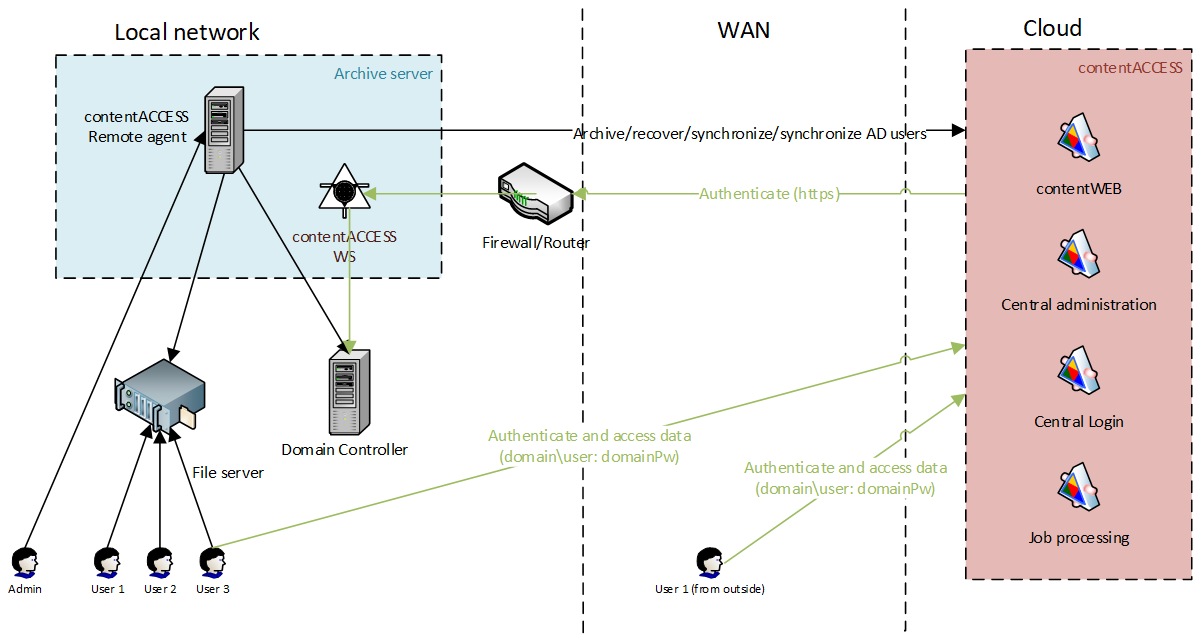
The administrator selects a server, referred to as the archive server, where RFA is deployed.
RFA connects to contentACCESS, which is running in the cloud, using a user with at least tenant administrator-level permissions. This user can register the root folder, that is, the UNC share to be archived, and perform the archiving.
After RFA is connected, the administrator can configure the archiving rules, including:
- Which folders are archived.
- The archiving criteria.
Multiple file shares and rules can be configured. After the rules are configured, the archiving process is ready. The configured folders are periodically scanned and archived to contentACCESS.
Initially, only the administrator has access to the archived data. The administrator can use the RFA client from the archive server or another contentACCESS client application, such as contentACCESS Portal, officeGATE, or contentACCESS Mobile. The administrator logs in using their privileged contentACCESS account.
Grant access to end users
To grant end users access to archived files, user provisioning and authentication proxy must be configured as part of RFA.
User provisioning automatically creates contentACCESS users for the configured users with the External Active Directory login type. The authentication proxy allows users to log in to contentACCESS using their domain credentials.
When logging in to contentACCESS, the user must:
- Select External Active Directory as the login type.
- Enter their AD credentials, including the domain user name and password.
After users log in, the server applies security trimming to files and folders based on the source permissions, including AD group membership.
As a result, users can see only the folders and files to which they have access on the source system.
Authentication
External Windows logins are created for users provisioned through RFA provisioning. Authentication is performed through the RFA authentication proxy.
Data access
Users automatically have access to all folders and files in the archive that they are permitted to access on the source system.
The following are not supported for permission evaluation:
- Built-in domain groups, such as Domain Admins and Domain Users.
- Local users.
- Local groups.