Archive tab
Introduction
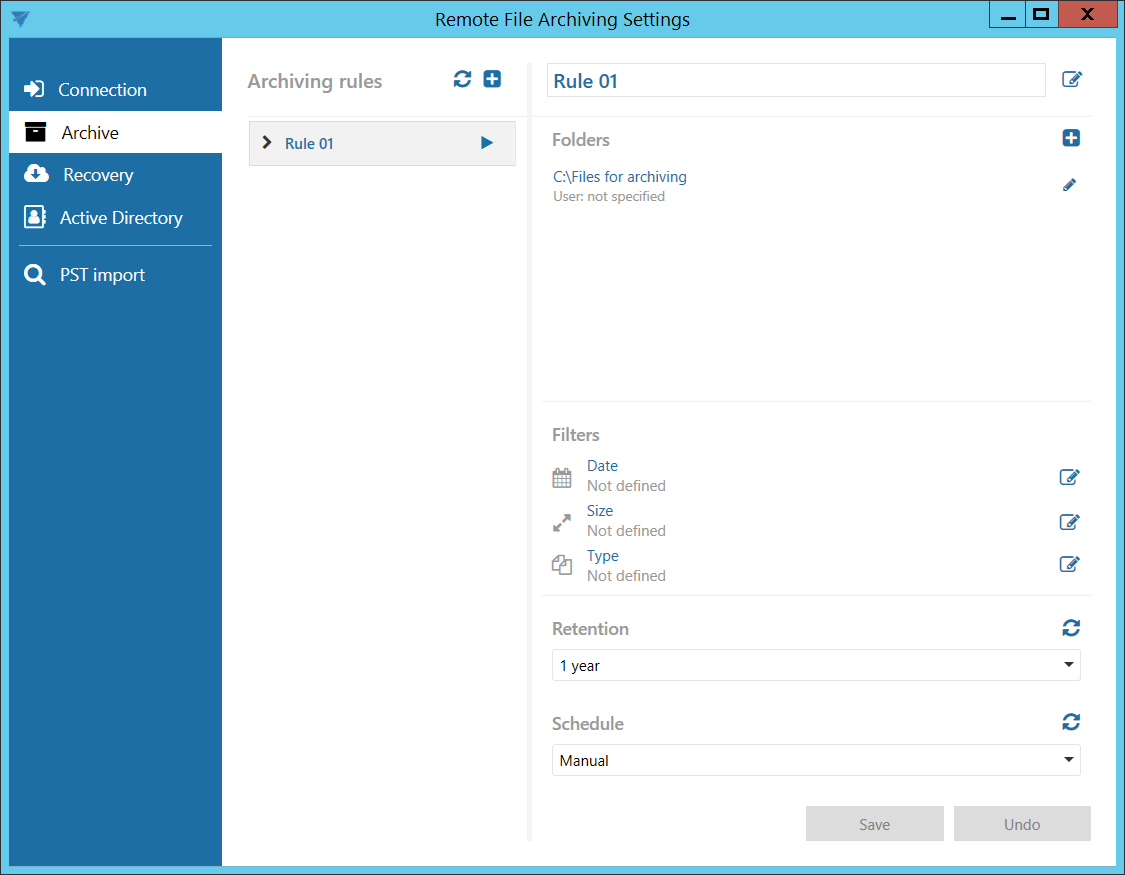
The Archive tab allows users to configure archiving rules for Remote File Archiver. Each rule defines the folders to process, filters to apply, retention settings, and the schedule for running the rule.
Create an archiving rule
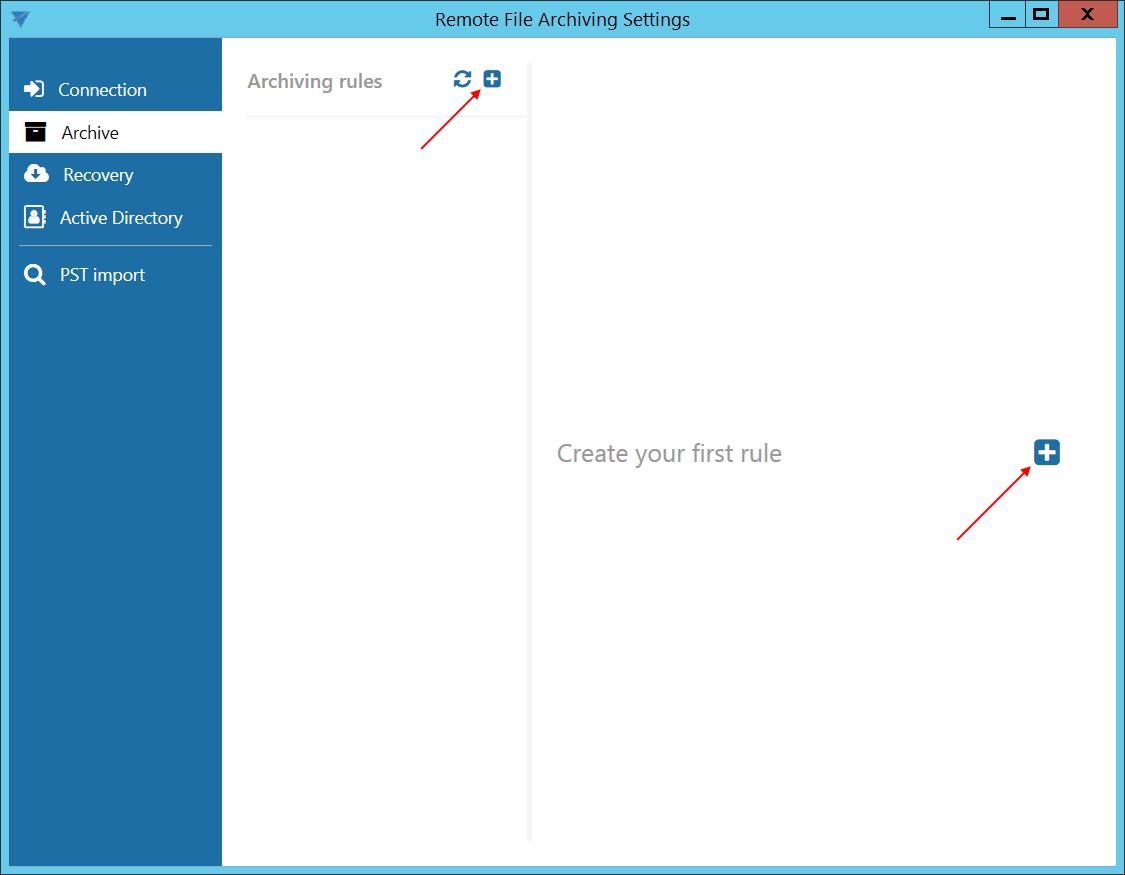
To add a new archiving rule, click the  button.
The button next to Create your first rule is available only when creating the first rule.
Note: A new rule can also be added from Central Administration. For more information, see Global rules - Remote File Archive.
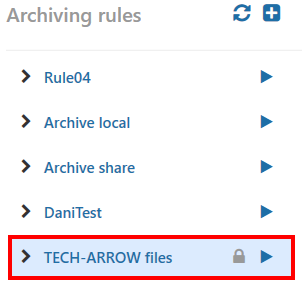
The archiving rules have properties similar to File archive jobs in contentACCESS.
Folders
In the Folders section, select the folders containing the data to be archived.
Click to specify the folder to archive.
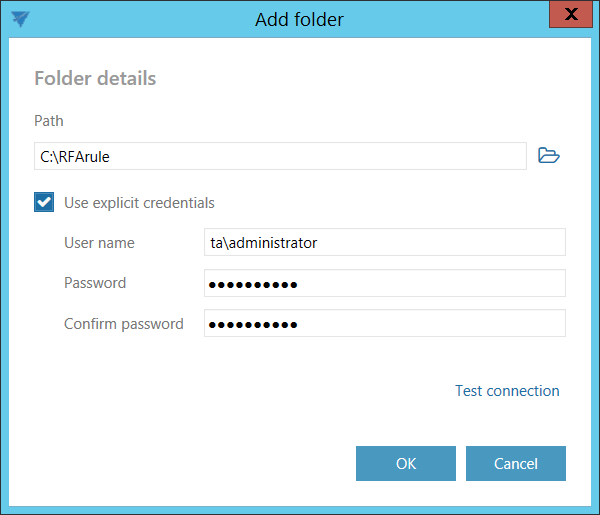
Enter the UNC path of a shared folder or the path of a local folder in the Path field. Alternatively, click Browse and select the folder to archive.
The GATE.contentACCESS.RemoteFileArchiving.Agent service is responsible for running the rules. The service accesses the specified folder using the account under which the service is running.
If the folder is accessible to the account running the service, you do not need to select Use explicit credentials.
If the folder is not accessible to the account running the service:
- Select Use explicit credentials.
- Enter the credentials of the user or account that has access to the folder you want to archive.
Note: A folder cannot be assigned to the same rule multiple times. If you try to create a new archiving rule with the same folder assigned multiple times, an error is displayed when you save the settings at the bottom of the Archive tab.
Filters
The following filters are available for archiving rules:
- Date filter
- Size filter
- Type filter
Date filter
The Date filter allows you to select files for processing based on their age.
By default, the Modification date is used for filtering. To use the creation date when it is younger than the modification date, select Use the creation date for filtering if it is younger than the modification date.
This option can be useful when a file is copied to another external disk. For example, when a file is copied from disk G to disk I, its creation date is set to the date of the copy operation. If you do not want such a file to be archived based on its newer creation date, this option can exclude it from the archiving process.
The Modification date can be configured as Absolute or Relative:
- Absolute – Remote FA processes files younger or older than the specified date, or files with a date within the specified interval.
- Relative – Remote FA processes files created or modified the specified number of days, months, or years before the Remote FA run.
- Process all files – The Modification date is not considered.
Examples of date filtering:
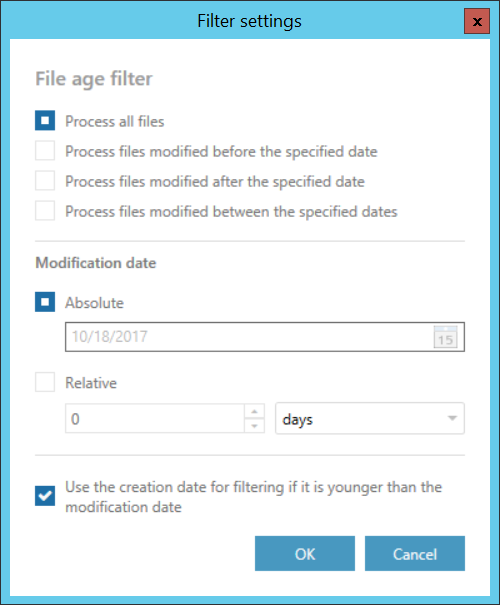
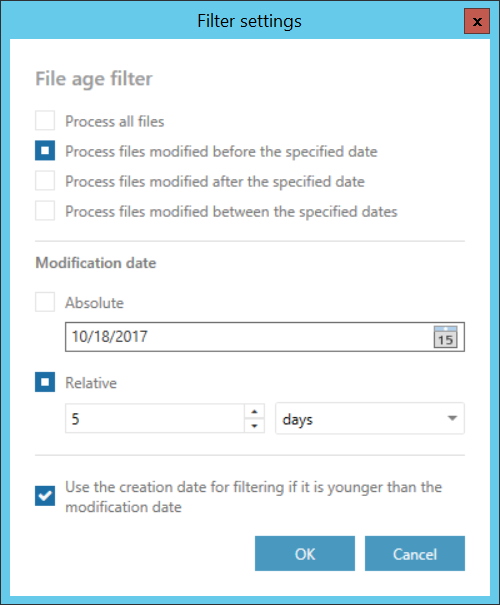
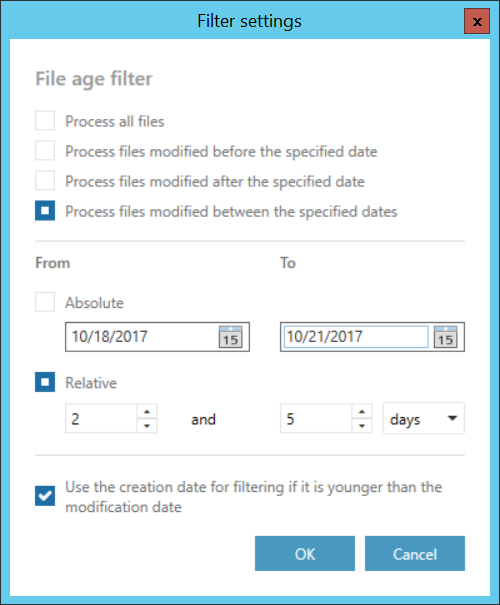
If you configure the age filter, click OK.
Size filter
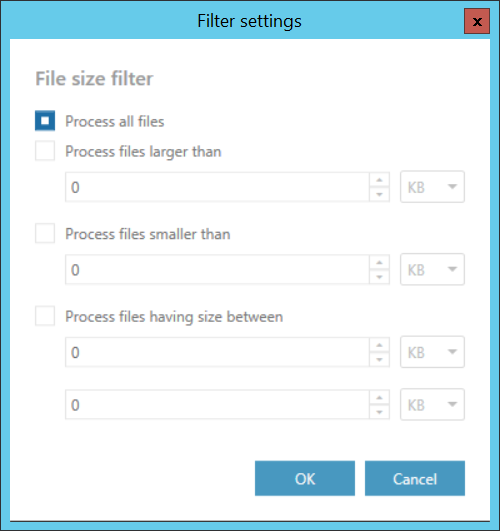
The Size filter allows you to select files based on their size. This can be useful for identifying large files and saving storage space.
The following filtering types are available:
- All
- Larger than
- Smaller than
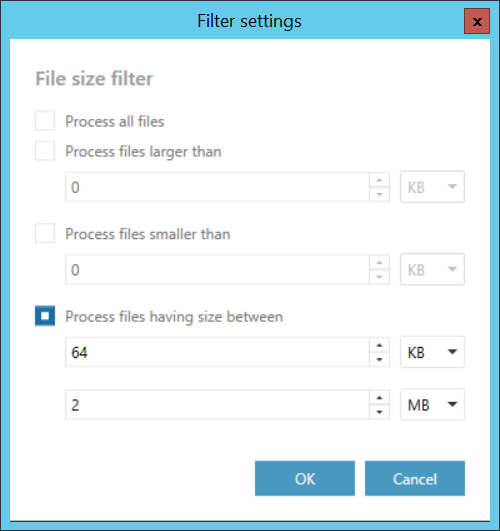
- Having size between
Enter the required size in kilobytes, megabytes, or gigabytes and click OK.
Examples of size filtering:
Type filter
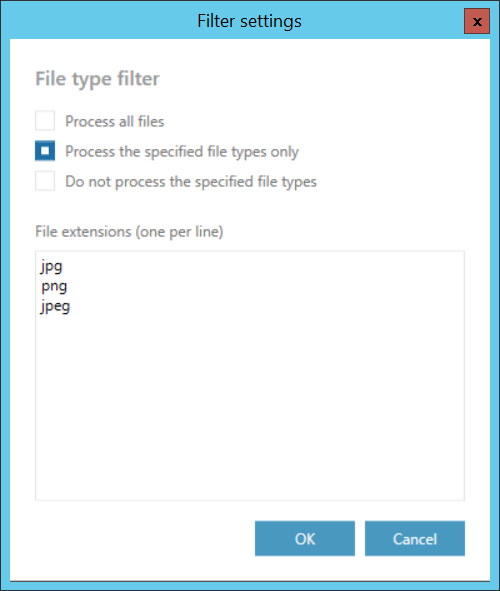
The Type filter allows you to select specific file types for processing. You can specify the file types that will or will not be processed.
Retention
Under the Retention settings, select a previously configured retention period from the drop-down list.
During the configured retention period, archived items cannot be deleted from the storage.
It is recommended to select a retention period based on data retention regulations required by the applicable law or internal company policies.
To refresh the list of available retentions, click  .
.

Schedule
Under Schedule, select the times when the archiving rule runs.
Only schedules previously configured in contentACCESS can be selected.
To refresh the list of available schedules, click .

Run and monitor an archiving rule
After configuring all parameters, save the settings.
To start a rule, click the button next to its name.

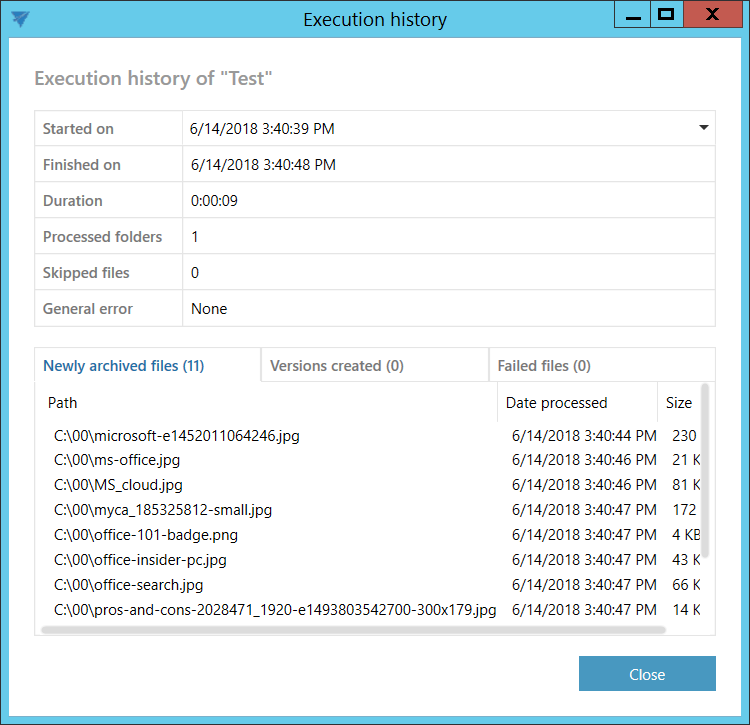
You can view details of the last run of the selected rule.
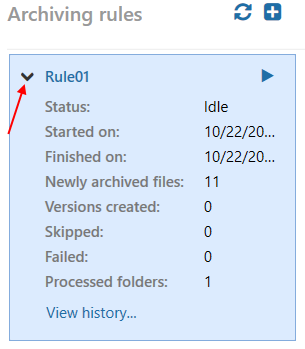
To view more detailed information about the last run, click View history….
The history window shows the processing results on separate tabs, including:
- Files that were newly archived.
- Files for which a new version was created.
- Files that could not be processed and failed.
The general error displays the error message if the rule unexpectedly stops, for example because of a connection failure.