Connection tab
Introduction
The Connection tab allows you to configure the connection between Remote File Archiver (RFA) and the server where contentACCESS is installed. You can configure the connection through a proxy using HTTP or HTTPS, or through a direct connection without a proxy.
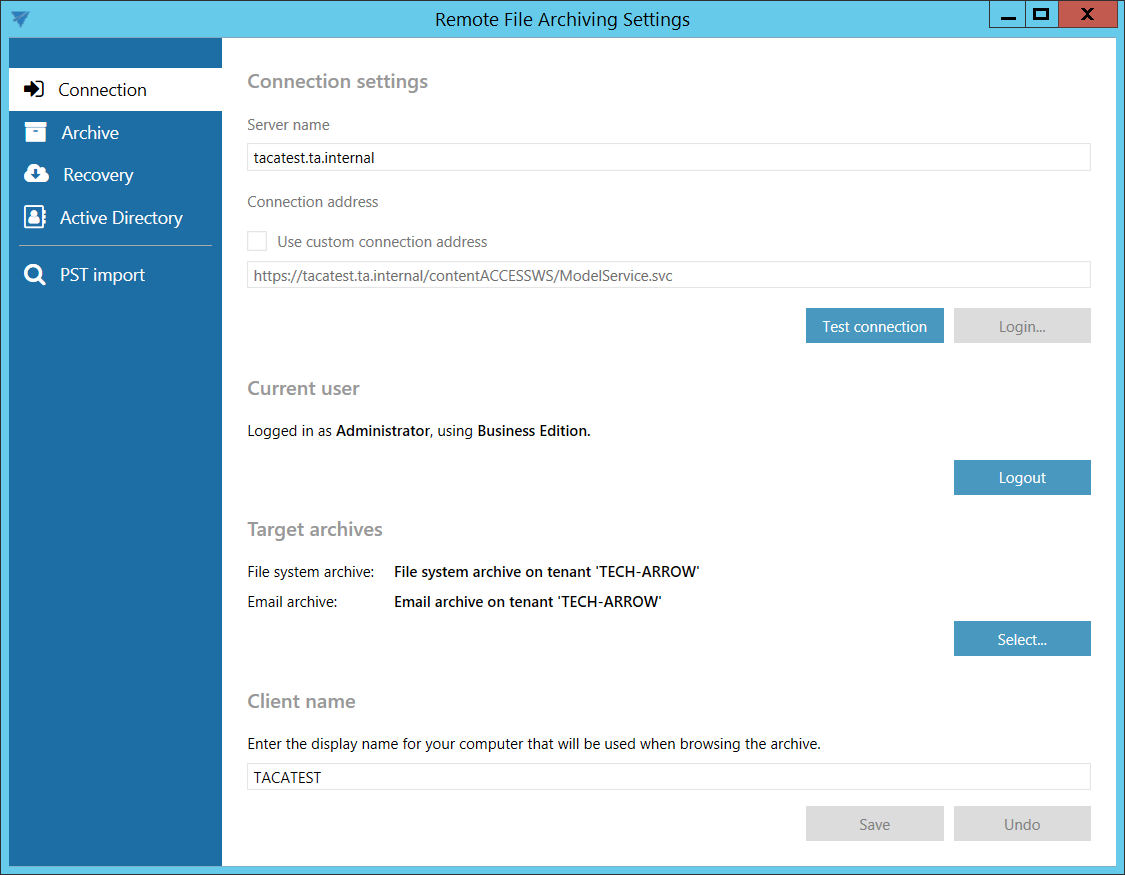
Configure the connection
The connection settings depend on whether you use a proxy and whether the connection uses HTTP or HTTPS.
Proxy with HTTPS connection
If you use the contentACCESSWS proxy with a secure (HTTPS) connection to contentACCESS:
- Leave the Use custom connection address checkbox unchecked.
- Enter the contentACCESS server name in the Server name field. The connection URL is generated automatically.
Proxy with HTTP connection
If you use the contentACCESSWS proxy with an unsecure (HTTP) connection to contentACCESS, for example, when a valid certificate is not available:
-
Enter the contentACCESS server name in the Server name field.
-
Select the Use custom connection address checkbox.
-
Enter the HTTP connection URL with the correct server name in the Custom connection address field:
http://[ServerName]/contentACCESSWS/ModelService.svcAlternatively, remove the
sfromhttpsin the generated URL.
Direct connection without a proxy
If you connect directly to contentACCESS without a proxy:
-
Enter the contentACCESS server name in the Server name field.
-
Select the Use custom connection address checkbox.
-
Enter the appropriate HTTP or HTTPS connection URL in the Custom connection address field:
- HTTP:
http://[ServerName]:8736/contentACCESSWS/ModelService.svc - HTTPS:
https://[ServerName]:8736/contentACCESSWS/ModelService.svc
For an HTTP connection, remove the
sfromhttpsand add port8736. For an HTTPS connection, add port8736. - HTTP:
Connection ports
Remote File Archiver (RFA) uses the following ports to connect to contentACCESS for file archiving and PST import operations:
- 443 (HTTPS) – The default port for connecting to contentACCESS, primarily the Model Service. It is used to retrieve models, retention settings, and for general communication. The port may vary depending on the configuration, such as the port selected for the Model Service during the contentACCESS installation.
- 8738 (TCP) – Used to access the Migration Service for PST import and file archiving.
Note: Configuring a load balancer is recommended in multi-node environments to ensure that jobs are directed to the least loaded node.
Test the connection
After configuring the connection, click Test connection below the Custom connection address field.
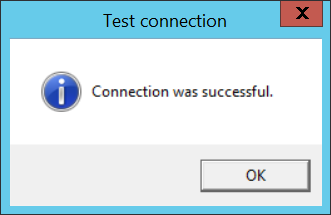
If the connection is configured correctly, the following message is displayed:
Log in to contentACCESS
Click Login… next to Test connection.
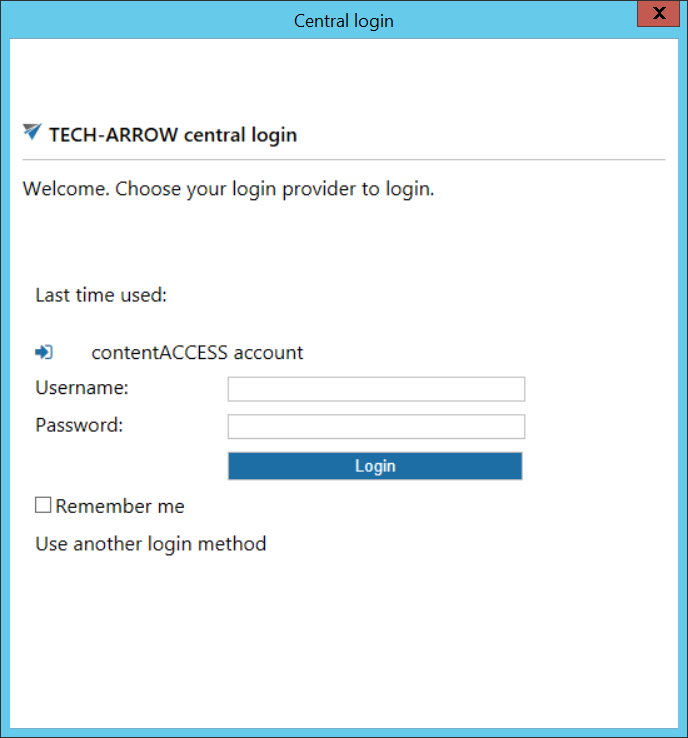
Log in using the Forms method, or click Use another login method to select another login provider previously configured in contentACCESS.
After a successful login, the current user's name is displayed and the Logout button becomes available.

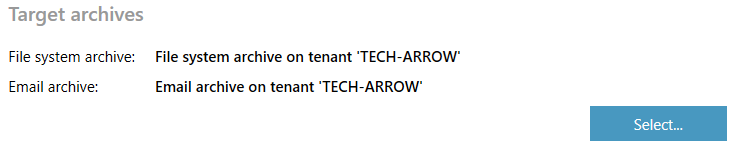
Configure the target archive
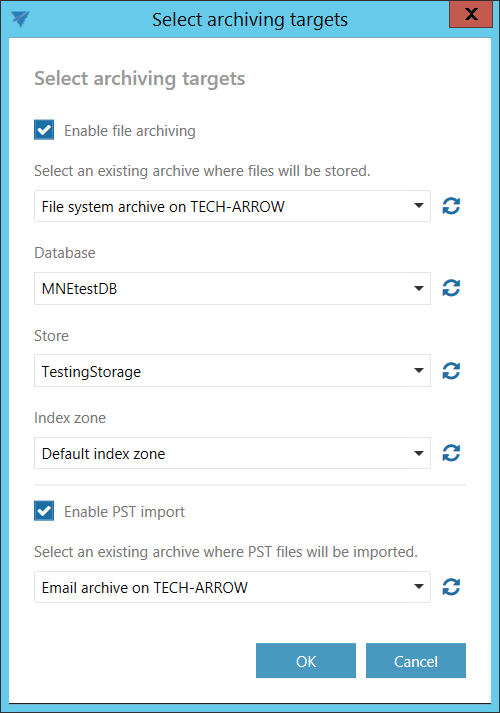
In the Target archive section, click Select….
Configure file archiving
To use Remote File archiving:
- Select the Enable file archiving checkbox.
- From the archive drop-down list, select a previously configured tenant with the File system archive model.
- From the respective drop-down lists, select:
- Database
- Storage
- Index zone
Configure PST importing
To use PST importing:
- Select the Enable PST importing checkbox.
- From the archive drop-down list, select a previously configured tenant with the Email archive model.
File archive is allowed by default for every tenant. Email archive must first be specifically allowed in the license.
In the following tabs, only retentions and schedules configured for the selected tenants can be selected from the drop-down lists.
Important: The Archive tab and PST finder tab are displayed depending on the archives selected in the Target archive section:
- If no tenant with the File system archive model is selected, the Archive tab is not displayed.
- If no tenant with the Email archive model is selected, the PST finder tab is not displayed.
Configure the client name
The Client name displays the name of the computer that is shown when viewing the archive. You can change the client name.

Click Save to save the settings.