Archiving user workstations (domain joined)
Introduction
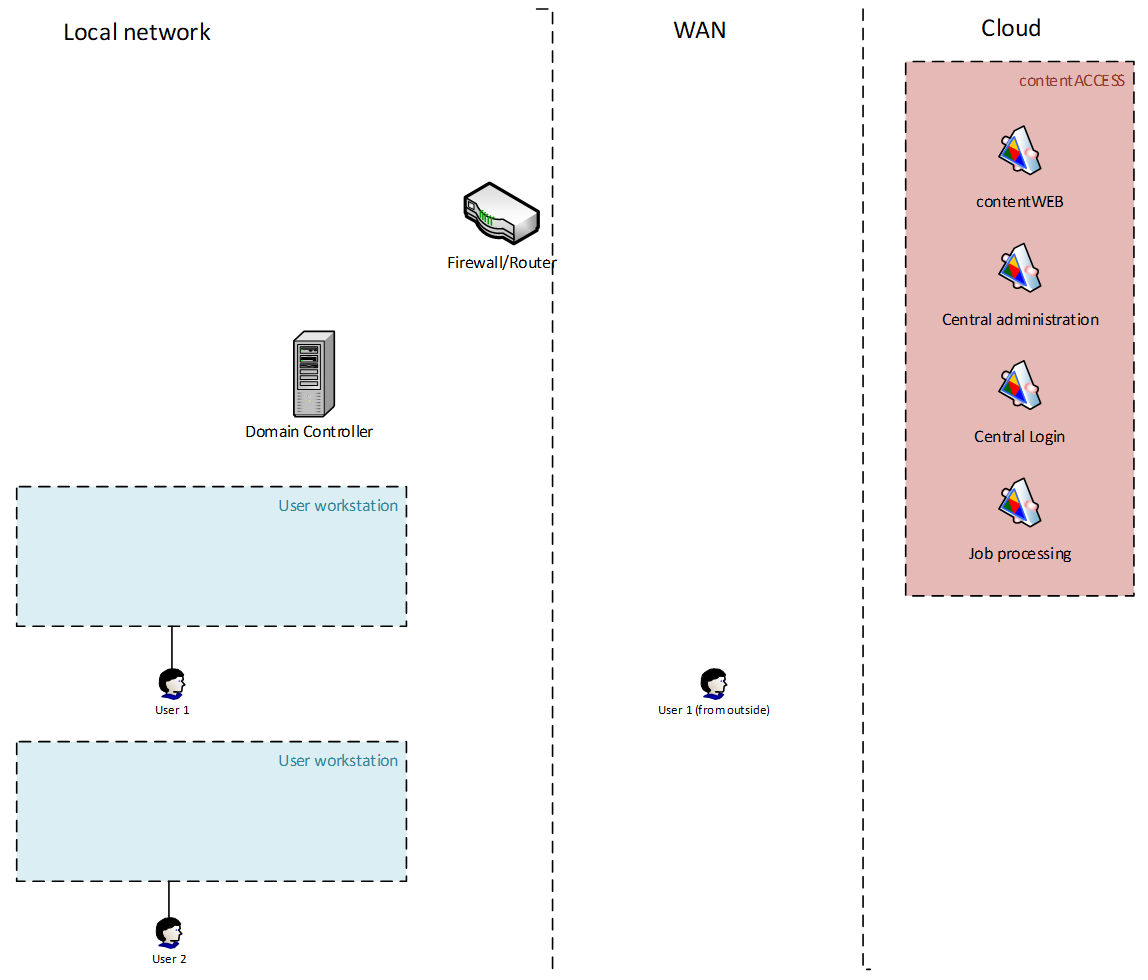
In this use case, the customer does not have a common file share for storing user data. Instead, each user stores files on their workstation(s). Because these files are not regularly backed up, an automated archiving solution is critical to prevent data loss in case of hardware failure.
The workstations are joined to a domain, and users access their files and workstations using their domain accounts.
Solution
The administrator needs to prepare a GPO package that deploys RFA together with its configuration file to the workstations.
The configuration file, RFAConfiguration.xml, can be downloaded from Central Administration (File archive -> Remote agents). The configuration file contains the connection parameters and default archiving settings.
The RFAConfiguration.xml file must be deployed together with the RFA setup and copied to the following folder:
- For 64-bit Windows:
C:\Windows\SysWOW64\config\systemprofile\AppData\Roaming\TECH-ARROW - For 32-bit Windows:
C:\Windows\system32\config\systemprofile\AppData\Roaming\TECH-ARROW
Note: The configuration file path on the workstation can differ depending on the user account under which the RFA service is running. By default, the RFA service runs under the Local System account.
Once RFA is deployed, the agents appear in Central Administration. The administrator can then create global rules and assign them to specific agents or to all agents.
In global rules, the administrator can use well-known user folders, such as %My documents%. These folder variables are automatically translated to the corresponding real path on each workstation.
When well-known user folders are used, RFA automatically processes all user profiles on the workstation, except system profiles.
Global rules are visible to users but cannot be modified by them.
Data access
Data access works in the same way as in use case 1.
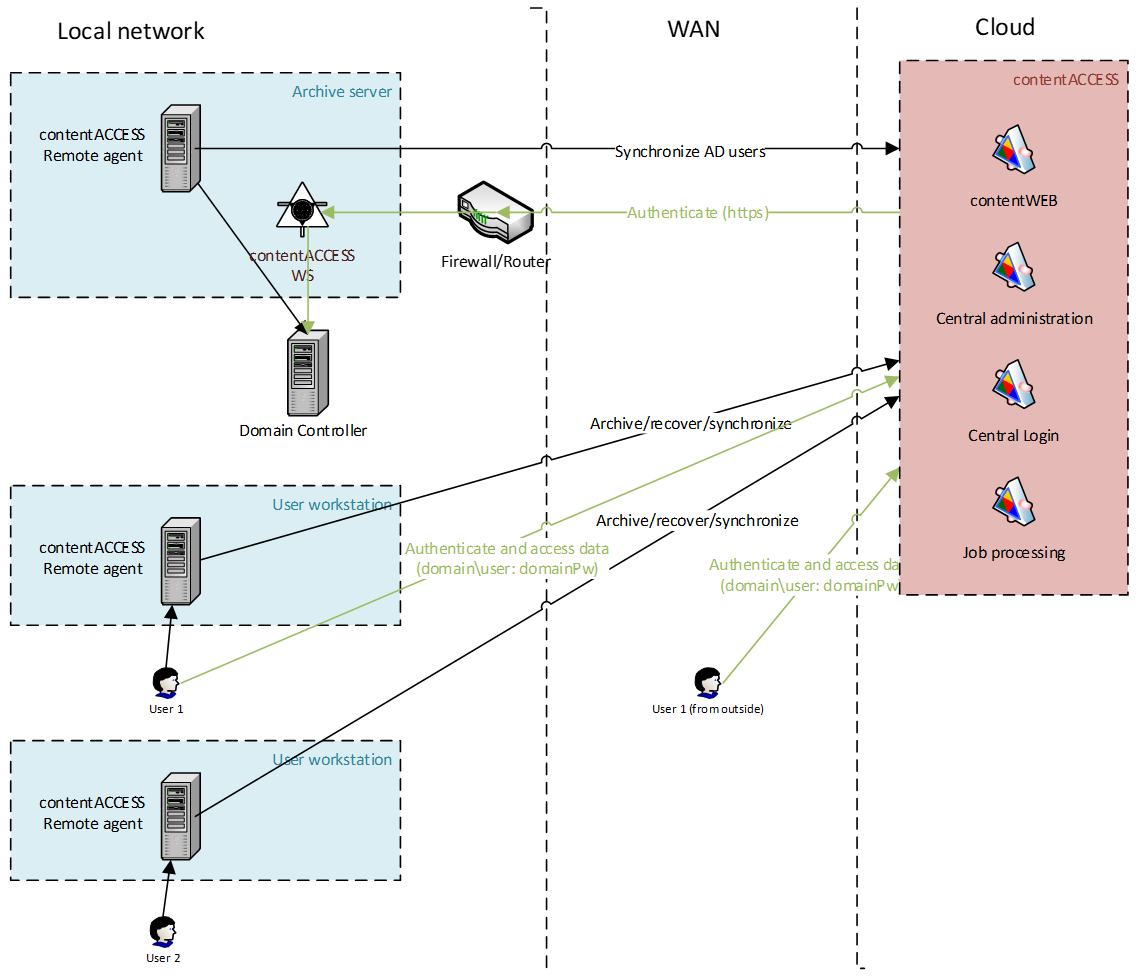
If users need web access to the archive, a global RFA together with the authentication proxy must be installed inside the local network. This RFA creates the necessary contentACCESS users and enables External Active Directory authentication.
For more information, see use case 1.
In addition, RFA can be installed on each user's workstation. The RFA client can then be used to access files directly from the archive. This eliminates the need for the authentication proxy and user provisioning.
Authentication
If RFA provisioning is not configured, the archive can only be accessed through the RFA client.
If RFA provisioning is configured:
- Users are provisioned through RFA provisioning, and External Windows logins are created for them.
- Authentication is performed through the RFA authentication proxy.
Data access
Users automatically have access to all folders and files in the archive that they are permitted to access.