How to use the app
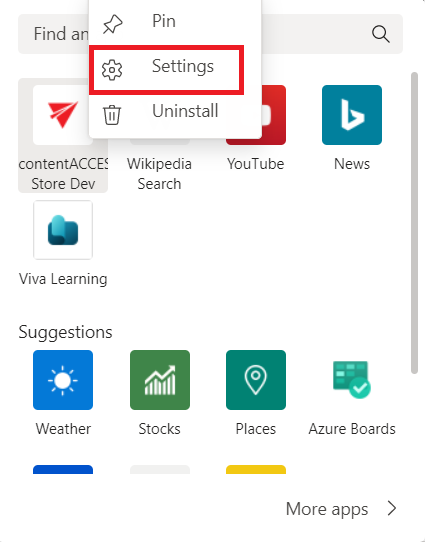
We recommend pinning the contentACCESS app to save time. Click the Messaging extensions button (1), then right-click the contentACCESS icon and select Pin (2).
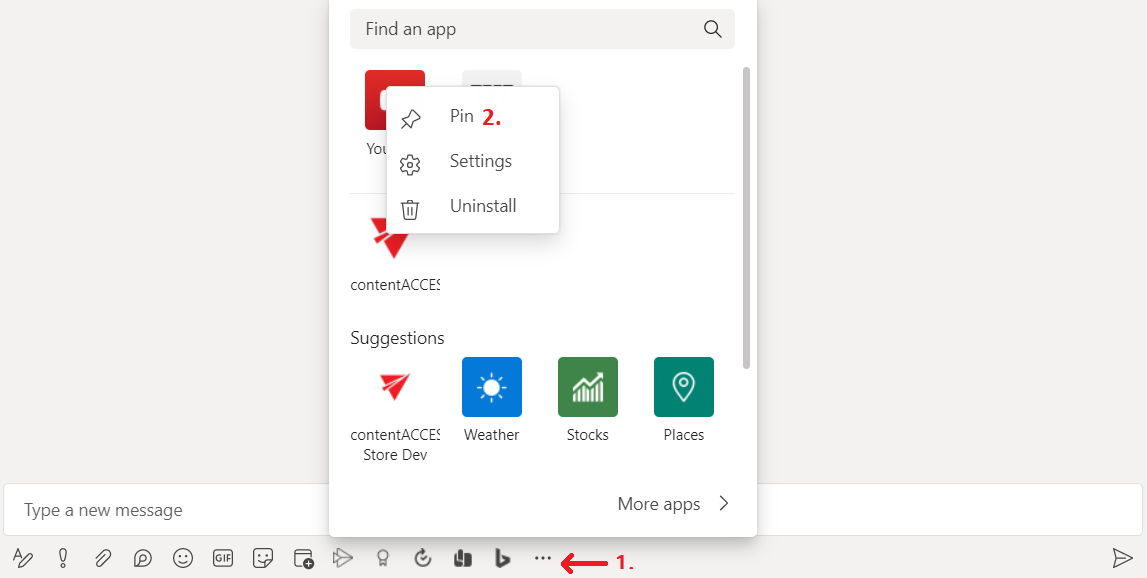
A contentACCESS icon will then appear in the app bar.
Note: The application is brandable. The icon (and name) will vary based on the brand.

Click the icon to open the contentACCESS window. From here, you can search your mailbox, all mailboxes, teams, or the entire archive. You will only have access to items you have permission for, based on the account you are signed in with. Click an item to share it — it will be added to your message.
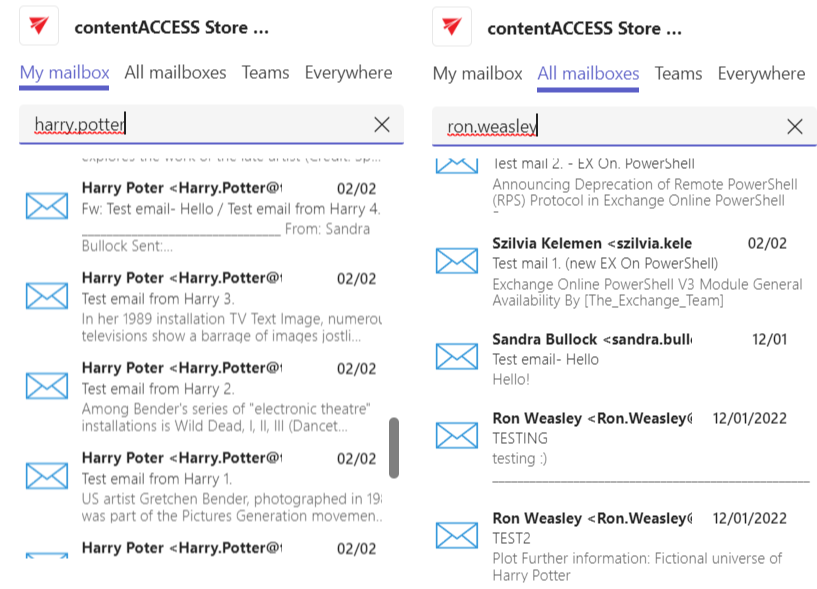
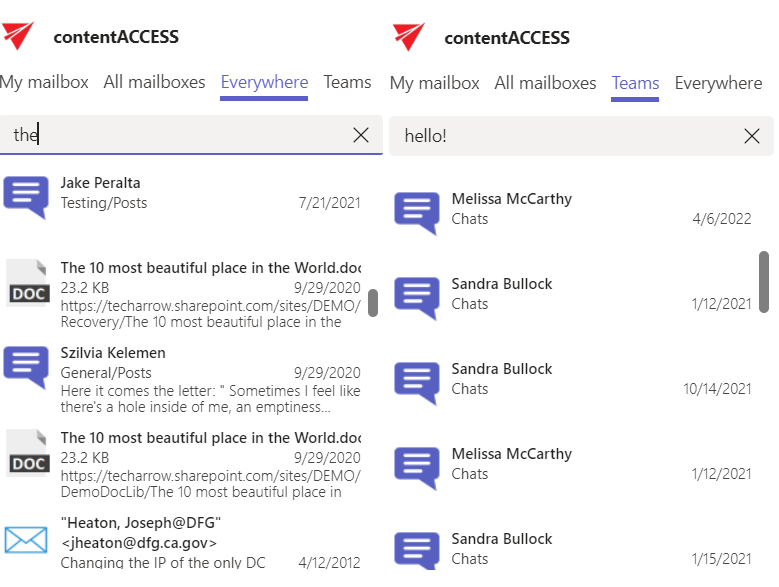
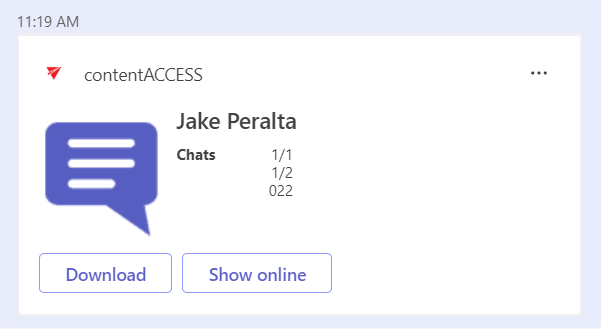
Your chat partner(s) can now download the shared item by clicking the Download button. The download link points to the Teams service, so recipients do not need a contentACCESS account to download the file. Users can also view the shared item in the contentACCESS Portal by clicking Show online. This opens the Sharing module. The owner will find the item in the My shares folder, and the recipient(s) will find it in the Shared with me folder.
Note: If a tenant administrator wants to disable all the Downloads, he can do it by simply deleting the 'TeamsAccess_TENANTNAME’ user we mentioned in the Installation section.
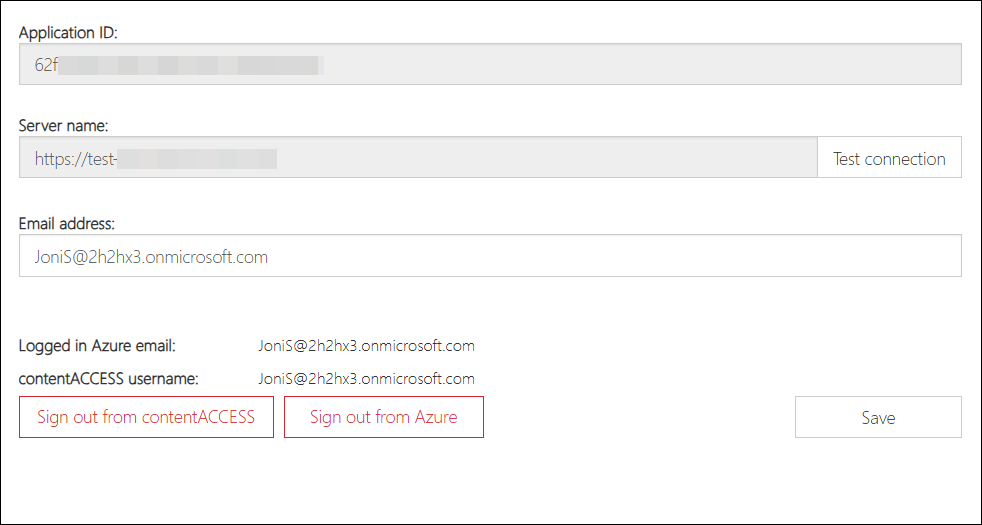
To change the signed-in user, right-click the application and select Settings.
In the Settings window, you can:
- view the Application ID
- view the Server name (URL)
- test the server connection using the Test connection button
- view and change the Email address used for sign-in
- see which account is currently signed in to Azure — this is the account used to access and view shortcuts from a post via the Open archived files option
- see the currently signed-in contentACCESS user — this is the account signed in to the Teams Search App
- sign out from contentACCESS or Azure — these buttons sign out either the account currently signed in to the app or the account used via the Open archived files option to access shortcuts
- save your changes using the Save button