Signing in
Introduction
The TeamsSearchApp allows users to sign in directly within Microsoft Teams before they start searching for and sharing archived content.
This page explains how to sign in to the TeamsSearchApp, including how to find the contentACCESS app through Microsoft Teams messaging extensions, open the sign-in screen, and complete the authentication process using your credentials. After signing in successfully, the application is ready to use.
Sign in to TeamsSearchApp
To sign in to the TeamsSearchApp:
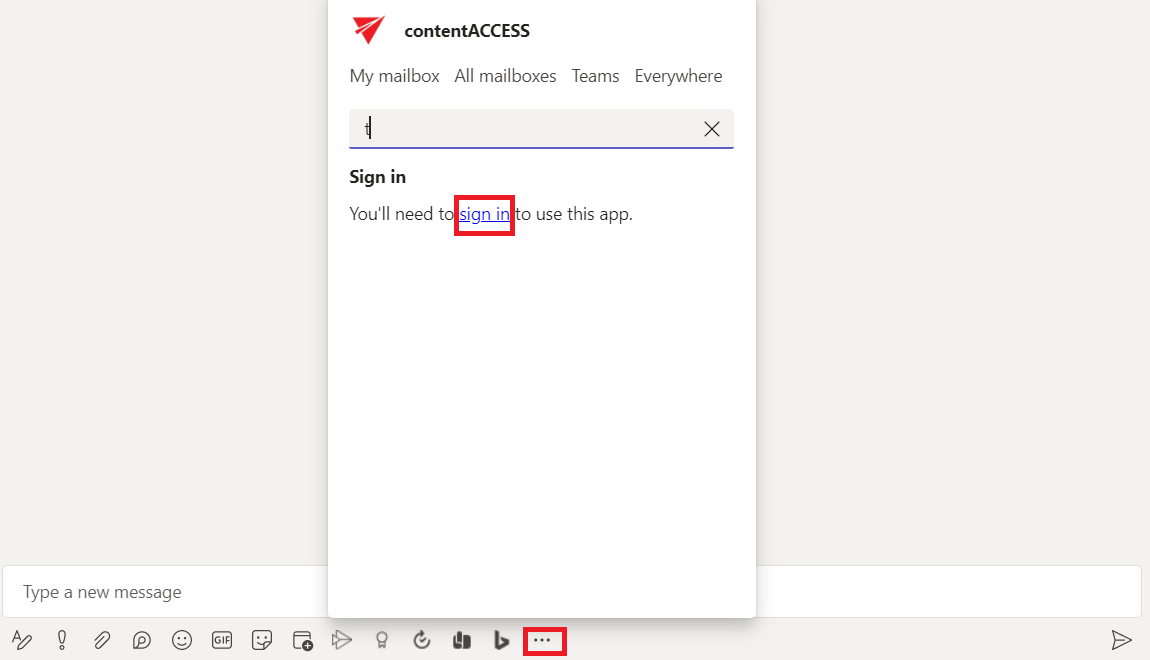
- In Microsoft Teams, click Messaging extensions.
- Find the contentACCESS app. If it is not immediately visible, use the search function.
- Click the app to open the sign-in screen.
- Enter your credentials and complete the sign-in process.
After signing in
After a successful sign-in, the app is ready to use.
For more information about the app's functionality and usage, see How to use the app.