How to use the app
Introduction
The TeamsSearchApp allows users to search for and share archived content directly from Microsoft Teams. The application provides quick access to archived emails, Teams content, and other items without requiring users to leave their current Teams conversation.
This page explains the main features and everyday usage of the TeamsSearchApp. It guides you through pinning the contentACCESS app for quick access, searching different archive locations, selecting and sharing archived items, and working with items shared by other users.
You will also learn how recipients can download or open shared items, how shared content is displayed in the contentACCESS Portal, and how tenant administrators can control whether downloads are available.
Finally, this page describes the Settings section, where users can view or change their connection and account information, test the connection to the contentACCESS server, manage the signed-in contentACCESS and Azure accounts, and sign out.
Pin the app for quick access
To pin the contentACCESS app for quick access:
- Click Messaging extensions in Microsoft Teams.
- Right-click the contentACCESS app icon.
- Select Pin.
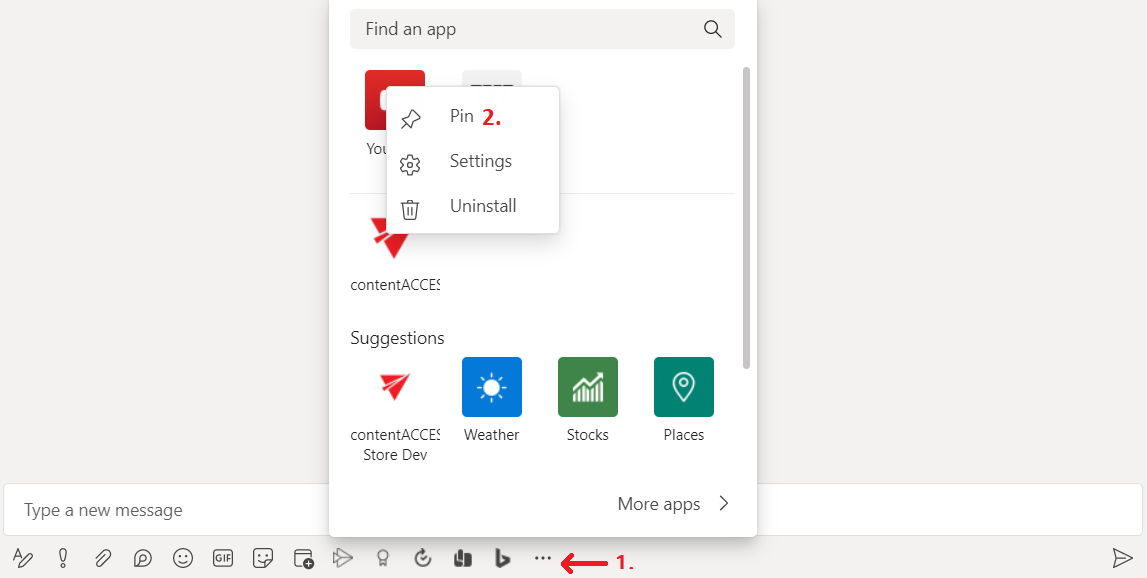
After pinning, the contentACCESS icon appears in the app bar.
Note: The application is brandable. The icon and name may vary depending on the configured brand.

Search and share archived content
To search and share archived content:
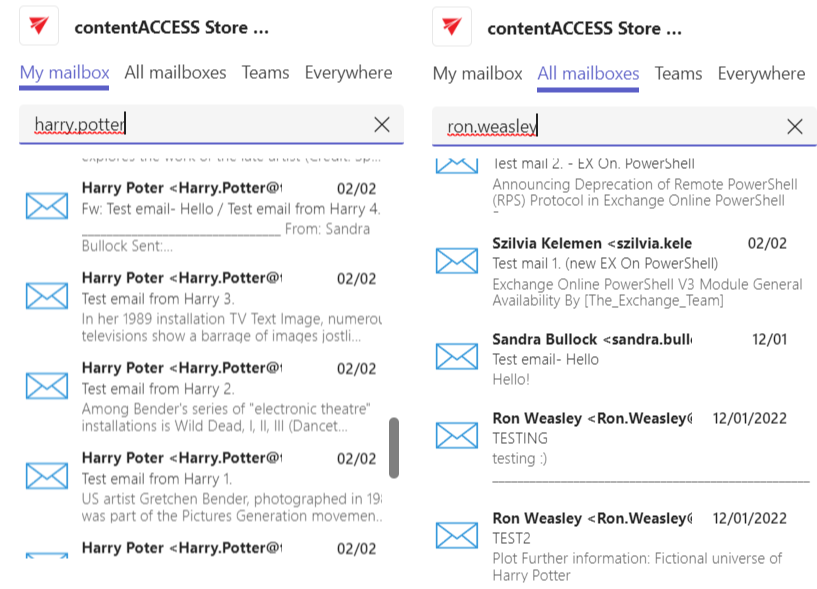
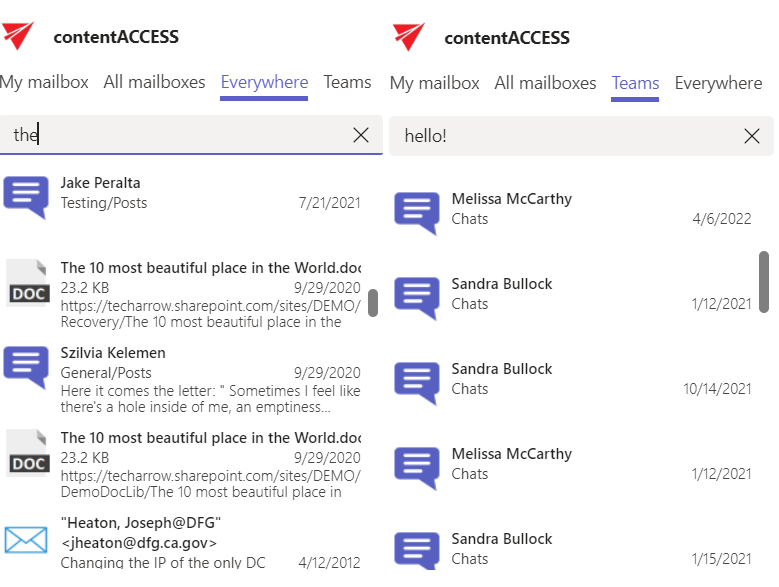
- Click the pinned app icon to open the contentACCESS window.
- Choose where to search:
- Mailbox
- All mailboxes
- Teams
- Entire archive
- Select an item that you have permission to access.
- Click the item to add it to your message.
Download and open shared items
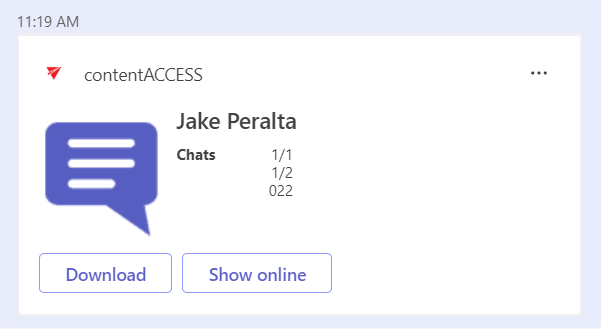
Recipients can download a shared item by clicking Download. The download link points to the Teams service, so recipients do not need a contentACCESS account to download the file.
Users can also click Show online to open the Sharing module in the contentACCESS Portal. In the portal:
- The owner can find shared items under My shares.
- Recipients can find shared items under Shared with me.
Note: If a tenant administrator wants to disable all downloads, they can delete the TeamsAccess_TENANTNAME user described in Installation and configuration.
Manage settings and accounts
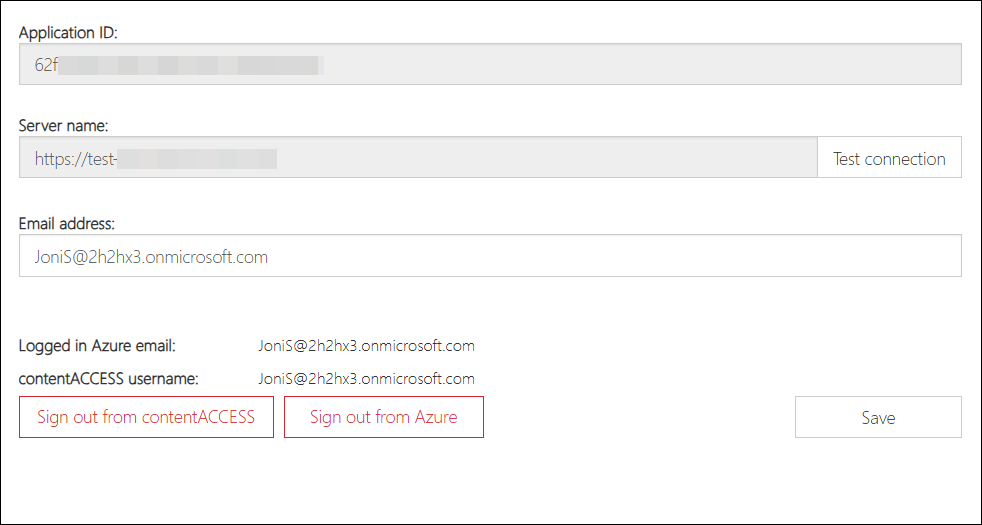
To change the signed-in user, right-click the application and select Settings.
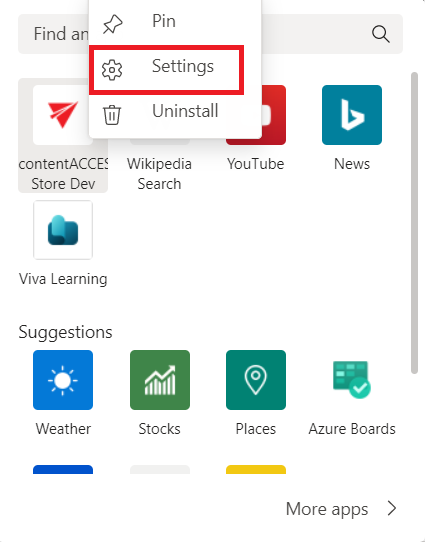
The Settings window provides the following options:
- Application ID – View the application ID.
- Server name (URL) – View the server name and URL.
- Test connection – Test the connection to the server.
- Email address – View and change the email address used for sign-in.
- Azure – View the account currently signed in to Azure, which is used for the Open archived files option.
- contentACCESS user – View the contentACCESS user currently signed in to TeamsSearchApp.
- Sign out – Sign out from contentACCESS or Azure.
- Save – Save the changes.