Installation and configuration
Introduction
## Introduction
The TeamsSearchApp can be configured in contentACCESS and installed in Microsoft Teams to allow users to access and share archived content directly from Microsoft Teams.
This page provides a complete overview of the installation and configuration process, starting with the required settings in contentACCESS. It explains how to configure the Teams application, choose the appropriate permission type, and set up SharePoint access and the required application credentials and certificates.
The page then guides you through tenant registration, explains the automatically generated tenant administrator user and Application ID, and shows how to download the TeamsSearchApp installation package.
Finally, you will learn how to upload and install the app in Microsoft Teams, choose how to add it to chats, teams, or meetings, and complete the installation using the Teams bot or tab options.
By following the steps on this page, you can complete the TeamsSearchApp setup from the initial contentACCESS configuration through the final Microsoft Teams installation. In most cases, no additional configuration is required after the app has been installed.
Configure the Teams application in contentACCESS
To configure the app:
- Log in to Central Administration.
- Switch to the relevant Tenant.
- Go to System => Client Applications => Teams application.
Client application settings
Fill in the Client application settings. These settings are used to query the members of a chat, group, or Teams channel when sharing content through the contentACCESS Teams application.
The following settings are available:
- Application ID and Directory ID – Are automatically generated during the Azure app registration process.
- Client secret – Can be created under Certificates & secrets after the application is registered.
For more information about Teams archive registration, see Azure app registration for Microsoft 365 archiving.
Permission type
The Permission type field provides the following options:
-
Application – Allows the app to connect to the Teams Graph API endpoint without providing a username and password. To use this option, you may need to contact Microsoft.
The SharePoint account is used to connect to SharePoint because Teams files are stored there.
The application registered in Azure is used to access Teams infrastructure such as teams and channels. By default, it cannot read channel messages unless it has the required Microsoft-approved permissions. If the app does not have those permissions, enter the credentials of a user who can access all teams.
-
Delegated – If the application permission type is not available, you can specify a user who can access all teams. The superuser must also be the owner of all teams to be archived.
The Teams account can also be used for SharePoint access, but you can provide explicit SharePoint credentials if needed.
SharePoint access
The SharePoint access section provides the following options:
- Use the Teams Search app credentials – Select this option if the SharePoint-related permissions and client certificate are added to the Teams Search App registered in Azure.
- Use explicit SharePoint app credentials – Select this option if the SharePoint-related permissions are registered in a separate app.
When using explicit SharePoint app credentials, configure the following settings:
- SharePoint application ID – The application ID of the registered SharePoint app.
- Certificate file – The
.pfxfile containing the private and public keys of the certificate. It must match the.cerfile uploaded to Azure during app registration. The app can also be registered with the provided PowerShell script. - Certificate password – The password for the
.pfxfile.
It is recommended to test the connection by clicking Test.
Then click Register my tenant.
contentACCESS generates a Tenant administrator user named TeamsAccess_TENANTNAME. This user is used by the Teams service to allow users to download shared files. The password for this user is never stored or used externally.
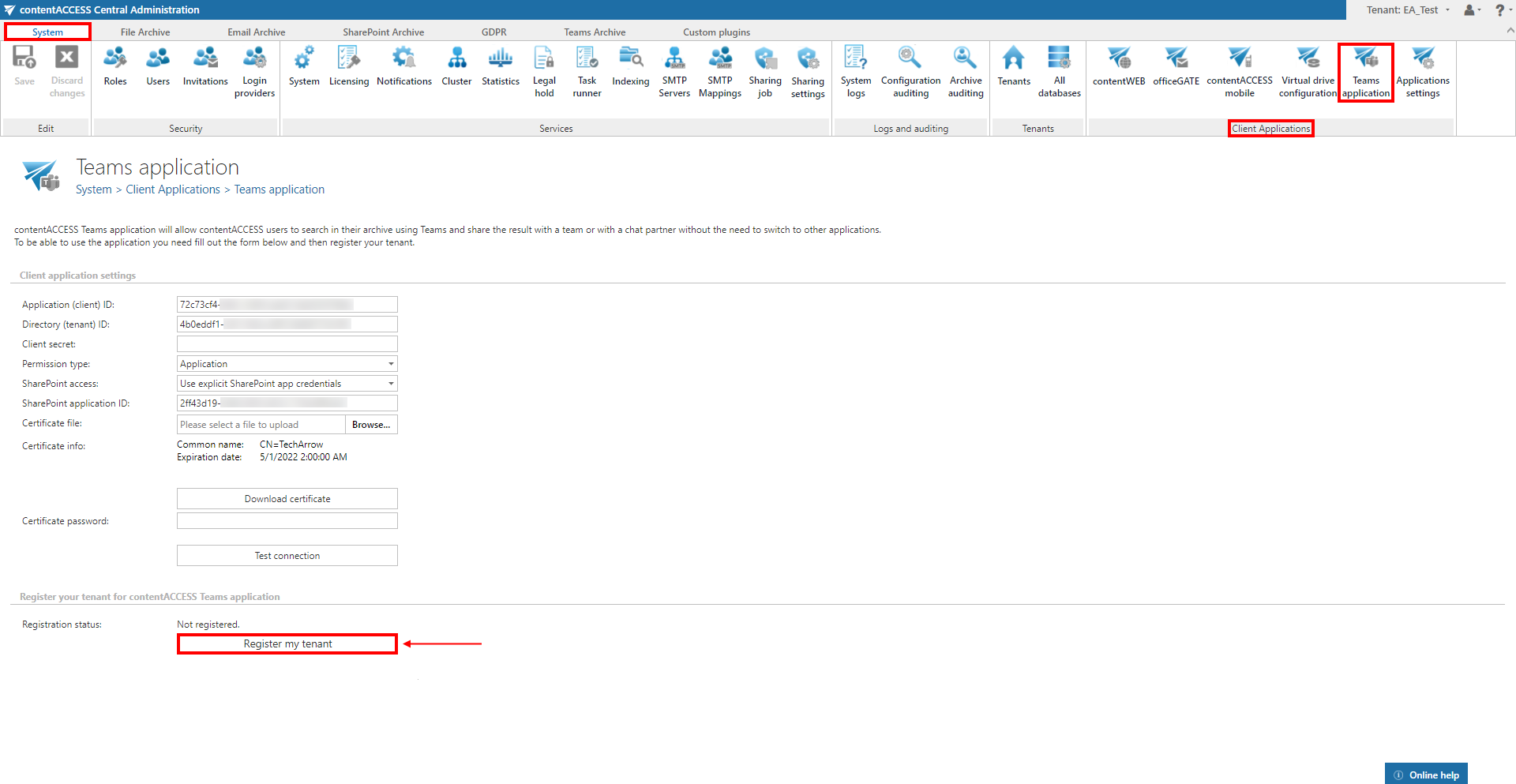
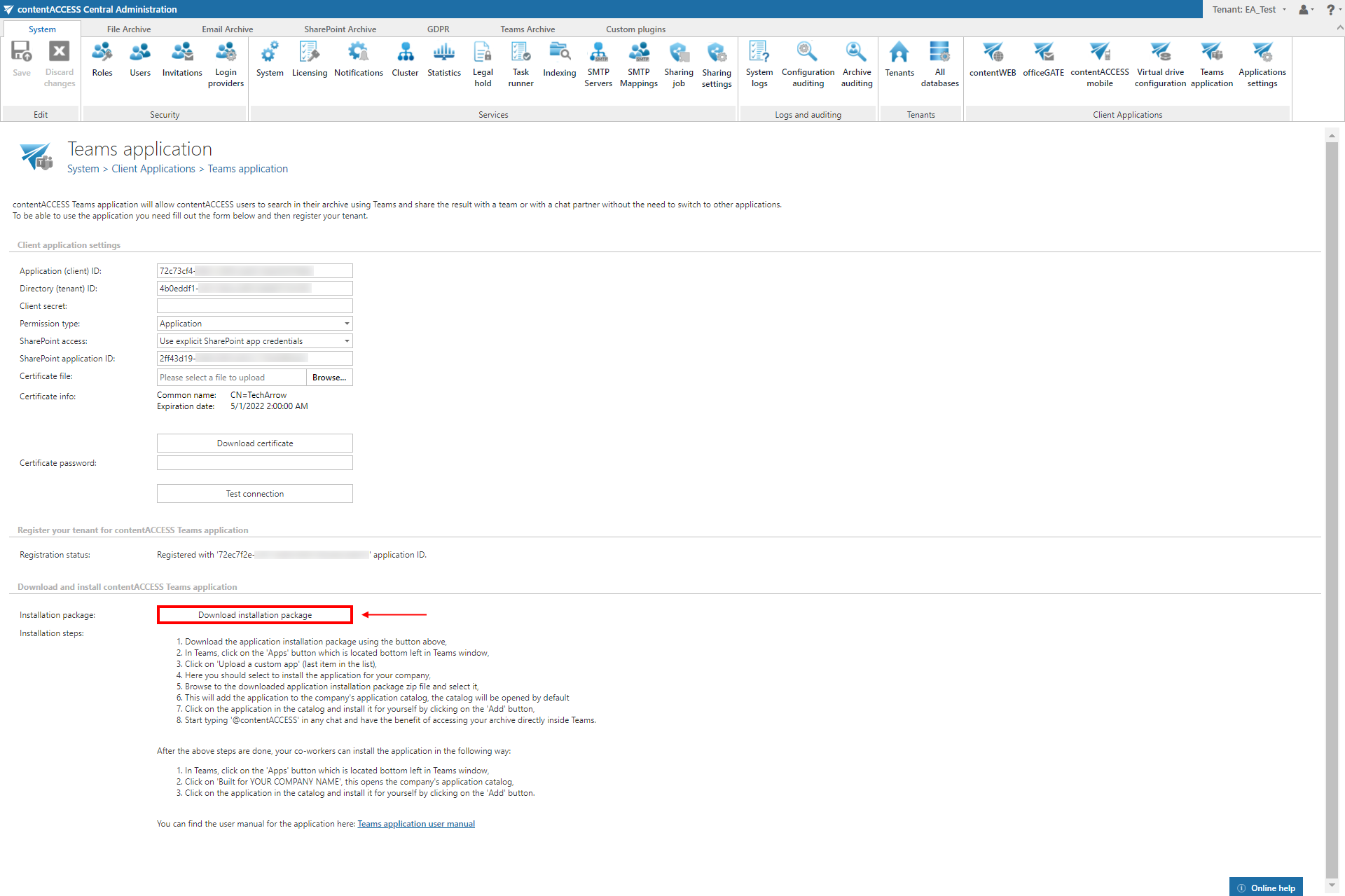
An Application ID is then generated. Microsoft Teams uses this ID to retrieve the necessary data, such as the URL and Tenant ID.
Download the installation package
Click Download installation package to download the installation package.
Install the app in Microsoft Teams
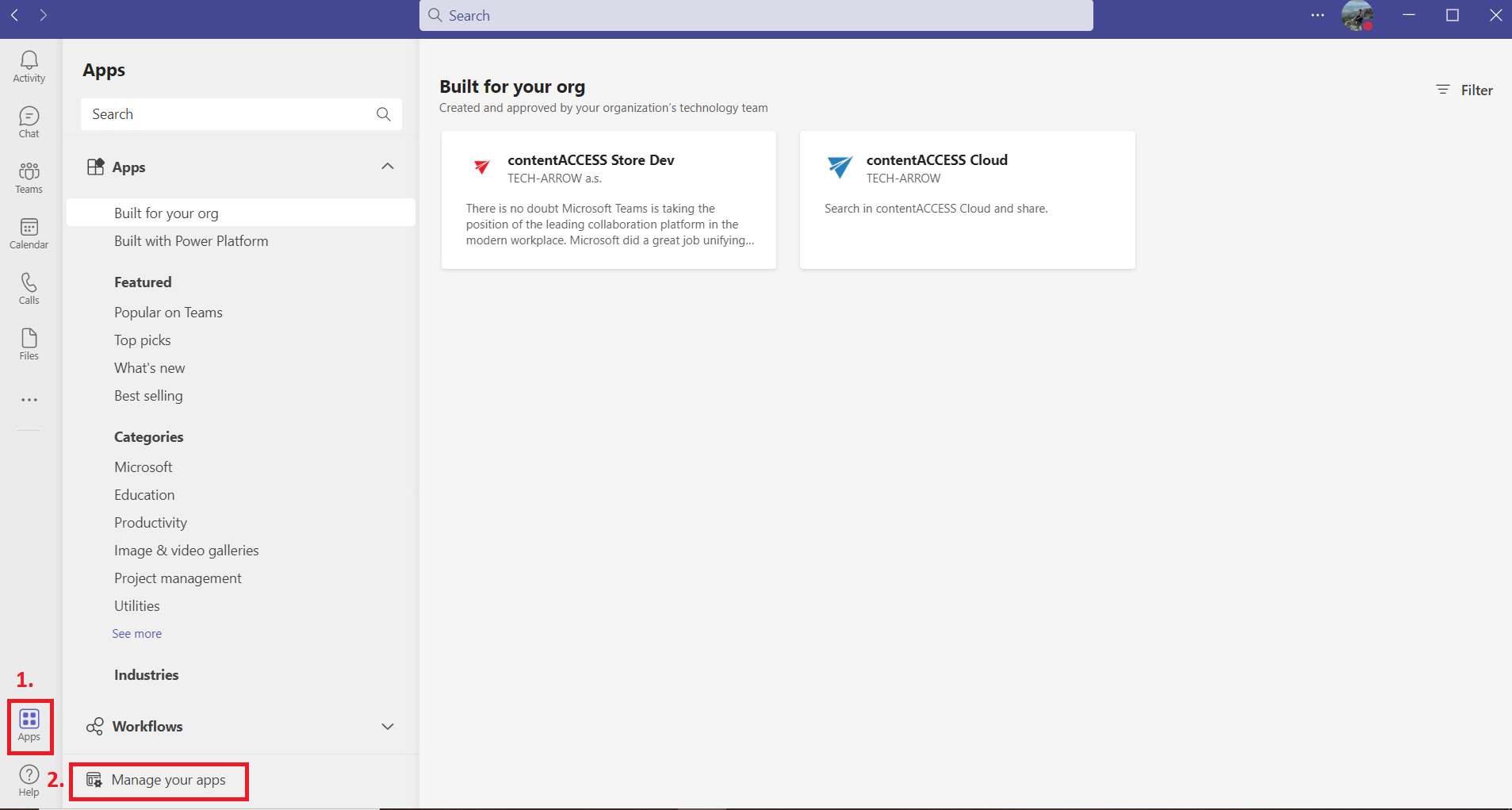
To install the app in Microsoft Teams:
- Open Microsoft Teams and go to Apps in the lower-left corner.
- Click Manage your apps.
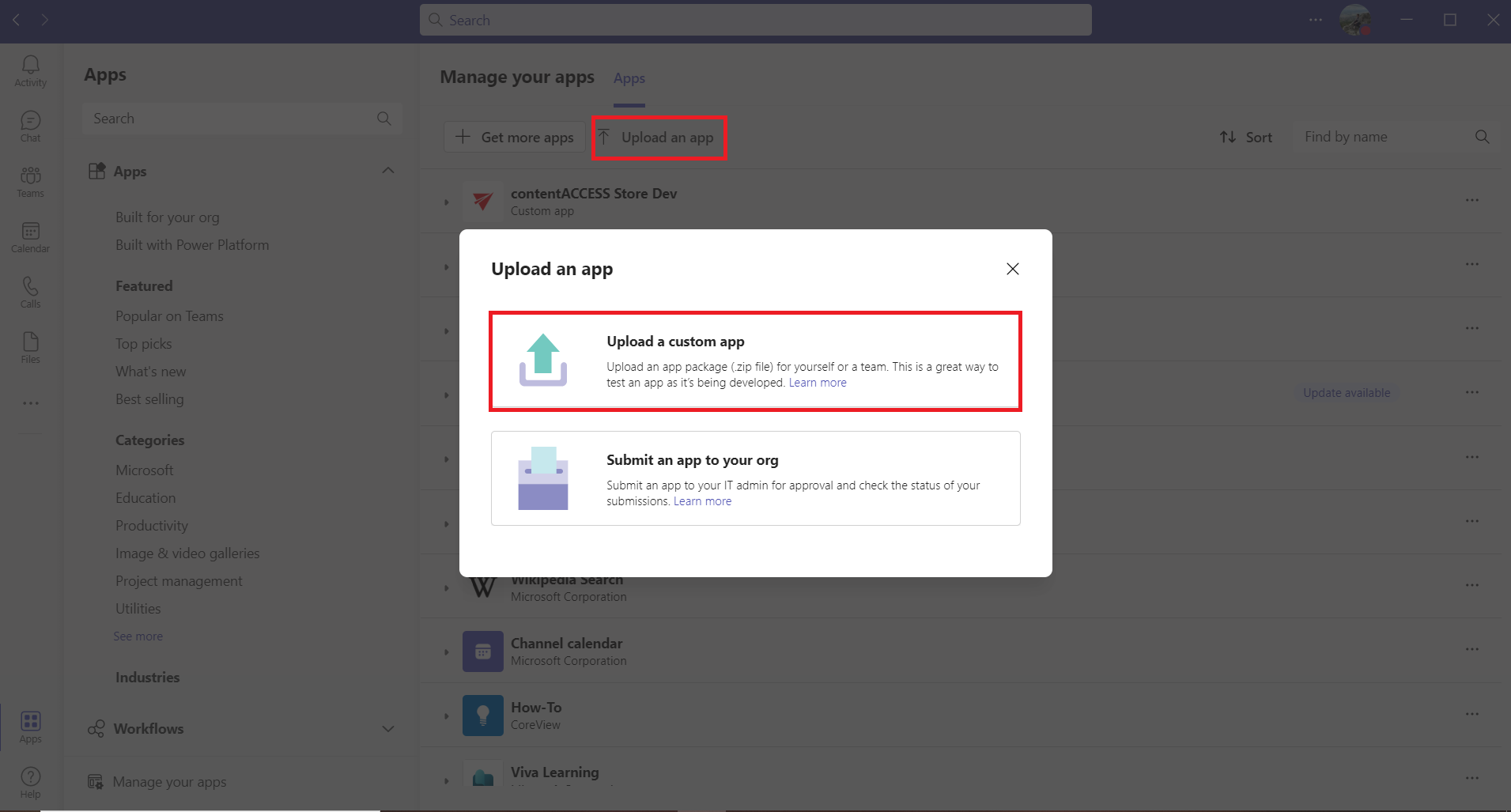
- Click Upload an app and then select Upload a custom app.
- Locate the installation package you downloaded earlier and click Open.
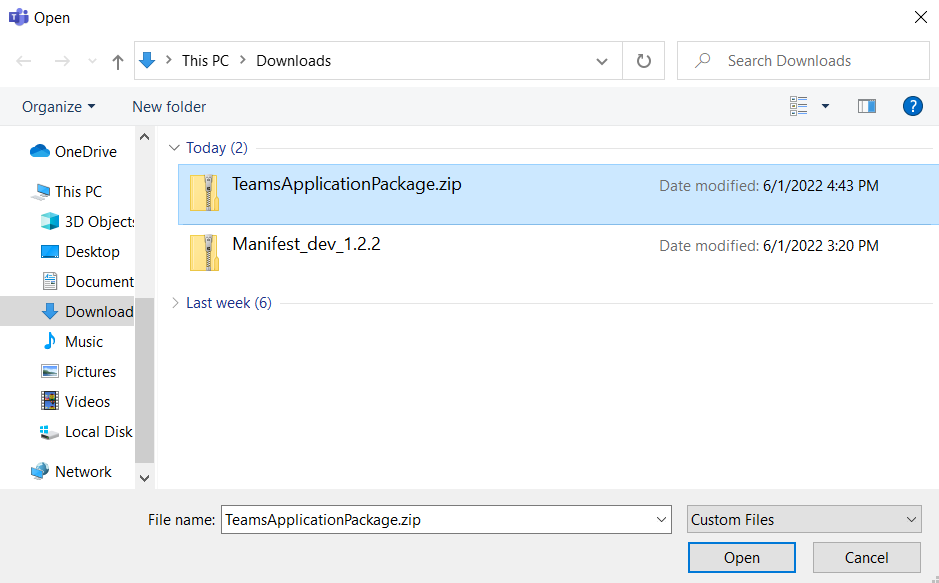
Select one of the following options:
- Add – Adds the app to all chats and teams for the current user. This is the recommended option.
- Add to a team – Adds the app to a specific team.
- Add to a chat – Adds the app to a specific chat.
- Add to a meeting – Adds the app to a specific meeting.
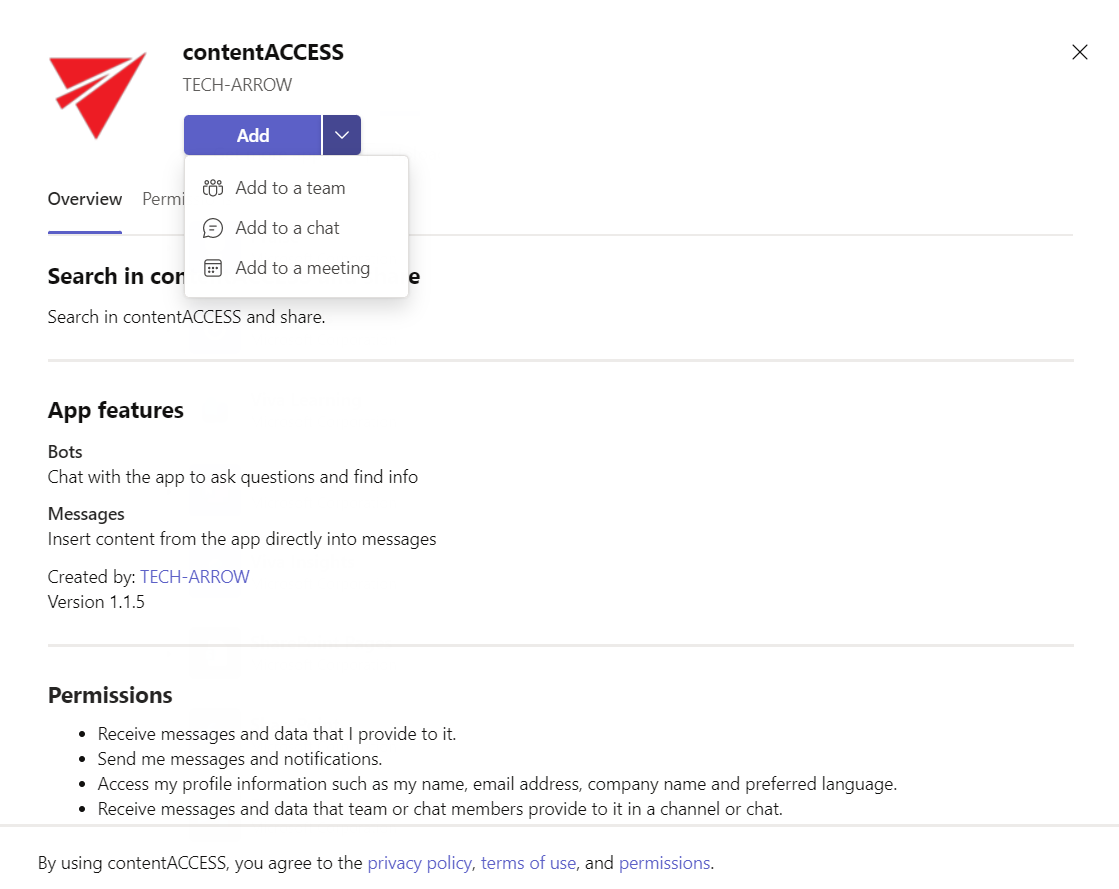
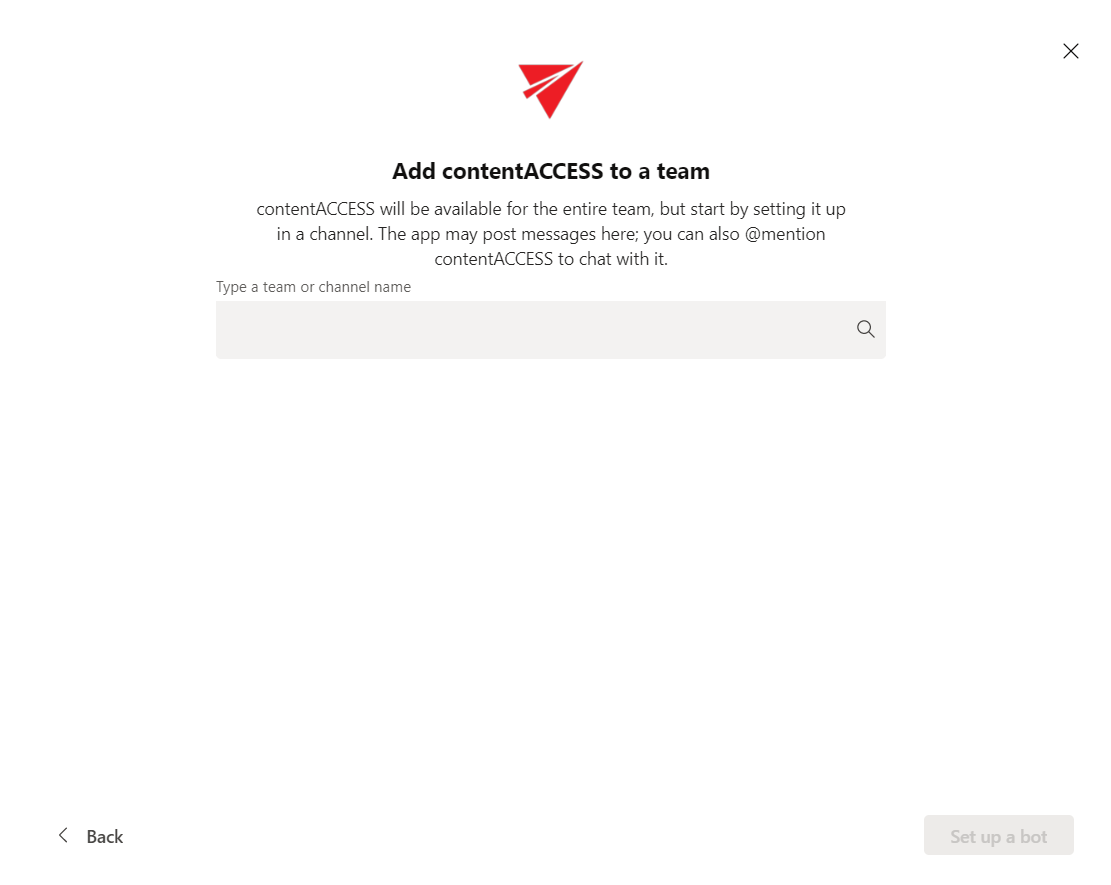
When installing the app for a team, you can choose between Set up a tab and Set up a bot. For a chat or meeting, only Set up a bot is available.
The bot forwards calls to the Teams service.
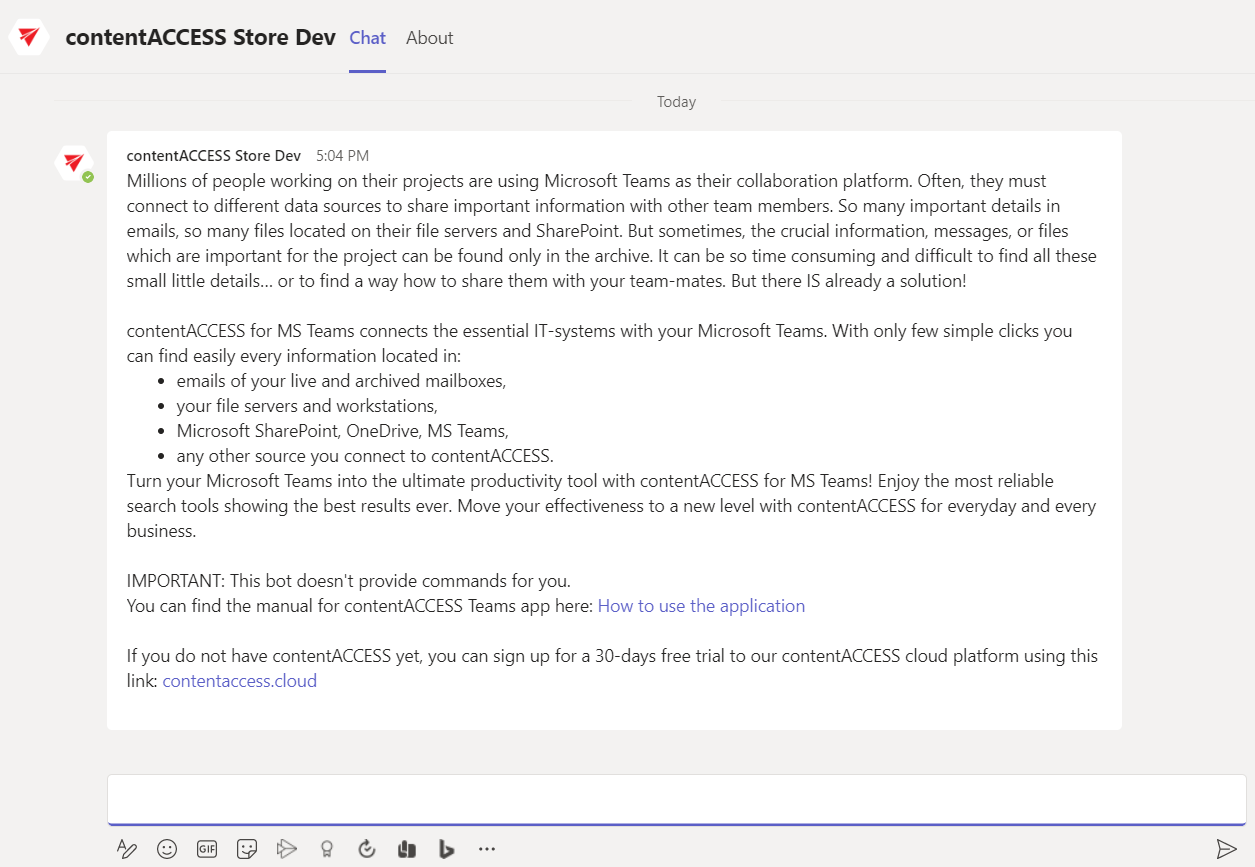
After the app is installed, the chat with the contentACCESS bot opens. The bot forwards calls to the Teams service, and you can switch to the desired chat.
Configuration
After the app has been uploaded and added to Microsoft Teams, the setup is essentially complete. In most cases, no further configuration is required.
Microsoft Teams automatically retrieves the required data, such as the URL and Tenant ID, using the Application ID generated earlier.