Installation for end users
Introduction
The TeamsSearchApp can be installed directly by end users from Microsoft Teams once the application package has been made available in the organization.
This page provides a step-by-step guide to the end-user installation process. It explains how to find the TeamsSearchApp in Microsoft Teams, start the installation, and choose how the application should be added.
You will also learn about the different installation options, including adding the app to your own Teams environment, a specific team, chat, or meeting. The page explains the difference between setting up a tab and a bot when installing the app for a team, and describes how the contentACCESS bot connects the application to the Teams service.
Finally, the page explains what happens after the installation is completed, including the automatically opened bot chat and whether any additional end-user configuration is required.
Note: Before you begin, make sure the TeamsSearchApp package is already available in your organization.
Install the app in Microsoft Teams
To install the TeamsSearchApp:
- Open Microsoft Teams.
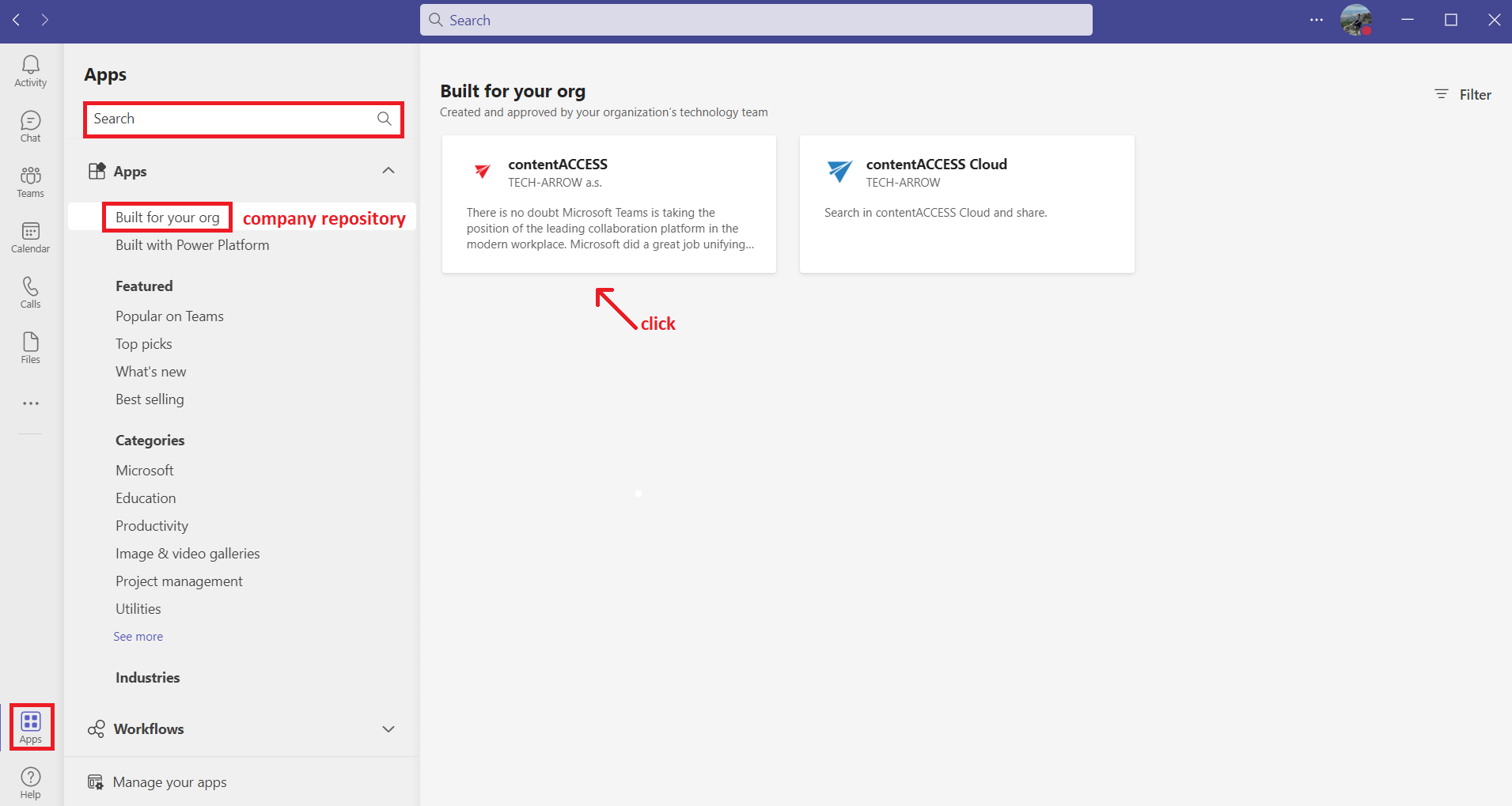
- Go to Apps in the lower-left corner.
- Find the TeamsSearchApp in the company repository or search for it.
- Click the app to start the installation.
Choose how to add the app
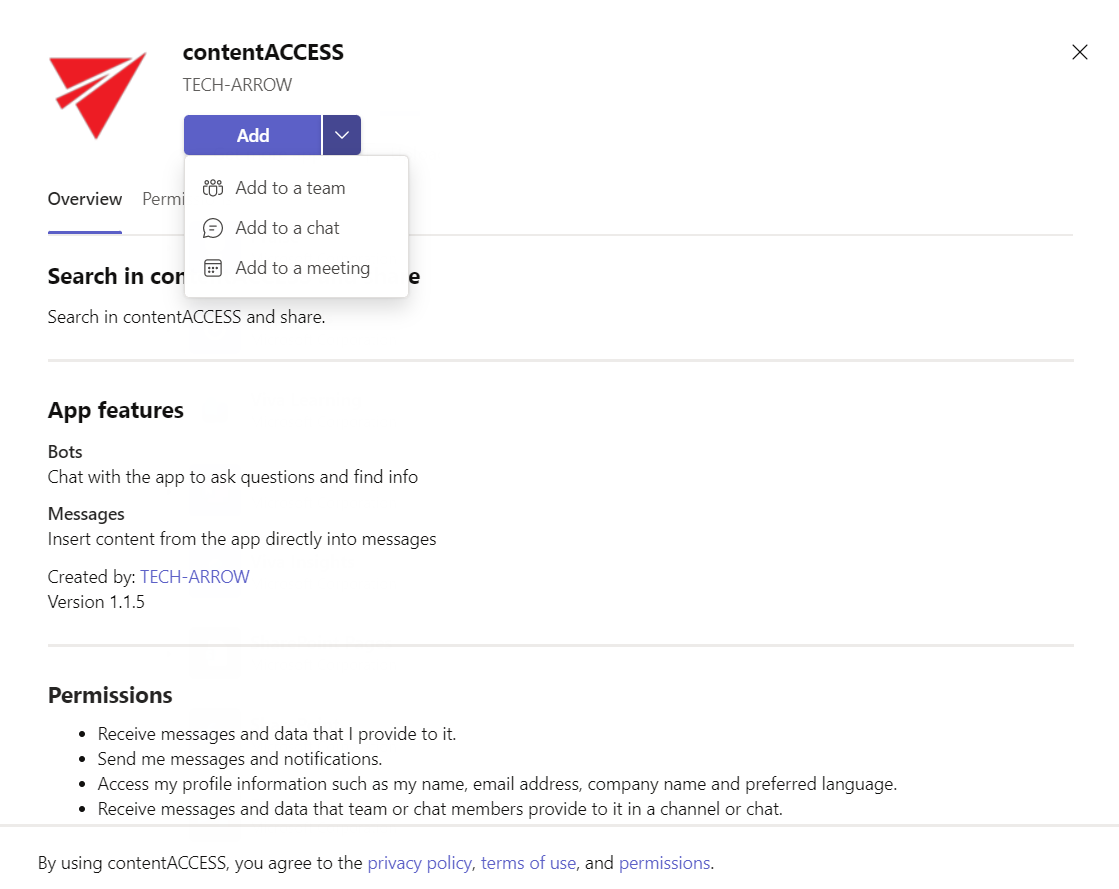
Select one of the following options:
- Add – Adds the app to all chats and teams for the current user.
- Add to a team – Adds the app to a specific team.
- Add to a chat – Adds the app to a specific chat.
- Add to a meeting – Adds the app to a specific meeting.
The recommended option is Add.
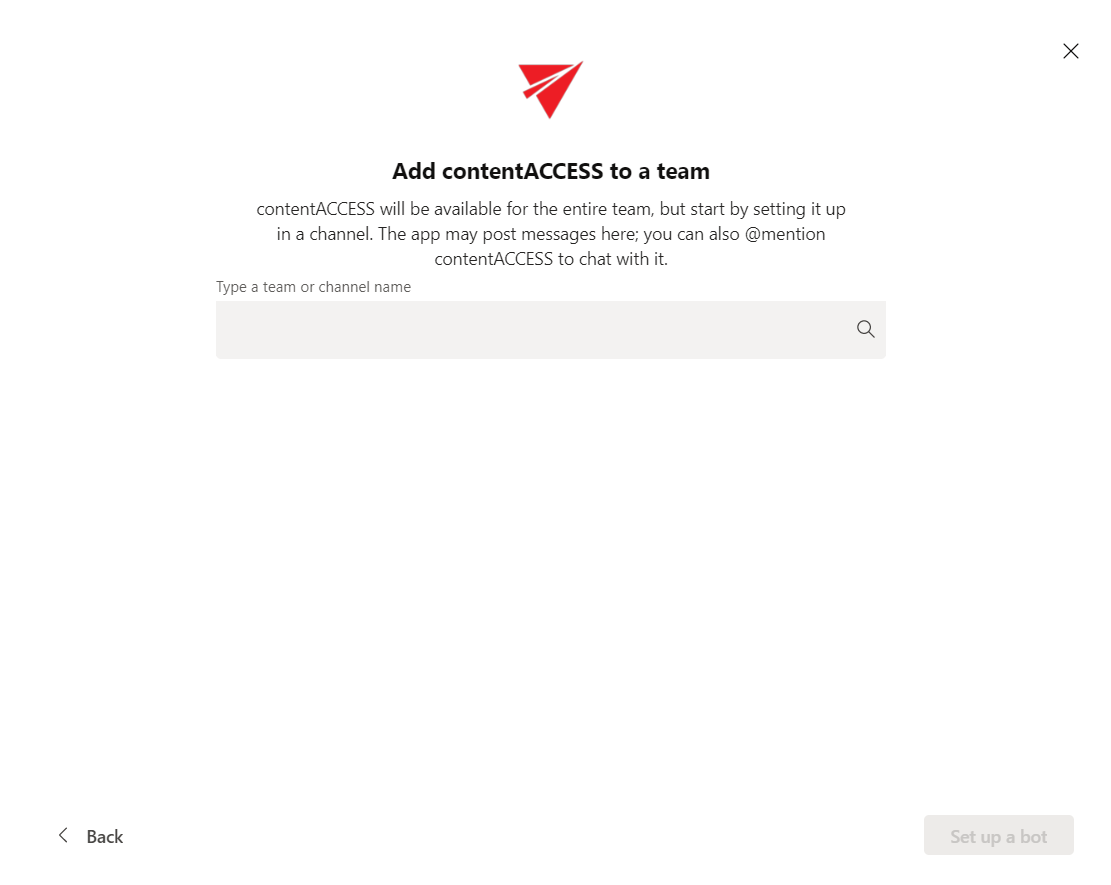
When installing the app for a team, you can choose between Set up a tab and Set up a bot. For a chat or meeting, only Set up a bot is available.
The bot forwards calls to the Teams service.
After installation
After the app is installed, a chat with the contentACCESS bot opens automatically. The bot forwards calls to the Teams service, and you can then switch to the chat where you want to use the app.
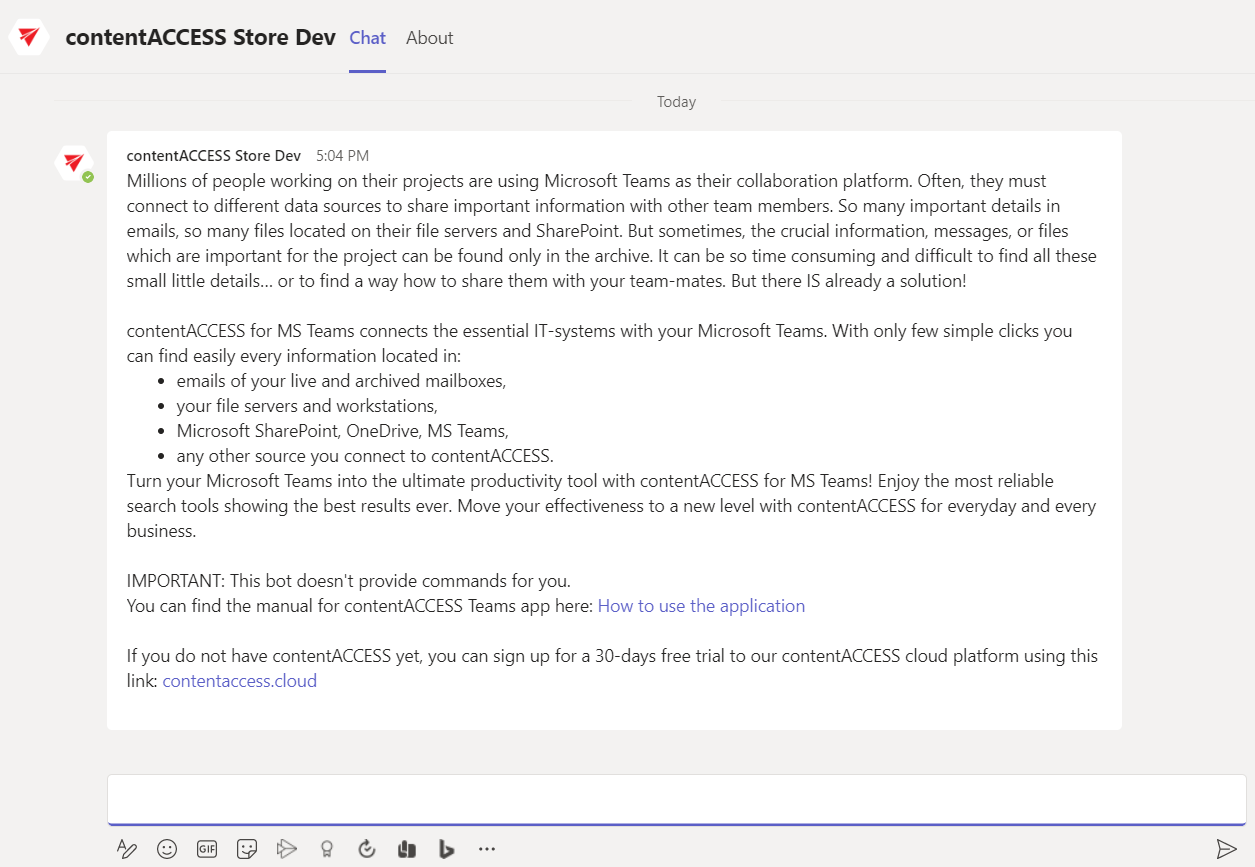
In most cases, no additional end-user configuration is required after this step.