Opening modern shortcuts in TeamsSearchApp
Introduction
The TeamsSearchApp allows users to open files archived using modern shortcuts directly from Microsoft Teams.
This page explains how modern shortcut files work in Microsoft Teams and how to open the original archived files instead of the shortcut files. It also describes the limitation that occurs when a shortcut file is opened directly from a Teams post.
When modern shortcut files are available in the selected team, users can open the original archived files through the TeamsSearchApp.
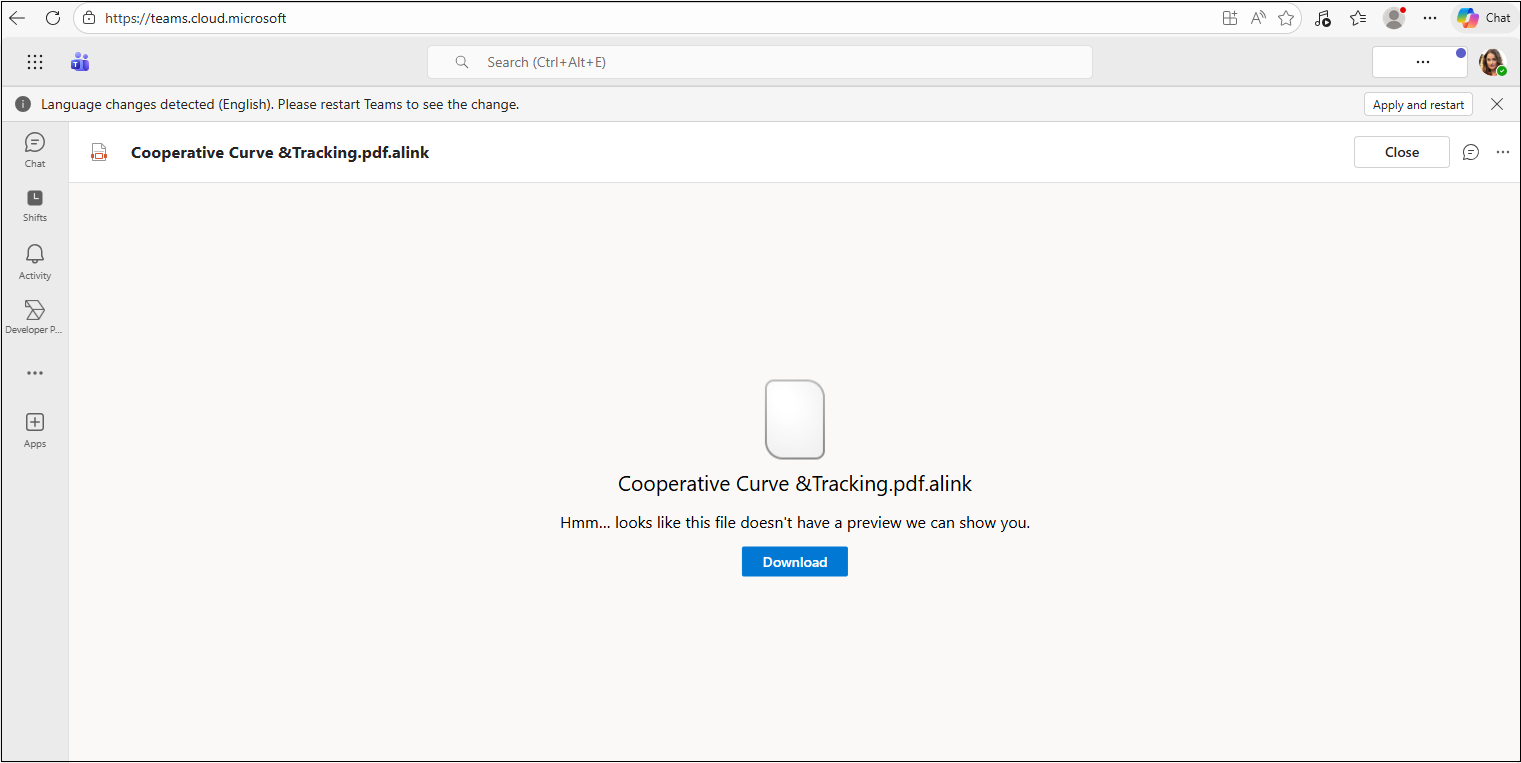
If you click a shortcut file directly in a Teams post, Microsoft Teams attempts to open the shortcut in .alink format instead of the original archived file. As a result, the actual file content is not displayed.
Open an archived file
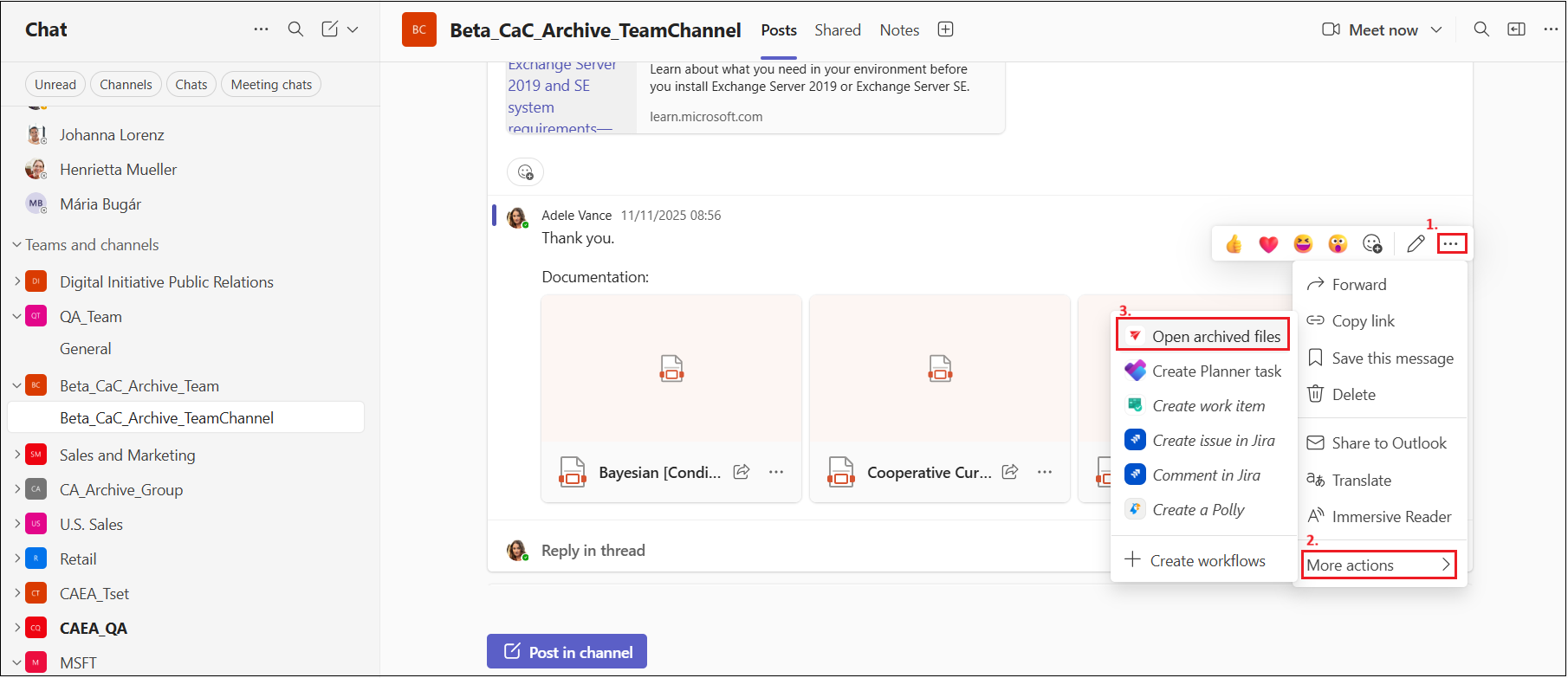
To open a file archived using a modern shortcut:
-
In the post containing the shortcut file, click the Context menu
…. -
Select Open archived files.
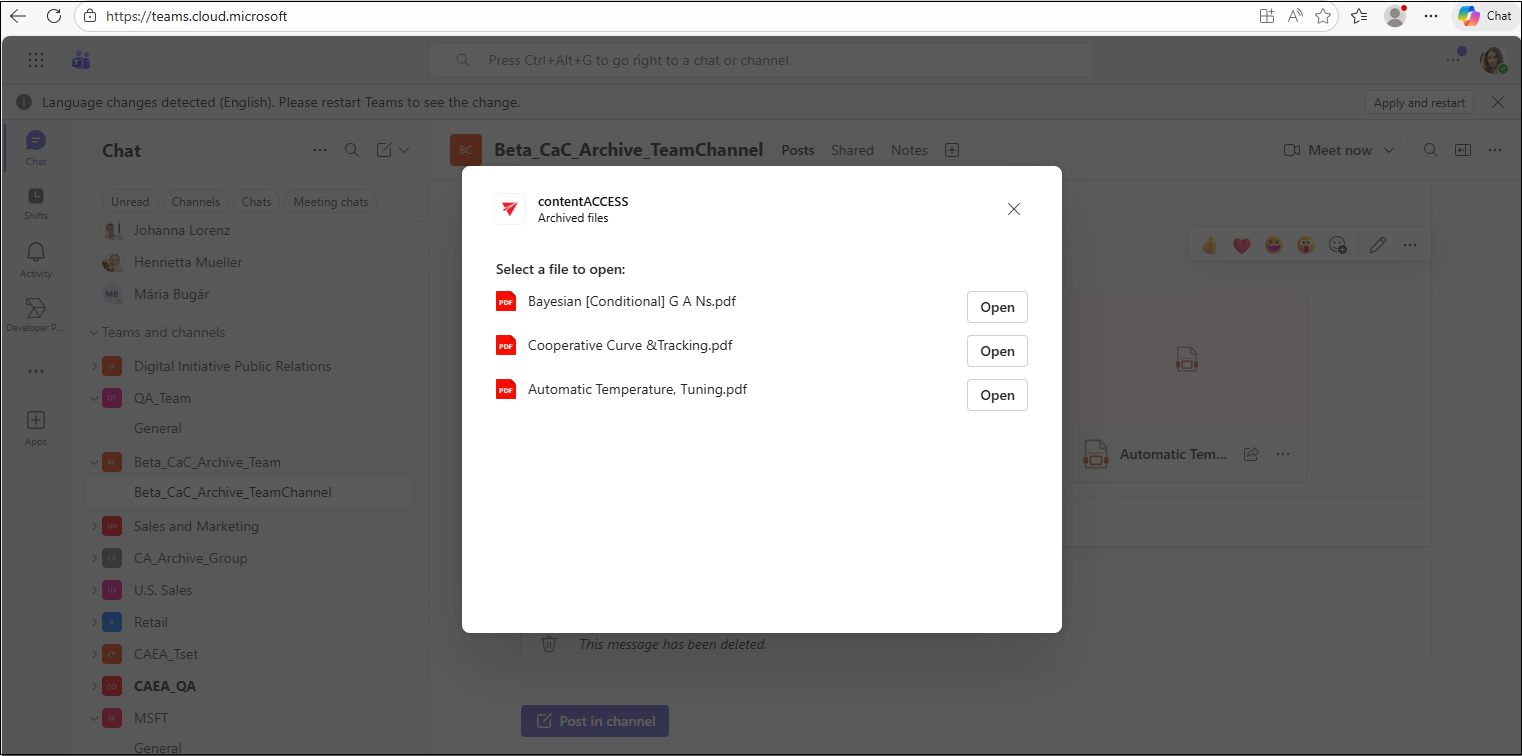
A contentACCESS window opens. On first use, you must sign in.
- Click the Sign in link.
- Sign in on the contentACCESS login page that opens in a new browser window.
After successfully signing in, you are automatically redirected to Microsoft Teams. The contentACCESS window displays the archived files with the Open button.
Grant application consent
If consent has not previously been granted for the application, the following Microsoft message box is displayed on the login page when you sign in with the selected user.
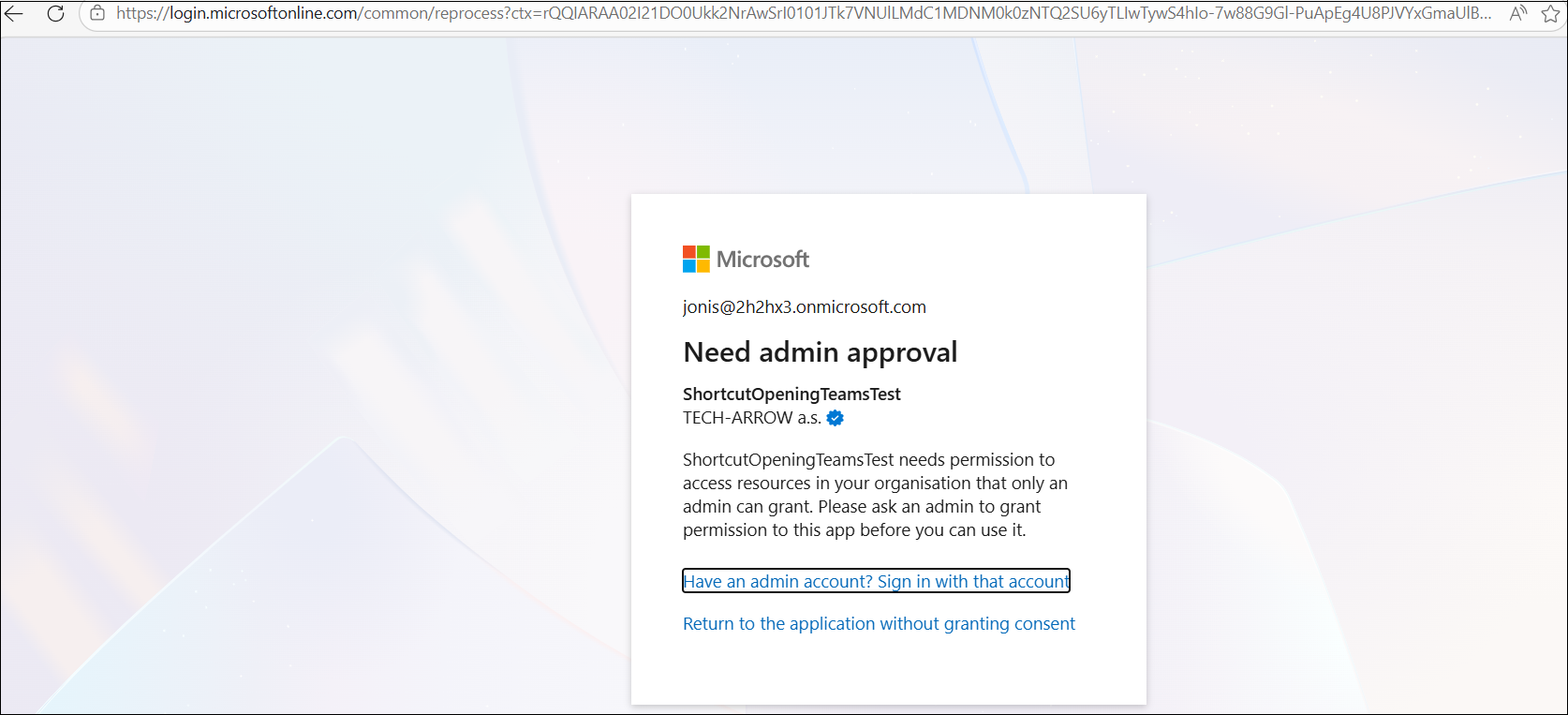
To grant consent:
-
Go to the Azure Portal and open Enterprise applications.
-
Search for the application by name, for example,
ShortcutOpeningTeamsTest. -
Select the application.
-
Navigate to Permissions.
-
Click Grant admin consent for TENANTNAME.
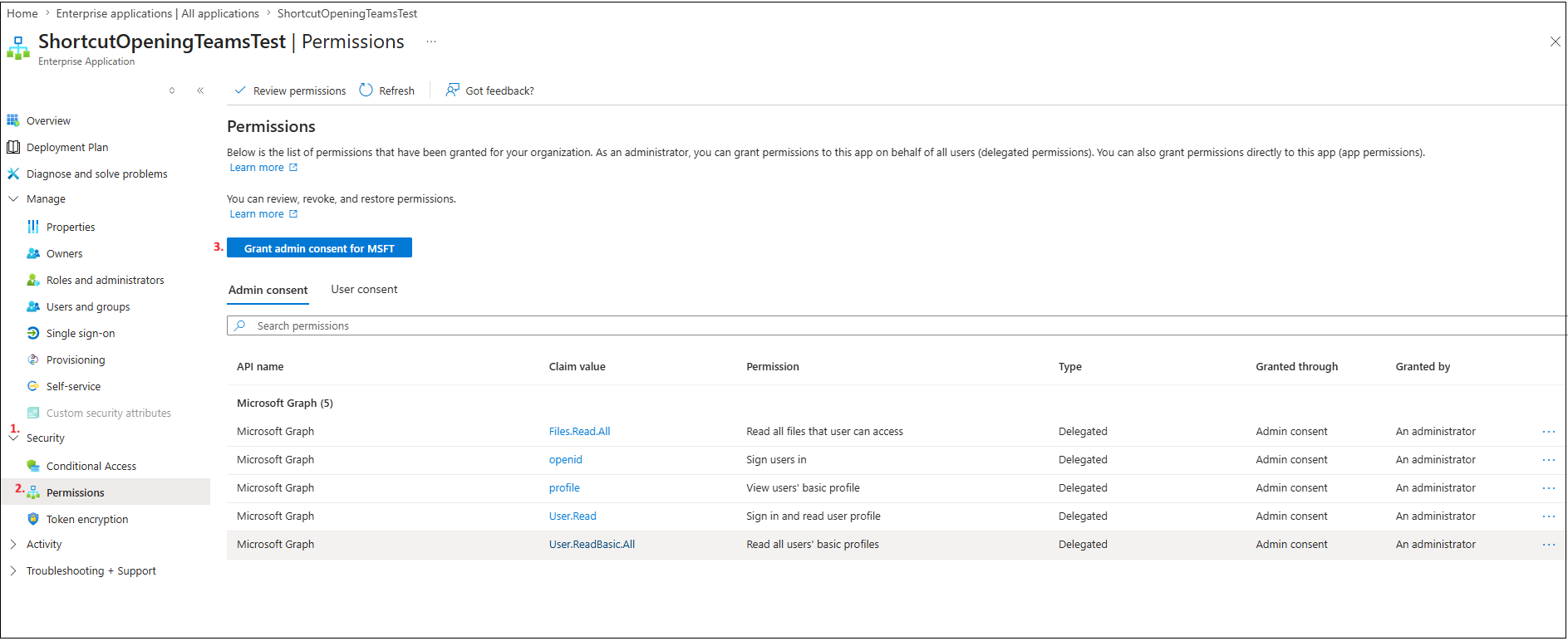
After granting consent, return to Microsoft Teams and sign in again. The contentACCESS window with the archived files is then available.
Preview an archived file
Click Open to open the selected archived file.
The first time you open a file, the contentACCESS login page may be displayed again. After signing in, the preview of the selected file opens.
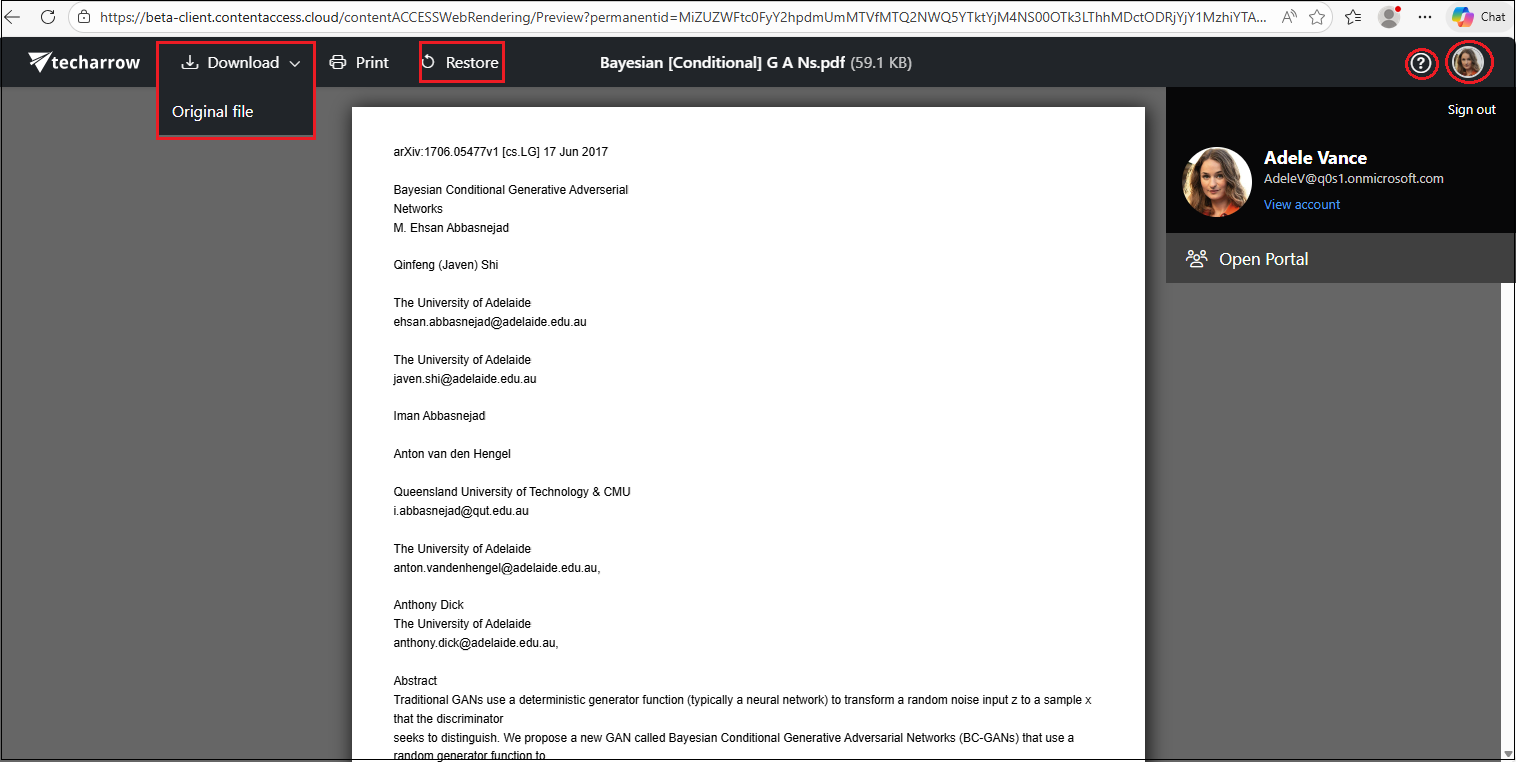
From the preview, you can:
- Download the original document.
- Save the document as a PDF if it is not already a PDF.
- Restore the shortcut.
Additional preview options
The preview also provides the following options:
- Click the question mark (?) to open the relevant chapter of the contentACCESS Portal manual about file previews.
- Click the user's profile picture, or monogram if no profile picture has been set, in the top-right corner to open the user menu.
- Click View account to access the signed-in user's profile.
- Click Open Portal to open the folder or entity containing the archived file in the contentACCESS Portal.
- Click Sign out to sign out of the current user.
Restore an archived file
To restore the file from the preview, click Restore.
The Restore in progress window is displayed while the restoration is being performed. When the process is complete, the Restore is done! message is displayed.
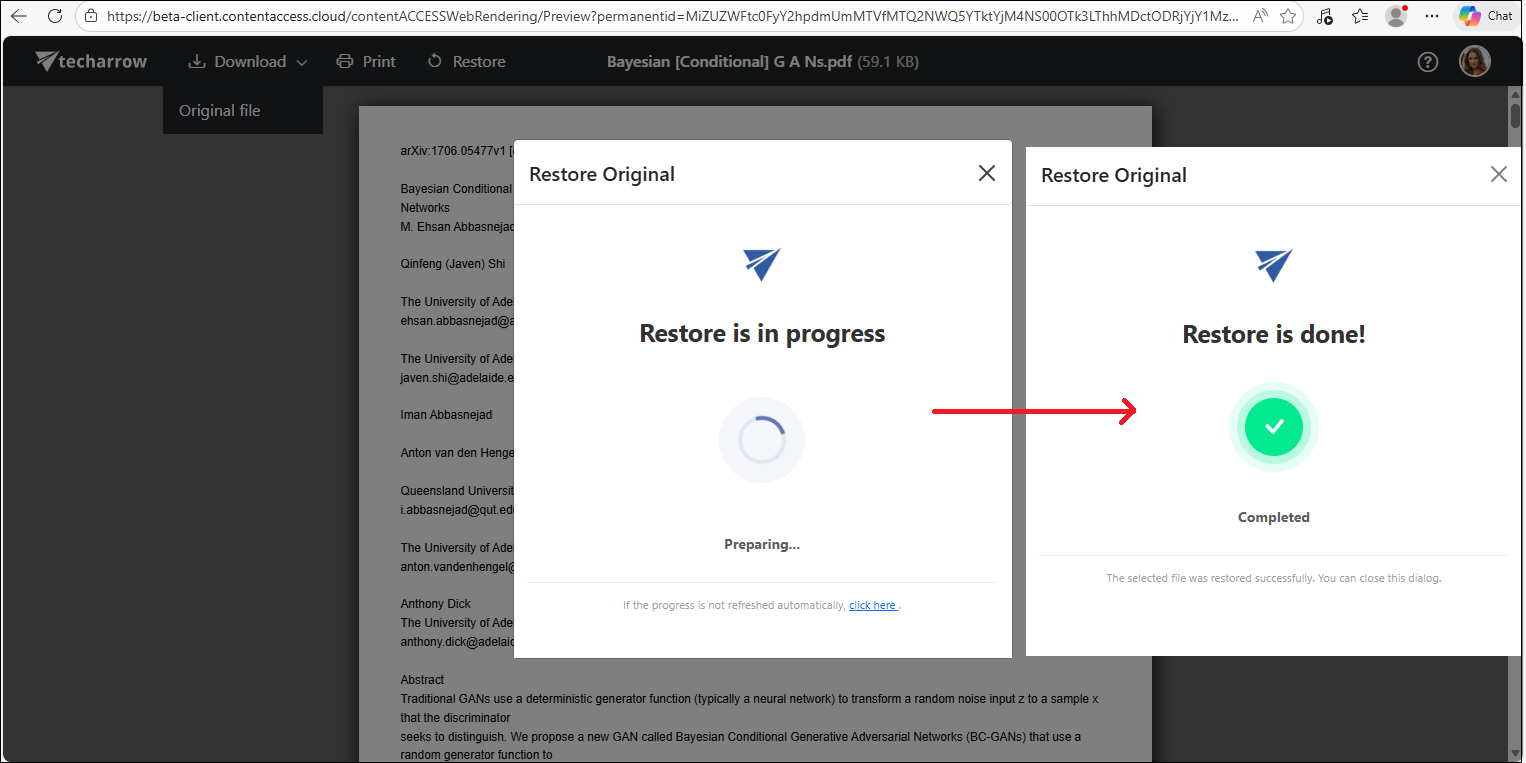
Close the preview after the restoration is complete. The file is then available again in Microsoft Teams in its original format.