Installation
Introduction
The contentACCESS Virtual Drive installation process allows you to install the virtual drive service on your computer and configure the account under which the service runs. This page guides you through the installation wizard, including accepting the license agreement, selecting the installation folder, configuring the service logon information, and completing the installation.
Install the Virtual Drive
Download and run the VirtualDrive_x64.exe setup package. By default, the package is extracted to the C:\TECH-ARROW\contentACCESS_Package\Setups\contentACCESS directory.
-
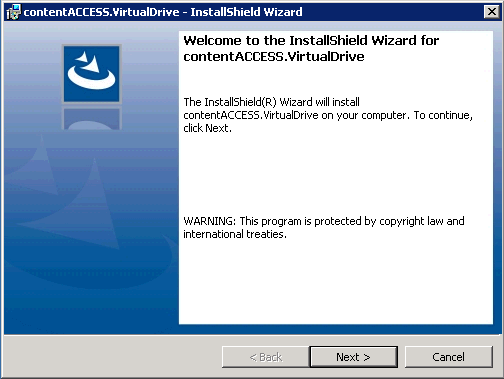
In the following window, click Next.
-
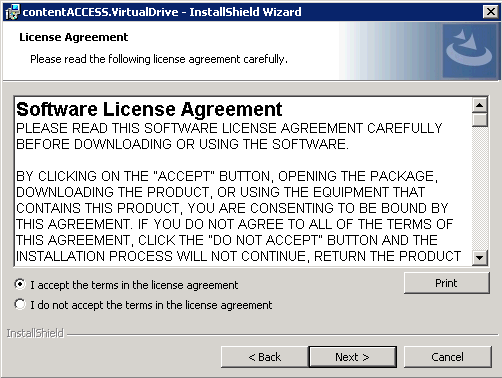
EULA – After carefully reading the Software License Agreement, select I accept the terms in the license agreement and click Next.
-
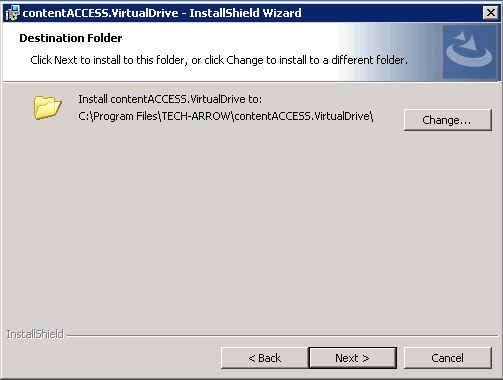
Destination folder – Select the destination folder. By default, the product is installed in the
C:\Program Files\TECH-ARROW\contentACCESS.VirtualDrivefolder.To change the installation folder, click Change. Click Next.
-
Logon information – Specify the username and password of the user under whom the Virtual Drive service will run.
The user account must be specified in the
Domain\Usernameformat. You can also use LocalSystem, which does not require a password.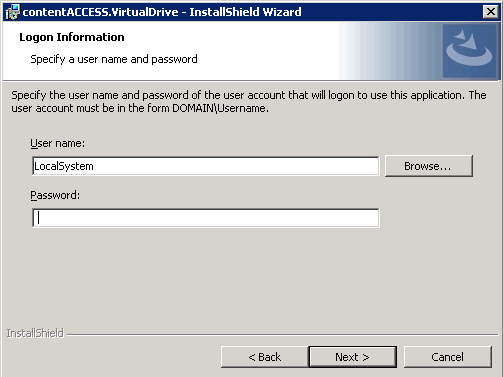
If you do not want to use LocalSystem, click Browse to specify a domain user.

Click OK.
-
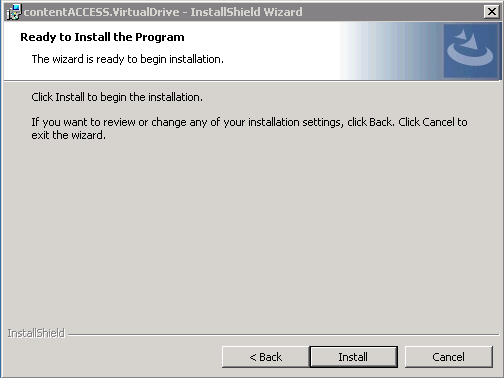
In the final installation step, click Install and wait until the wizard completes the installation.
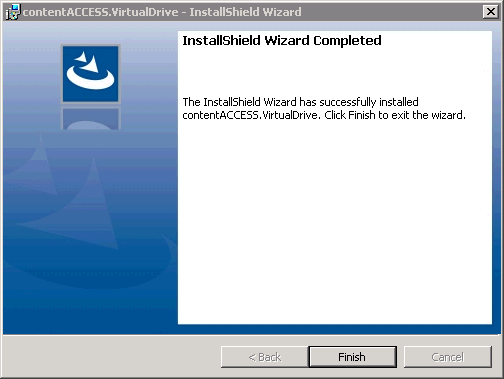
When the installation is complete, click Finish.